CMS GUIDE
Table of Contents
Style Management
The following options are available in the "Style" dropdown menu of the Custom HTML Module Editor.
Logo:


Colors:
Ochsner Health Blue
Hex: #13477d
Ochsner Health Gold
Hex: #f0ad00
Dark Blue
Hex: #072b61
lightBlue
Hex: #0075c9
Teal
Hex: #27b1bd
LightGreen
Hex: #6cb33e
Purple
Hex: #ad63a7
Orange
Hex: #f38f1d
Magenta
Hex: #e7488a
Coral
Hex: #e96557
Red
Hex: #d41f2a
LightGrey
Hex: #d9d8d6
Black
Hex: #000000
MediumGrey
Hex: #757679
Typography:
H1 Gotham Bold 42pt Lorem ipsum
H2 Gotham Bold 36pt Lorem ipsum
H3 Gotham Bold 30pt Lorem ipsum
Para 16: Body copy 16pt Lorem ipsum odor amet, consectetuer adipiscing elit. Eu penatibus viverra sodales aliquam magna hac maecenas ligula. Ipsum aptent semper ut nulla ipsum tempus est nam nibh. Iaculis luctus interdum sed turpis lobortis morbi tempor. Venenatis euismod tempus ipsum dolor parturient a molestie laoreet.
- Lorem ipsum odor amet
- Lorem ipsum odor amet
Animated Script


Text & Background Color:
♦ Color Dark Blue
♦ Color Medium Gray
♦ Color Medium Blue
♦ Color Light Blue
♦ Color Black
Buttons & Links:
This is an Inline Link.
*Use your mouse to hover over links in order to see their hover states.
**Before applying any of these link styles, make sure that the element you're applying the style to is ALREADY a link. See Custom HTML Modules: Content Editor (WYSIWYG) FAQs to learn how to add a link inside your content editor.
Spacing:
Lorem ipsum dolor sit amet.
↑ Margin Top 10px
Lorem ipsum dolor sit amet.
↑ Margin Top 15px
Lorem ipsum dolor sit amet.
↑ Margin Top 20px
Lorem ipsum dolor sit amet.
↑ Margin Top 32px
Page Templates
What page templates are available to create new pages with?
The following page templates are available in the "CMS Primary Theme" theme:
- CMS Template - Allied Health
- CMS Template - Benefits
- CMS Template - Culture
- CMS Template - Nursing
- CMS Template - Physicians
- CMS Template - Stories
- CMS Template - Students
In which theme should I create my page? / Which theme should my page be assigned to?
To use one of the page templates, you must create your page inside the theme where the desired page template resides. You may later assign the page to another theme if needed.
See General Advice & FAQs for more details.
What if I don't need all the sections used in a template?
Before using a CMS page template to create a page, determine if you’re going to need all the sections used in that template. Then, after using the template to create a new page, remove the sections from the page which aren’t needed BEFORE SAVING THE NEW PAGE. This prevents those sections from ever being created and we avoid cluttering the system with unused sections and modules.
Can I create a CMS page without using one of the CMS Page Templates?
Custom HTML Modules: Content Editor (WYSIWYG) FAQs
How do I replace placeholder ("lorem ipsum") or unwanted text content?
The content editor can be finicky. To replace placeholder or unwanted text, we recommend that you first click the “BLOCKS” button in the toolbar to reveal outlines surrounding block-level elements. Then, select the text you wish to replace and type in your desired text. Or, you can place your cursor at the end of the text you want to replace, add your desired text, and then select and delete the placeholder text preceding it. We do NOT recommend selecting all placeholder text in the editor and deleting it before you add your desired content. As a result you may accidentally erase necessary markup that the content depends on. It is always best to edit text elements one at a time rather than deleting everything you don’t want from the start.
Can I copy/paste from other sources?
Be very careful when copy/pasting text content from other sources into a Custom HTML module's content editor. When copying from an external document, take steps to ensure the text you are copying is plain text (as opposed to rich text.) When copying from a web page, make sure you are ONLY including text and not actual HTML tags (<p>, <br>, etc.) as this could result in unintended styling/format inconsistencies.
How do I change the appearance of text content (color, font size, etc)?
The "STYLE" dropdown in the toolbar can be used to edit the styling/appearance of content. Keep in mind that when you add a style from the dropdown, it does not overwrite other styles previously applied to the element. This allows greater flexibility in cases where you may need more than one style applied, but you will need to remember to uncheck undesired styles after applying them.
Please refer to Style Management for examples of classes/styles you may apply.
Keep in mind that changing the appearance or styles of text should be done SPARINGLY - for the sake of consistency across pages, it is best to stick with the module's default styling whenever possible.
How do I add/edit a link?
The "insert/edit link" button in the toolbar is used to create and modify links:
To create a new link, type your desired link text within the content editor, select it, and then click the "insert/edit link" button. This may be tricky if you're creating a new link next to an already-existing link. To do this, place your cursor at the end of the existing link's text and then press the right arrow key, so your cursor is outside the existing link. Then, type the new link's text, select it and click the "insert/edit link" button.
To modify an existing link, click into the middle of the link text within the content editor, then click the "insert/edit link" button.
Note: Using proper link text is very important. For more details, see "Does it matter what I use for [clickable] link text?" in General Advice & FAQs.
How do I add/edit an image?
The "asset picker" button in the toolbar allows you to add images into the content editor. To modify an existing asset, click the asset and then click the "asset picker" button. Not all custom HTML modules were made with the intent to have an image placed in them. (Tip: If your default placeholder content did not contain an image, you should probably avoid adding one with this tool.)
Note: If you're including an image in a Custom HTML module, remember to consider the image alt text (which is editable through the "asset picker" button), and include a value when necessary. For more details, see "Do I need to update/include alt text for every image?" in General Advice & FAQs.
How do I add a code snippet?
The "insert code snippet" button in the toolbar adds pre-made snippets of code into the content editor. Note that code snippets are often (but not always) used as a way to revert either the entire content of a Custom HTML Module to its default state, or to revert a part of its content to its original state. In many cases you will not need to use code snippets unless you're attempting to "fix" a module (i.e. bring back original content which was since removed.)
Additionally, code snippets are used as a way to add specific html into your content editor that is either difficult or impossible to achieve without editing the actual source code.
IMPORTANT: Be very careful to only use code snippets that are intended for use in the specific module you’re editing. In most cases the name of the code snippet should partially or exactly match the name of the module you’re editing. A list of all code snippets that are intended for use within a module will appear in that module's parent section's documentation in the Section Guide. Do not use a code snippet when the section name in the title of the code snippet does not match the section you are currently editing. For example, if you're editing a section created from a section template labeled as "Section 1" you should only be using code snippets whose titles include "Section 1."
I've messed up my edits and would like to revert to the original "lorem ipsum" placeholder content. Is there a way to do that?
Check to see if the module you're editing has a default code snippet available. The name of the snippet should match the name of your module (minus the given section name prefix.) If so, you may delete the entire content and then insert the appropriate code snippet. Some modules don't have default code snippets available, but they may have other snippets which could replace specific portions of your content.
Does it matter which levels of headings (H1, H2, etc) I use in my content?
Yes. For SEO and accessibility purposes, it is important that your page’s heading structure is hierarchical. This means that your page’s top heading needs to be an h1 heading.
You should also be careful to avoid skipping heading levels (i.e. using an h3 heading before an h2 has been used, etc.) If you need to change the appearance of a heading without changing the level, apply one of the heading classes from the content editor's "STYLE" dropdown (see Style Management for a list of these heading style classes.)
General Advice & FAQs
How can I ensure that my content will be accessible to all users?
Be sure to follow all recommendations and instructions given in this guide, particularly the recommendations involving link text, image alt text, and heading levels. To learn more about accessibility, please see Accessibility for Radancy CMS Publishers.
Can I change the layout assignment of a page/section/module?
You should never change a layout assignment unless specifically instructed to do so in the relevant section's documentation found in the Section Guide. This will almost always lead to unintended results.
Can I add a module to a section?
You should never add a module to a section unless specifically instructed to do so in the relevant section's documentation found in the Section Guide. This will almost always lead to unintended results.
When I'm adding a section from the "Add New" section menu to a page, what should I name my new section?
To avoid future confusion, especially for other CMS users who may need to edit/update the content you're creating, naming conventions should be consistent throughout the site. When creating a section that you anticipate will only be used on the page you're adding it to, we recommend the following naming convention: [Page Name OR Abbreviated Page Name] - [Section Template Name] [Number (only include if you anticipate other sections of the same template will be added to the same page.)] For example, "Benefits - Full Width Copy" or "DEI - Full Width Copy 1." If you anticipate that the section you're creating may be used on other pages as well, we suggest giving it a name that summarizes its purpose/intent rather than its content or context (which may change or be updated later.) For example, "Human Resources Job List" or "Annual Job Fair CTA."
Note: While you CAN change a section's name after creating it, you will NOT be able to change the names of the modules included in the section (which will, by default, include the ORIGINAL section name.) So we recommend that you carefully choose a good name for each section you create.
Can I create a CMS page without using one of the CMS Page Templates?
Yes, but this is not recommended as creating a page without using a CMS Page Template will require you to select a page layout. To avoid selecting the incorrect layout, we recommend using one of the available CMS Page Templates, in all cases.
If you are looking to create a "blank" page, see the next question.
How do I create a "blank" page?
To create a blank page, click the "Add Page" button in the "CMS Primary Theme" theme and select the [TEMPLATE NAME] page template.
Which theme should my page be assigned to?
All CMS pages should be assigned to the "CMS Primary Theme" theme.
DO NOT assign any CMS pages to the "Default Theme (GST)" theme. This theme is enabled for CMS due to system requirements, but it is NOT intended to be used as a theme for CMS Pages.
Do I need to update/include alt text for every image?
Every time you add or replace an image file, you should consider whether to include alt text for the image. In some cases, such as when the image is considered descriptive and not essential to the page content, alt text may be left blank. For more details, please see this alt text decision tree. Not only are these considerations essential in making the site accessible to non-visual users, it will also improve SEO.
Does it matter what I use for [clickable] link text?
It matters a lot. To make links accessible to all users, use link text that would make sense to users if taken out of the surrounding context. For example, "learn more about our benefits" is acceptable, whereas "click here" or "learn more" are not. This is important in all situations but be particularly careful when adding/editing links inside Custom HTML modules, as you'll have full control over what text is included in a link.
How do I update/add a hero banner to my page?
[INCLUDE HERO BANNER INSTRUCTIONS HERE]
CMS User Notes
How can I add to or update the notes to this section?
Find this section (title: "[INCLUDE SECTION NAME HERE]") in your section list and edit its "[INCLUDE MODULE NAME HERE]" module to add as many notes as you'd like right here. Be careful to not delete this instructional text, so that it may be referenced later on.
Add your notes below:
Section Guide
Important! Before using a section from this guide, please read the corresponding documentation for that section. Documentation is found above each section in this guide.
Note that section titles are color coded based on which menu they can be found in after clicking the "add section" button on any page:
Red - find this section in the "Use Existing" Menu.
Green - find this section in the "Add New" Menu.
Keep in mind that when you edit a section from the "Use Existing" Menu, you are editing every instance of that section. Sections added via the "Add New" Menu are safe to be edited freely, as a new instance of the section is created every time it's added to a page.
Copy - (Section 0)
Notes: N/A
Available Code Snippets: Yes
- V2 - Section 0 - Copy: Use this snippet to "reset" any "V2 - Section 0 - Copy" Module to its default state. Before using, be sure to delete all content in the content editor.
Copy - (Section 0a)
Notes: See Section 0
Available Code Snippets: Yes
- V2 - Section 0 - Copy: Use this snippet to "reset" any "V2 - Section 0 - Copy" Module to its default state. Before using, be sure to delete all content in the content editor.
Banner Form - (Section 1)
Suggested Use: [suggested use case(s)]
Notes: [section notes/instructions]
Available Code Snippets: N/A

Banner Form - (Section 1a)
Suggested Use: [suggested use case(s)]
Notes: [section notes/instructions]
Available Code Snippets: N/A
Banner Form - (Section 1b)
Suggested Use: [suggested use case(s)]
Notes: [section notes/instructions]
Available Code Snippets: N/A
 Were Called
to Support
Banner - (Section 2)
Suggested Use:Banner - (Section 2): This section can only be implemented by the developer, and there’s a separate HTML module for the video. The heading and paragraph are also in separate HTML modules. It should be implemented exactly the same way as it is on the homepage.
Notes: The text is editable, and a code snippet is also available. However, if this banner needs to be used, it can only be implemented by a developer.
Available Code Snippets: Yes
- V2 - Section 2 - Heading: Use this snippet to "reset" any "V2 - Section 2 - Heading" Module to its default state. Before using, be sure to delete all content in the content editor.
- V2 - Section 2 - Para: Use this snippet to "reset" any "V2 - Section 2 - Para" Module to its default state. Before using, be sure to delete all content in the content editor.
Copy & Image - (Section 3)
Suggested Use: N/A
Notes: N/A
Available Code Snippets: Yes
- V2 - Section 3 - Copy: Use this snippet to "reset" any "V2 - Section 3 - Copy" Module to its default state. Before using, be sure to delete all content in the content editor.
Heading Lorem Ipsum
See All Events
Image & Copy - (Section 3a)
Suggested Use: N/A
Notes: N/A
Available Code Snippets: Yes
- V2 - Section 3 - Copy: Use this snippet to "reset" any "V2 - Section 3 - Copy" Module to its default state. Before using, be sure to delete all content in the content editor.
Heading Lorem Ipsum
See All Events
Career Slider - (Section 4)
Suggested Use: You can implement this section in the same way it has been used on the homepage.
Notes:
- 1. When you add this section to any page from the 'Add New' list, remove the existing layout module. Then, create a new layout module, copy the code from the existing layout module, and paste it into the new layout module. After that, you can customize it according to your requirements.
- 2. This can only be implemented by a developer.
Available Code Snippets: N/A

Career Slider - (Section 4a)
Suggested Use: You can implement this section in the same way it has been used on the homepage.
Notes:
- 1. In this section, you can use a maximum of 4 List (fewer is also fine).
- 2. Please note that on mobile view, this section appears as a slider so edit accordingly.
- 3. When you add this section to any page from the 'Add New' list, remove the existing layout module. Then, create a new layout module, copy the code from the existing layout module, and paste it into the new layout module. After that, you can customize it according to your requirements.
- 4. This can only be implemented by a developer.
Available Code Snippets: N/A
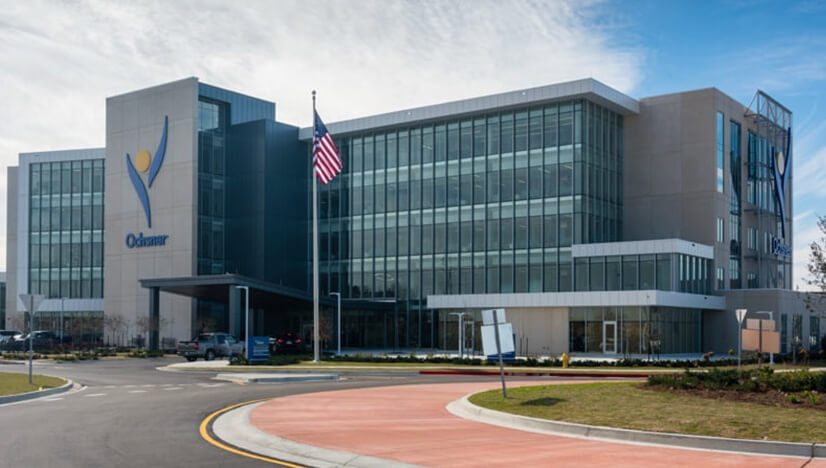
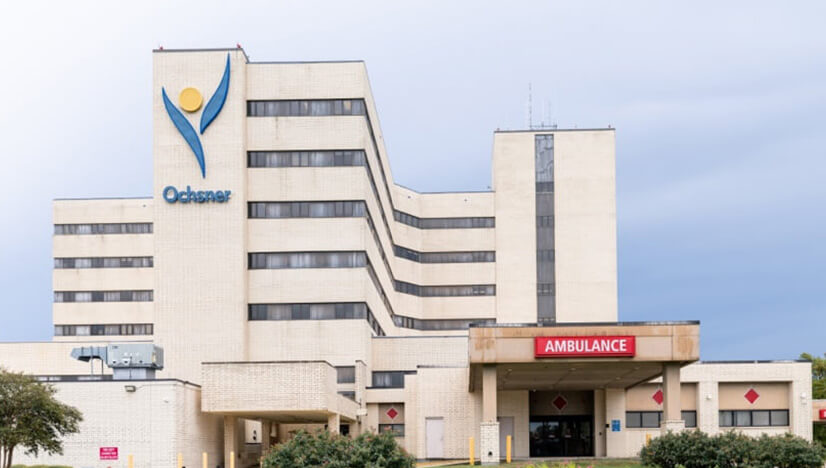
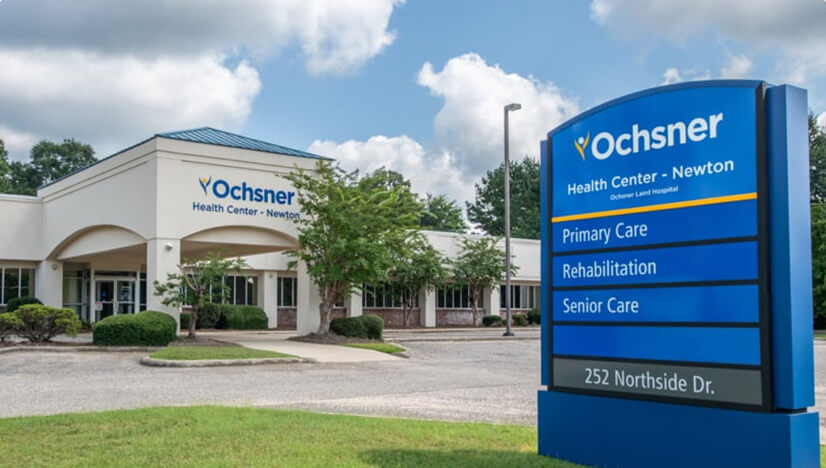
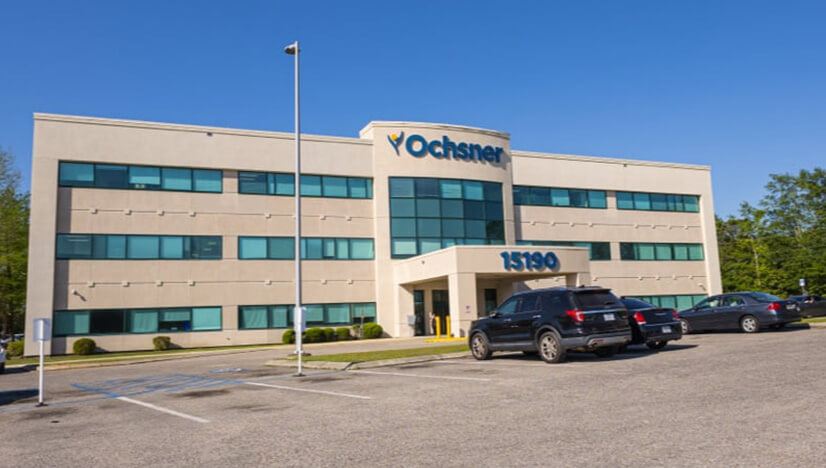
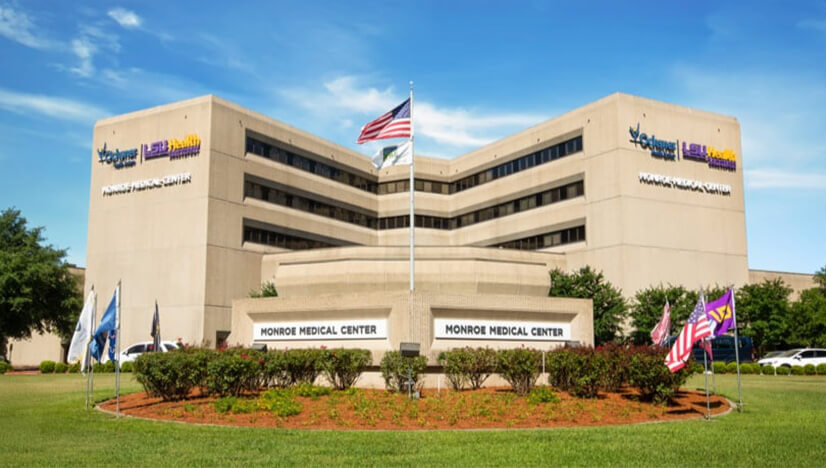
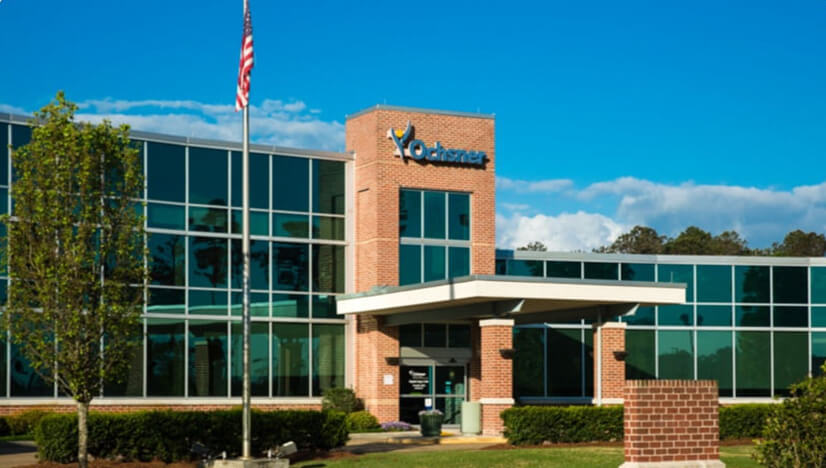
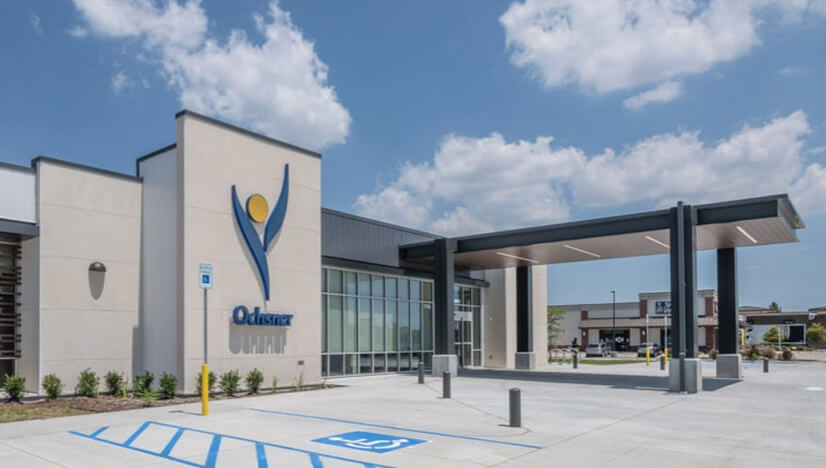
Ochsner Facilities in this Region
Career Slider - (Section 4b)
Suggested Use: You can implement this section in the same way it has been used on the homepage.
Notes:
- 1. In this section, you can use a maximum of 3 List (fewer is also fine).
- 2. Please note that on mobile view, this section appears as a slider so edit accordingly.
- 3. When you add this section to any page from the 'Add New' list, remove the existing layout module. Then, create a new layout module, copy the code from the existing layout module, and paste it into the new layout module. After that, you can customize it according to your requirements.
- 4. This can only be implemented by a developer.
Available Code Snippets: N/A
Nursing Career Paths
Job List - (Section 5)
Suggested Use: Jobs for you
Notes: Content page filter enabled for the Job List
Tab Testimonial - (Section 6)
Suggested Use: You can implement this section in the same way it has been used on the homepage.
Notes:
- 1. The background image of this section changes when another tab is clicked. When you use this section, you'll need to add a new class on section Identifier and change the background images using that class. For mobile view, you'll need to place the image in the module. Follow the homepage section (Home Tab Testimonial - (Section 6)) as a reference.
- 2. This can only be implemented by a developer.
Available Code Snippets: N/A


Lorem ipsum dolor sit amet consectetur adipisicing elit. Magni tenetur aut consequuntur, qui dolores ex accusamus ad repudiandae cum excepturi error aperiam nesciunt exercitationem sapiente, saepe eius laudantium Magni tenetur aut consequuntur, qui dolores ex accusamus ad repudiandae cum excepturi error aperiam nesciunt exercitationem sapiente, saepe eius laudantium temporibus sunt?
Lorem Ipsum text Lorem ipsum dolor sit amet View CT Specialist Jobs
Lorem ipsum dolor sit amet consectetur adipisicing elit. Magni tenetur aut consequuntur, qui dolores ex accusamus ad repudiandae cum excepturi error aperiam nesciunt exercitationem sapiente, saepe eius laudantium Magni tenetur aut consequuntur, qui dolores ex accusamus ad repudiandae cum excepturi error aperiam nesciunt exercitationem sapiente, saepe eius laudantium temporibus sunt?
Lorem Ipsum text Lorem ipsum dolor sit amet View CT Specialist Jobs
Lorem ipsum dolor sit amet consectetur adipisicing elit. Magni tenetur aut consequuntur, qui dolores ex accusamus ad repudiandae cum excepturi error aperiam nesciunt exercitationem sapiente, saepe eius laudantium Magni tenetur aut consequuntur, qui dolores ex accusamus ad repudiandae cum excepturi error aperiam nesciunt exercitationem sapiente, saepe eius laudantium temporibus sunt?
Lorem Ipsum text Lorem ipsum dolor sit amet View CT Specialist Jobs
Lorem ipsum dolor sit amet consectetur adipisicing elit. Magni tenetur aut consequuntur, qui dolores ex accusamus ad repudiandae cum excepturi error aperiam nesciunt exercitationem sapiente, saepe eius laudantium Magni tenetur aut consequuntur, qui dolores ex accusamus ad repudiandae cum excepturi error aperiam nesciunt exercitationem sapiente, saepe eius laudantium temporibus sunt?
Lorem Ipsum text Lorem ipsum dolor sit amet View CT Specialist JobsBenefits Slider - (Section 7)
Suggested Use: In this section, you can use a maximum of 5 icons (fewer is also fine).
Notes: Please note that on mobile view, this section appears as a slider so edit accordingly.
Available Code Snippets: Yes
- V2 - Section 7 - Benefits Slider: Use this snippet to "reset" any "V2 - Section 7 - Benefits Slider" Module to its default state. Before using, be sure to delete all content in the content editor.
 Lorem Ipsum Lorem Ipsum Lorem Ipsum Lorem Ipsum Lorem Ipsum
Awards - (Section 8)
Suggested Use: N/A
Notes: N/A
Available Code Snippets: Yes
- V2 - Section 8 - Awards: Use this snippet to "reset" any "V2 - Section 8 - Awards" Module to its default state. Before using, be sure to delete all content in the content editor.

Awards Slider - (Section 8a)
Suggested Use: You can implement this section in the same way it has been used on the homepage.
Notes:
- 1. When you add this section to any page from the 'Add New' list, remove the existing layout module. Then, create a new layout module, copy the code from the existing layout module, and paste it into the new layout module. After that, you can customize it according to your requirements.
- 2. This can only be implemented by a developer.
Available Code Snippets: N/A


Slider Content - (Section 9)
Suggested Use: You can implement this section in the same way it has been used on the homepage.
Notes:
- 1. When you add this section to any page from the 'Add New' list, remove the existing layout module. Then, create a new layout module, copy the code from the existing layout module, and paste it into the new layout module. After that, you can customize it according to your requirements.
- 2. This can only be implemented by a developer.
Available Code Snippets: N/A

CP - Allied Health - Accordion - (section 10)
Suggested Use: Use this section to display expandable content such as FAQs, policies, or grouped details. Ideal for keeping pages organized and easy to read.
Notes:
- The left border color changes based on the assigned HTML class.
- Available color classes: --light-blue, --red, --light-green, --magenta, --coral, --ochsnerBlue, --ochsnerGold, --darkBlue.
- Keep headings short and content concise (2–3 short paragraphs).
- Use consistent colors across related items for visual balance.
Available Code Snippets: Yes
- V2 - Section 10 - Copy: Use this snippet to "reset" any "V2 - Section 10 - Copy" Module to its default state. Before using, be sure to delete all content in the content editor.
-
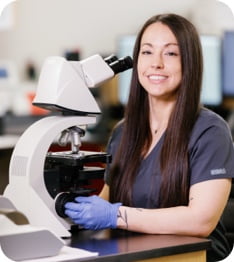
Play a vital role in patient care by generating the insights providers need to diagnose and treat. Ochsner offers clinical internship opportunities for medical technologists, lab technicians, and phlebotomy rotations through partnerships with universities, community colleges, and technical schools.
View Opportunities -
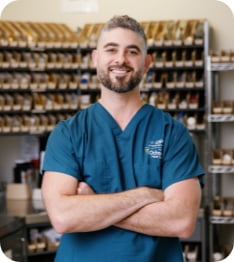
Join one of the region’s most comprehensive pharmacy networks, from hospital inpatient care to outpatient clinics. Our teams also lead the Gulf South’s largest integrated specialty pharmacy, ensuring patients receive advanced therapies with seamless coordination and support.
View Opportunities -
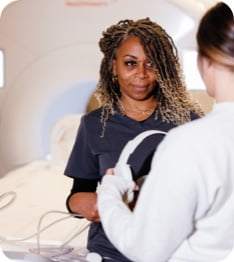
Work at the forefront of medical technology. From diagnostic imaging to interventional procedures, our imaging professionals provide clarity and precision that directly influence patient outcomes—while continually expanding their skills in a fast-evolving field.
View Opportunities -
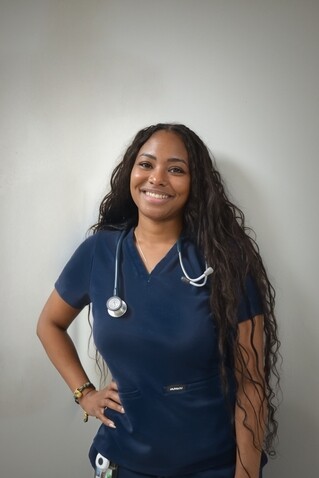
Be part of a highly specialized team supporting patients across NICU, PICU, pulmonary labs, and even flight care. Ochsner respiratory therapists enjoy flexible schedules, strong team member-focused programs, and practice councils that encourage innovation and collaboration.
View Opportunities -
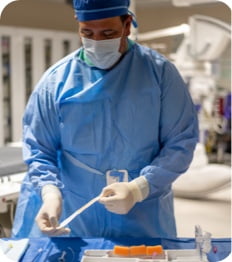
Support life-changing procedures in general surgery, orthopedics, neurology, cardiology, labor and delivery, ENT and more. With opportunities for cross-training, our surgical support team members gain exposure to multiple specialties while building long-term, versatile careers.
View Opportunities
CP - Physicians - Accordion - (section 10a)
Suggested Use: See CP - Allied Health - Accordion - (section 10)
Notes: See CP - Allied Health - Accordion - (section 10)
Available Code Snippets: See CP - Allied Health - Accordion - (section 10)
CP - Culture - Accordion - (section 10b)
Suggested Use: See CP - Allied Health - Accordion - (section 10)
Notes: See CP - Allied Health - Accordion - (section 10)
Available Code Snippets: See CP - Allied Health - Accordion - (section 10)
-

Our mission is to serve, heal, lead, educate and innovate—and it drives everything we do. At Ochsner, every team member plays a vital role in creating meaningful change, both within our organization and in the communities we proudly serve. From pioneering advancements in medical care to fostering a workplace where collaboration and inclusivity thrive, Ochsner is where purpose and passion come together to make a difference.
-

At Ochsner, we invest in you—because when our team thrives, so do the patients and communities we serve. We’re dedicated to your growth, with trainings, mentorship and pathways that are designed to help you achieve your professional goals.
-

Our commitment to being an exceptional workplace has been recognized by Great Place to Work, Gallup, Fortune, and Newsweek for excellence in well-being, inclusion and innovation.
Image and Copy - (section 11)
Suggested Use: Use this section to pair an image with supporting text. Ideal for feature highlights, service details, or campaign callouts.
Notes:
Recommended image size: 510 × 380 px.
Keep text short and focused; use for brief descriptions or overviews.
Maintain consistent alignment and spacing between image and text blocks.
Use the top color accent bar to match brand or category themes.
Available Code Snippets: Yes
- V2 - Section 11 - Copy: Use this snippet to "reset" any "V2 - Section 11 - Copy" Module to its default state. Before using, be sure to delete all content in the content editor.

Lorem Ipsum, Adipiscing
Lorem ipsum dolor sit amet, consectetur adipiscing elit. Sed do eiusmod tempor incididunt ut labore et dolore magna aliqua. Ut enim ad minim veniam, quis nostrud exercitation ullamco laboris nisi ut aliquip ex ea commodo consequat.
- Lorem Ipsum dammy
- Lorem Ipsum dammy
Image and Copy - (section 11a)
Suggested Use: Use this section to pair an image with supporting text. Ideal for feature highlights, service details, or campaign callouts.
Notes:
Recommended image size: 510 × 380 px.
Keep text short and focused; use for brief descriptions or overviews.
Maintain consistent alignment and spacing between image and text blocks.
Use the top color accent bar to match brand or category themes.
Available Code Snippets: Yes
- V2 - Section 11a - Copy: Use this snippet to "reset" any "V2 - Section 11a - Copy" Module to its default state. Before using, be sure to delete all content in the content editor.
Are you in high school?
Nursing Pre-Apprenticeship - This pathway to becoming an LPN or RN offers you free training and college credits while gaining real-world experience.
View moreAre you in high school?
Nursing Pre-Apprenticeship - This pathway to becoming an LPN or RN offers you free training and college credits while gaining real-world experience.
View moreCopy and Accordion - (section 12)
Suggested Use: [suggested use case(s)]
Notes: [section notes/instructions]
Available Code Snippets: Yes
- V2 - Section 12 - Copy: Use this snippet to "reset" any "V2 - Section 12 - Copy" Module to its default state. Before using, be sure to delete all content in the content editor.
Frequently Asked Questions: Radiation Therapy Careers
Copy and Accordion - (section 12a)
Suggested Use: [suggested use case(s)]
Notes: [section notes/instructions]
Available Code Snippets:
- [code snippet name]: [code snippet notes/instructions]
Frequently Asked Questions: Radiation Therapy Careers
-
Advance your career with the following courses:
- Nurse Technician Honors Program
- New Nurse and Ancillary Orientation
- New Nurse Residency Program
- Preceptor Academy
- Charge Nurse Academy
- Mentor Academy
- Nurse Technician Honors Program
- New Nurse and Ancillary Orientation
- New Nurse Residency Program
- Preceptor Academy
- Charge Nurse Academy
- Mentor Academy
-
The Ochsner Group Practice Commitments represent a unified pledge from our physicians and advanced practice providers. These commitments are built on shared values that define how we work, lead, and grow as a team.
Advance your career with the following courses:
- Nurse Technician Honors Program
- New Nurse and Ancillary Orientation
- New Nurse Residency Program
- Preceptor Academy
- Charge Nurse Academy
- Mentor Academy
- Nurse Technician Honors Program
- New Nurse and Ancillary Orientation
- New Nurse Residency Program
- Preceptor Academy
- Charge Nurse Academy
- Mentor Academy
-
Details about Radiology Specialties internships and partnerships.
-
Explore healthcare in action and discover your path. You’ll join a supportive community that believes in your potential. Ochsner prepares you to deliver care, drive progress and empower healthier communities.
View Opportunities
Video and Copy - (Section 13)
Suggested Use: Use this section to display a video alongside descriptive text. Ideal for storytelling, testimonials, or showcasing programs and initiatives with visual impact.
Notes:
Recommended video placeholder size: 645 × 620 px.
Keep copy concise and relevant to the video content.
Avoid autoplay where possible; allow users to initiate playback.
Maintain consistent padding between the video and text blocks for clean alignment.
Available Code Snippets: Yes
- V2 - Section 13 - Copy: Use this snippet to "reset" any "V2 - Section 13 - Copy" Module to its default state. Before using, be sure to delete all content in the content editor.

Lorem Ipsum dolor a Dolor Sit Amet Lorem Ipsum
Lorem ipsum dolor sit amet, consectetur adipiscing elit. Sed do eiusmod tempor incididunt ut labore et dolore magna aliqua. Ut enim ad minim veniam, quis nostrud exercitation ullamco laboris nisi ut aliquip ex ea commodo consequat. Duis aute irure dolor in reprehenderit in voluptate velit esse cillum dolore eu fugiat nulla pariatur.
Lorem ipsum dolor sit amet, consectetur adipiscing elit. Sed do eiusmod tempor incididunt ut labore et dolore magna aliqua. Ut enim ad minim veniam, quis nostrud exercitation ullamco laboris nisi ut aliquip ex ea commodo consequat. Duis aute irure dolor in reprehenderit in voluptate velit esse cillum dolore eu fugiat nulla pariatur.Lorem ipsum dolor sit amet, consectetur adipiscing elit. Sed do eiusmod tempor incididunt ut labore et dolore magna aliqua
Tablist - (section 14)
Suggested Use: Use this section to organize related content into selectable tabs with icons. Ideal for summarizing multiple categories or benefit groups in a single view.
Notes:
Each tab title can include an icon and short label (2–3 words).
Use consistent icon styling and color to represent each category.
Keep tab content brief—recommended 3–5 key points per tab.
Ensure tab labels remain fully visible on smaller screens for accessibility.
Available Code Snippets: Yes
- V2 - Section 14 - Copy: Use this snippet to "reset" any "V2 - Section 14 - Copy" Module to its default state. Before using, be sure to delete all content in the content editor.




Live Healthy: Nurture your health and wellness
- Medical & Pharmacy Coverage
- Vision Coverage
- Weight Management Prescriptions (for OH, SRMC, SMH, OLHS)
- Pathway to Wellness Program
- Dental Coverage
- Weight Watchers
- Gym Membership Discounts
Live Well: Care for your mind and emotions
- Employee Assistance Program (EAP)
- In-Person and Virtual Mental Health Visits
- Virtual Peer Support and Mindfulness (Cabana)
- Connecting with Our Peers through Empathy (C.O.P.E)
Live $mart: Protect the people and things you love
- Flexible Spending & Health Savings Accounts
- Life Insurance & AD&D
- Short-Term & Long-Term Disability Income Replacement
- Lifestyle Benefits
- Accident, Critical Illness & Hospital Indemnity
- Business Travel Accident
Live Forward: Protect the people and things you love
- Retirement Plan
- Team Member Assistance Fund
- Earned Wage Access
- Ochsner Career Center & Employee Development
- Tuition Assistance
- Quick Relief Loan
- Student Loan Assistance & Forgiveness
- Will Preparation
- Money Coaching
- Advance Directives
- Money Saving Discounts
Live Life: Recharge and connect with what matters
- Paid Parental Leave
- Paid Time Off and Holidays
- Adoption Assistance
- Additional Leaves – Bereavement leave, FMLA, jury duty & military service
- Backup Child & Eldercare
Copy and Image - (Section 15)
Suggested Use: Use this section to present text content with an accompanying image on the right. Ideal for highlighting key programs, services, or team information.
Notes:
Recommended image size: 645 × 620 px.
Keep headings concise and use clear call-to-action links (e.g., “View Opportunities”).
Maintain consistent spacing between text and image.
Best used when detailed copy needs visual balance.
Available Code Snippets: Yes
- V2 - Section 15 - Copy: Use this snippet to "reset" any "V2 - Section 15 - Copy" Module to its default state. Before using, be sure to delete all content in the content editor.

Image and Copy - (Section 15a)
Suggested Use: Use this mirrored layout to feature an image on the left and supporting text on the right. Ideal for alternating layouts that create visual rhythm across a page.
Notes:
Recommended image size: 645 × 620 px.
Keep copy brief and scannable.
Maintain alignment consistency when stacking multiple sections.
Alternate with Section 15 for better page flow and balance.
Available Code Snippets: See Section-15
Copy - (Section 16)
Suggested Use: Use this section for key messages, mission statements, or program highlights that need visual emphasis.
Notes:
Background image size: 1340px width.
Keep copy brief and focused on one message.
Add a call-to-action button if linking to more details.
Maintain clear contrast between text and background.
Available Code Snippets: Yes
- V2 - Section 16 - Copy: Use this snippet to "reset" any "V2 - Section 16 - Copy" Module to its default state. Before using, be sure to delete all content in the content editor.
Make A Difference In A Child’s Life Every Day
From bedside care to specialized services, every role helps make a lasting impact on children's health and well-being.
Learn More
Horizontal Scroller - (Section 17)
Suggested Use: N/A
Notes: To create new or another card, just dulipcate the "card module"
Available Code Snippets:Yes
- V2 - Section 17 - Copy: Use this snippet to "reset" any "V2 - Section 17 - Copy" Module to its default state. Before using, be sure to delete all content in the content editor.
- V2 - Section 17 - Card: Use this snippet to "reset" any "V2 - Section 17 - Card" Module to its default state. Before using, be sure to delete all content in the content editor.
List Slider - (Section 20)
Suggested Use: You can implement this section in the same way it has been used on the CP - Nursing.
Notes:
- 1. When you add this section to any page from the 'Add New' list, remove the existing layout module. Then, create a new layout module, copy the code from the existing layout module, and paste it into the new layout module. After that, you can customize it according to your requirements.
- 2. This can only be implemented by a developer.
Available Code Snippets: N/A
Three List - (Section 20a)
Suggested Use: In this section, you can use a maximum of 3 List (fewer is also fine).
Notes: Please note that on mobile view, this section appears as a slider so edit accordingly.
Available Code Snippets: Yes
- V2 - Section 20a - Three List: Use this snippet to "reset" any "V2 - Section 20a - Three List" Module to its default state. Before using, be sure to delete all content in the content editor.
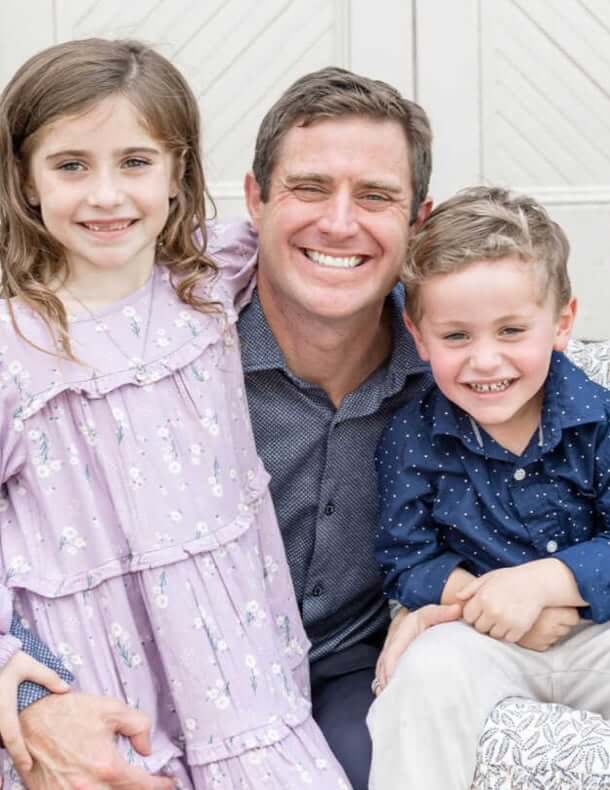
Benefits in Action
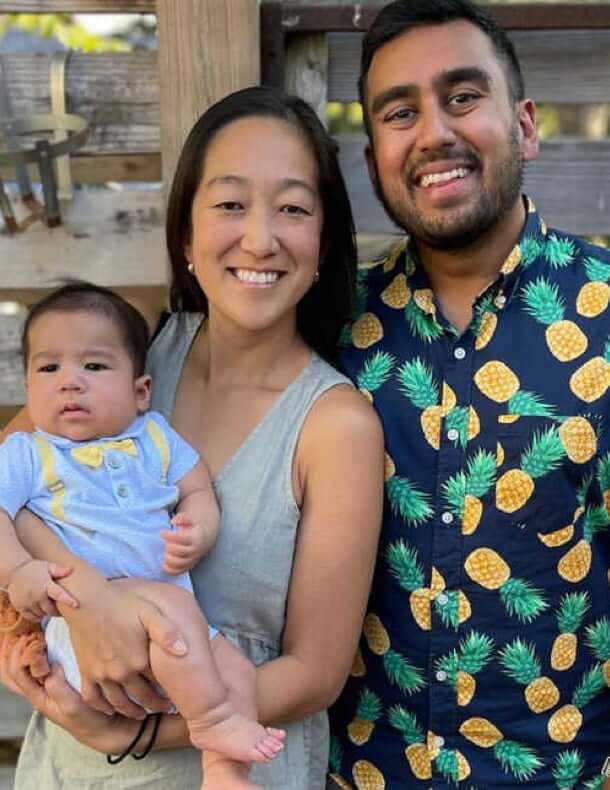
Two List - (Section 20b)
Suggested Use: In this section, you can use a maximum of 2 List.
Notes: Please note that on mobile view, this section appears as a slider so edit accordingly.
Available Code Snippets: Yes
- V2 - Section 20b - Two List: Use this snippet to "reset" any "V2 - Section 20b - Two List" Module to its default state. Before using, be sure to delete all content in the content editor.
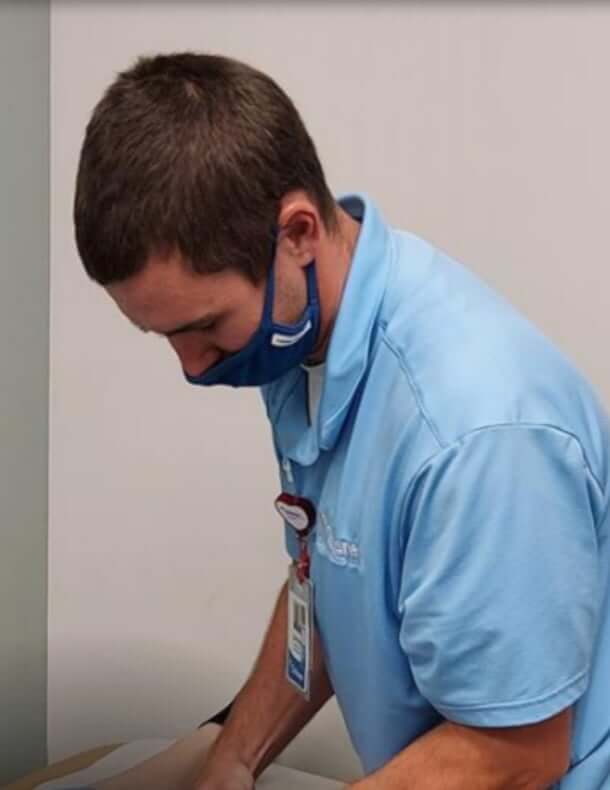
Hear From Our Team Members
Four List - (Section 20c)
Suggested Use: In this section, you can use a maximum of 3 List.
Notes: Please note that on mobile view, this section appears as a slider so edit accordingly.
Available Code Snippets:
One List - (Section 20d)
Suggested Use: In this section, you can use a only one List.
Notes: N/A
Available Code Snippets: N/A
Related Content Static - (Section 21)
Suggested Use: 3 related content links
Notes: Use this section template when you want to handpick pages to be featured as related content.
Available Code Snippets: N/A
Explore Related Content
-
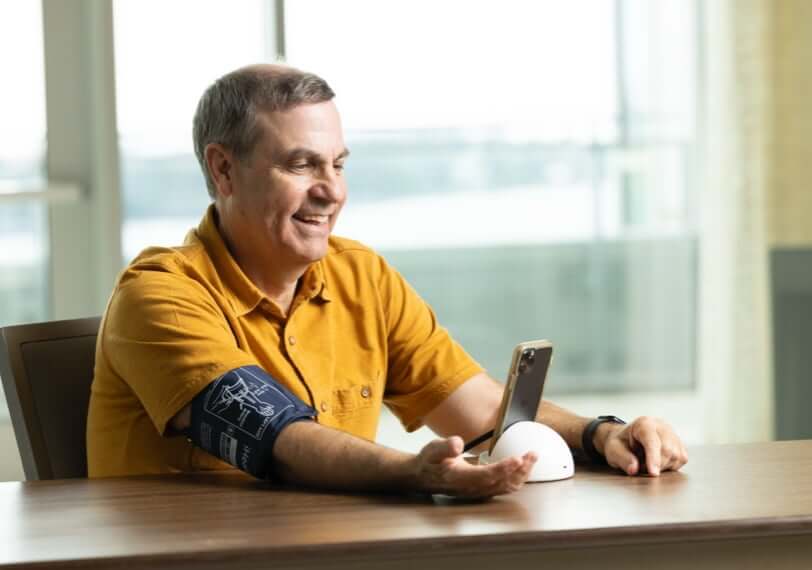
Benefits
Work is a big part of your life—but it’s not the only part. Ochsner provides benefits that address many parts of your life and help you be your best self.
-

Regions
At Ochsner, we provide comprehensive care across the Gulf South region. Find an Ochsner hospital or health center in your area and explore available career opportunities.
-
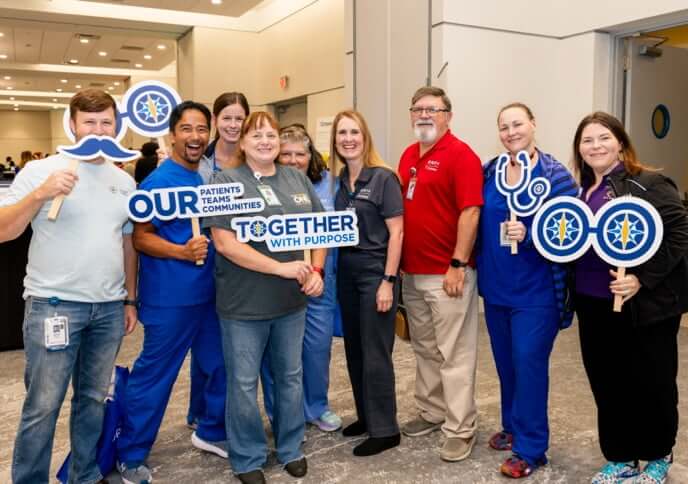
Culture
Collaboration and care are at the heart of our teams. We work together to ensure health and happiness are promoted within our walls and out into the communities we serve.
Instagram - (Section 23)
Suggested Use: Instagram
Notes: N/A
Story - (Section 25a)
Suggested Use: Display Story with Media and Copy
Notes: Section Contains one Media and two Copies, first Copy Module right to the Media might be used for Job Information and second One can be used for Large Description and for Media Module 285x378 image is required
Available Code Snippets:
- v2 - Section 25 - Copy 01: Use as a "reset" for any "Section 25 - Copy 01" Module.
- v2 - Section 25 - Copy 02: Use as a "reset" for any "Section 25 - Copy 02" Module.

Lorem ipsum dolor sit amet elit:
Lorem ipsum dolor sit ame
Position: Lorem ipsum dolor sit
Location: Lorem ipsum dolor sit amet consectetur adipiscing - Lorem ipsu
Lorem ipsum D. aliquet ut vel dictum lorem, sed vitae sem odio nec urna eu mi nunc. Pellentesque sit amet nunc vitae aenean facilisis condimentum. Cras non hendrerit leo, at feugiat fusce vulputate ac nunc at Curabitur Facilisis – Aenean in 2026.
Lorem ipsum est a modo to explore new ideas swiftly turning into a passion. Nulla found joy in helping with projects and being part of a great team. “I liked the group harmony, the friendly connections with partners and aiding people feel calmer through their most uncertain days.”
Lorem Ipsum That Brings Insight
Lorem ipsum dolor sit amet, consectetur adipiscing elit. Sed do eiusmod tempor incididunt ut labore et dolore magna aliqua. Lorem ipsum dolor sit a met, consectetur adipiscing elit. Sed do eiusmod tempor incididunt ut labore e t dolore magna aliqua. Lorem ipsum dolor sit amet, consectetur adipiscing el it. Sed do eiusmod tempor incididunt ut
Lorem ipsum est a modo to explore new ideas swiftly turning into a passion. Nulla found joy in helping with projects and being part of a great team. “I liked the group harmony, the friendly connections with partners and aiding people feel calmer through their most uncertain days.”
Lorem Ipsum That Brings Insight
Lorem ipsum dolor sit amet, consectetur adipiscing elit. Sed do eiusmod tempor incididunt ut labore et dolore magna aliqua. Lorem ipsum dolor sit a met, consectetur adipiscing elit. Sed do eiusmod tempor incididunt ut labore e t dolore magna aliqua. Lorem ipsum dolor sit amet, consectetur adipiscing el it. Sed do eiusmod tempor incididunt ut
Lorem ipsum est a modo to explore new ideas swiftly turning into a passion. Nulla found joy in helping with projects and being part of a great team. “I liked the group harmony, the friendly connections with partners and aiding people feel calmer through their most uncertain days.”
Related Content Dynamic - (Section 22)
Suggested Use: 3 related content links
Notes: Use this section when you want the related content to feature pages tagged with the "Related Content" CPM channel, randomly ordered. Note that if the page featuring this section has any job data mappings applied, related content will only show pages from the channel that match those mappings. To add a content page (or offsite content page) to this feed, tag it with the "Related Content" CPM Channel. Dynamic Related Content connected to the Related Content Pillar Channel
Available Code Snippets: N/A
-
 RC Test 1 Lorem ipsum dolor sit amet, consectetur adipiscing elit, sed do eiusmod tempor incididunt ut labore et dolore magna aliqua.
 -
RC Test 1 Lorem ipsum dolor sit amet, consectetur adipiscing elit, sed do eiusmod tempor incididunt ut labore et dolore magna aliqua.
-
RC Test 3 Lorem ipsum dolor sit amet, consectetur adipiscing elit, sed do eiusmod tempor incididunt ut labore et dolore magna aliqua.
-
-
Regions At Ochsner, we provide comprehensive care across the Gulf South region. Find an Ochsner hospital or health center in your area and explore available career opportunities.
-
Lafayette Area Immerse yourself in vibrant Creole and Cajun traditions with year-round festivals, exceptional live entertainment and legendary cuisine. The Acadiana/Lafayette region offers a family-friendly atmosphere and the historic foundation of Ochsner Lafayette General Medical Center (OLGMC), a leader in healthcare since 1911.
-
Baton Rouge Area Experience the dynamic state capital with its revitalized downtown packed with live music, world-class dining, museums and art galleries. Ochsner Medical Center – Baton Rouge leads the community in health innovation, offering extended hours and virtual care programs to make healthcare accessible.
-
Bayou Area Home to strong cultural traditions and an unrivaled sense of community, the bayou region boasts a robust local economy and exceptional education systems. Our facilities, including nationally recognized hospitals like Ochsner St. Mary, deliver top-tier care close to home.
-
East Mississippi/West Alabama Rooted in over 100 years of healthcare excellence, Ochsner Rush Health in Meridian, Mississippi, combines innovation with small-town charm. Explore arts, entertainment and outdoor recreation while benefiting from a rich and growing healthcare network.
-
Coastal Mississippi Enjoy coastal living with access to local beaches, fresh seafood and family-friendly communities—plus a vibrant casino scene for those who enjoy entertainment and nightlife. From Gulfport to Biloxi, this region mingles seaside relaxation with vibrant appeal, supported by Ochsner’s advanced medical services.
-
New Orleans Area Join a globally celebrated city—home to our flagship hospital, Ochsner Medical Center - New Orleans. Recognized as the Best Hospital in Louisiana, this Magnet-recognized facility leads the region in diverse, cutting-edge care. The city offers world-class dining, live music and a history as rich as its flavors.
-
North Louisiana Affordable living, some of the best schools in the state and exceptional outdoor spaces make North Louisiana a destination of choice. With Ochsner LSU Health operating one of the state’s only Level 1 Trauma Centers, this region pairs vibrant communities with top healthcare.
-
Northshore Area Perfect for families, the Northshore region boasts excellent schools, tight-knit neighborhoods and scenic parks. With state-of-the-art medical facilities like Slidell Memorial Hospital and Northshore Medical Complex, this community offers a balance of healthcare innovation and charm.
-
Kenner Area Take your career to the next level in Kenner, Louisiana—just minutes from New Orleans. Here, you’ll enjoy the welcoming spirit of a family-friendly community, a rich cultural landscape and access to outdoor activities. Be part of a resilient community and make a lasting impact close to home.
-
Benefits Work is a big part of your life—but it’s not the only part. Ochsner provides benefits that address many parts of your life and help you be your best self.
-
Culture Collaboration and care are at the heart of our teams. We work together to ensure health and happiness are promoted within our walls and out into the communities we serve.
-
Physicians Our physicians are known for their passion and expertise, across the board. Here, there is ample opportunity for growth, development and mobility.
-
-
-
-
-
-
-
-
Southwest Build your career in a region defined by resilience, warmth and opportunity. From the vibrant culture of Lake Charles to communities across the Southeast, this area offers a unique quality of life deeply rooted in connection and tradition. Here, you will find welcoming neighborhoods, incredible natural beauty and a pace of life that allows you to truly thrive.
-
Southeastern United States Start a career defined by growth and purpose across our facilities in Georgia, South Carolina and Florida. This region offers a rich mix of vibrant culture, welcoming neighborhoods and beautiful natural landscapes. Whether you love the energy of a city or the calm of the coast, you will find a place where you can truly thrive.
-
West Bank Discover a unique blend of close-knit community and career opportunity on the West Bank. In areas like Gretna and Marrero, you will find welcoming neighborhoods with a rich heritage, all just a short drive from New Orleans. This is a place where strong local ties create a supportive environment for you and your family to flourish.
-
-
-
-
-
-
-
-
-
-
-
-
-
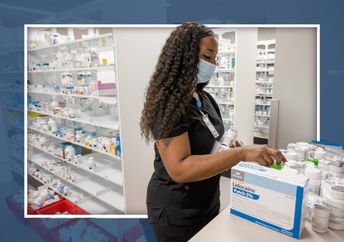
Pharmacy Careers at Ochsner: Explore Opportunities in a Leading Healthcare System Discover exciting pharmacy career opportunities at Ochsner, a premier healthcare provider. Whether you're a licensed pharmacist, pharmacy technician, or student seeking internships, Ochsner offers a supportive environment, professional growth, and advancement opportunities. Learn about our commitment to patient care, innovative practices, and the benefits of joining our team. Start your journey with Ochsner today and make a difference in healthcare.
-
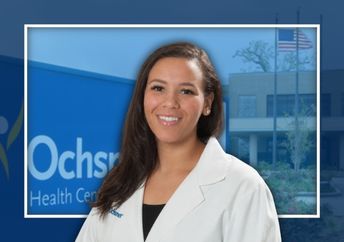
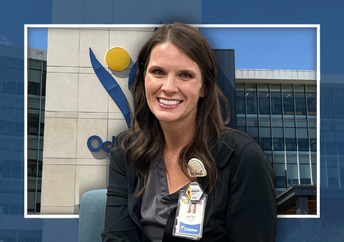
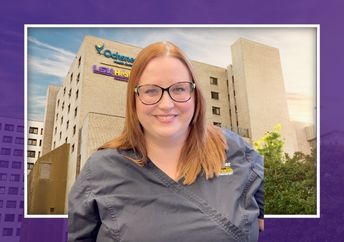
Med Surg Nursing Career Path: Insights from Ochsner Director Kayla R. Kayla R., Director of Nursing at Ochsner Medical Center - Baton Rouge, shares her 14-year journey from nursing assistant to nursing leader. Learn how medical surgical nursing builds clinical skills, critical thinking and compassion while creating opportunities for long-term career growth.
-
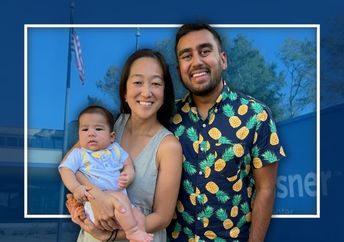
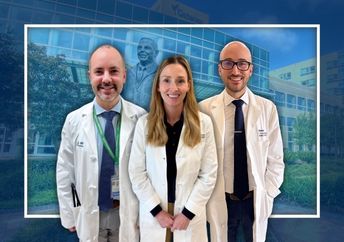
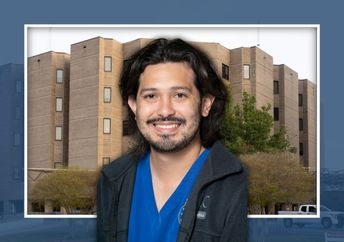
Balancing Fatherhood and Medicine: A Personal Reflection Dr. Jayesh Madrecha, a family medicine physician at Ochsner Health, shares his journey through infertility and fatherhood, and the impact of Ochsner's paternity leave policy. He reflects on work-life balance, physician well-being, team support and how personal experiences can strengthen connections with patients.
-
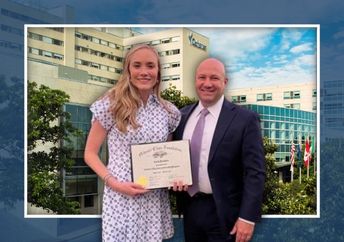
Insights from the Administrative Fellowship Program at Ochsner Health Carly V. shares how Ochsner Health’s Administrative Fellowship Program helped her transition from HR to healthcare operations. Through hands-on experience, professional mentorship and meaningful projects, she built the skills and relationships needed to make an impact on patient care.
-
How Ochsner Supports Maternity Leave and Career Balance: A Personal Journey Dr. Alisha Lacour, CEO of Northshore and Mississippi Gulf Coast, reflects on her journey from hospitalist to health system leader. She shares how parental leave, workplace flexibility and a strong support system helped her balance career growth, leadership and family life.
-
Celebrating Women in Medicine: Insights from Dr. Nichole Guillory George In honor of Women Physicians Day, Dr. Nichole Guillory George, a Family Medicine physician, reflects on her path to medicine, the achievements she values most and her approach to work-life balance. She also shares insights on mentorship, support systems and advice for aspiring physicians.
-
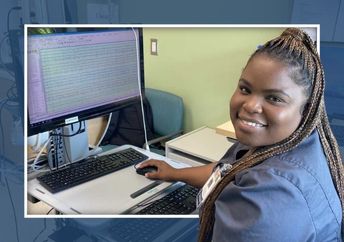
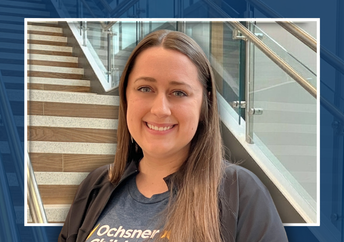
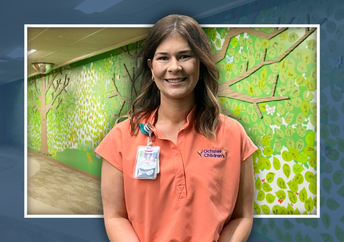
Neurodiagnostic Technologist Career Journey: Tiffany ’s Career Story at Ochsner Health Tiffany H., a neurodiagnostic technologist at Ochsner Health Center for Children, shares how she transitioned from dietary services to a clinical career in neurology. She reflects on mentorship, professional growth and the support that helped her build a rewarding career in healthcare.
-
Rehab Tech to Occupational Therapist: Breland's Journey at Ochsner Therapy and Wellness Breland P. shares her journey from rehab tech to pediatric occupational therapist at Ochsner Therapy and Wellness for Children. Learn how mentorship, professional growth and a passion for helping children build skills and confidence shaped her rewarding career in occupational therapy.
-
-
-
Advanced Practice Providers Career Opportunities at Ochsner Health Explore rewarding career opportunities for Advanced Practice Providers at Ochsner Health. Join a leading healthcare system committed to excellence, innovation, and patient-centered care. Discover roles that allow you to grow professionally while making a real impact on patient outcomes and community health. Learn about benefits, career development, and why Ochsner is a top choice for APNs and PA professionals.
-
-
Therapy and Wellness: Your Guide to Comprehensive Physical Therapy Services Discover rewarding career paths in therapy and wellness with Ochsner. We are committed to providing exceptional patient care through a multidisciplinary approach. Join our team of licensed therapists, wellness coaches, and mental health professionals to make a meaningful impact on the lives of our patients. Learn about available positions, benefits, and how to apply for a career that aligns with your passion for healing and holistic care.
-
Hematology and Oncology Careers at Ochsner MD Anderson Cancer Center | Join a Leading Team Discover why Ochsner MD Anderson Cancer Center is an exceptional place for hematology and oncology physicians to practice. With a balance of academic rigor, clinical excellence, and a supportive, collaborative environment, physicians can grow and thrive throughout their careers. Advanced diagnostics, research opportunities, and a culture of trust and mentorship create an ideal setting for delivering compassionate, high-quality patient care.
-
From Med Surg to Critical Care and Labor & Delivery: Nurse Success Stories at Ochsner Baptist Rita S. and Allison W. share how med-surg nursing at Ochsner Baptist prepared them for careers in critical care and labor and delivery. Discover how mentorship, hands-on experience and the Nursing Specialty Track support growth and long-term career success.
-
Caring Through Every Breath: A Respiratory Therapist’s Journey at Ochsner Health Discover how Mackenzie H., a registered respiratory therapist at Ochsner University Hospital & Clinics, turned a personal experience into a meaningful career. Learn how Ochsner's culture of compassion, growth and support has helped her succeed as a caregiver and parent.
-
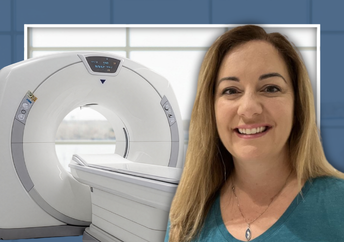
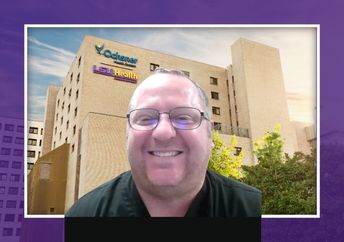
Discovering a Purpose in Imaging: Melissa C., CT Specialist Shares her Journey Melissa C., a CT Specialist at Ochsner Medical Center, shares how training, growth opportunities and a supportive team helped shape her career in imaging. Discover why CT imaging offers a rewarding path for those passionate about patient care and innovation.
-
Test Headline #2 Test Description #2
-
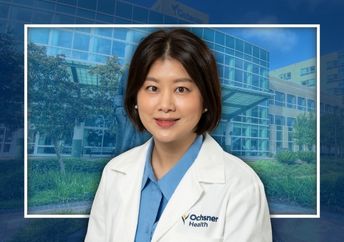
Building Relationships, Delivering Care Dr. Sun Hee Shin, a dedicated family medicine physician at Ochsner Health Center in Slidell, shares her passion for patient-centered care, inspired by a primary care physician who cared for her family for nearly two decades. She emphasizes the importance of building lasting relationships, holistic treatment, and collaborative teamwork at Ochsner, where physicians are supported with education, technology, and multidisciplinary resources to thrive.
-
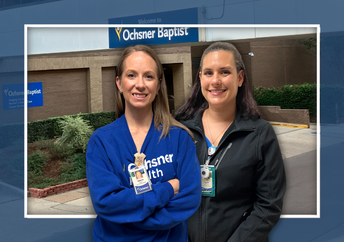
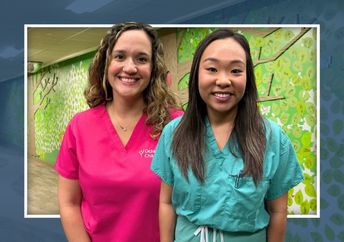
Stronger Together: How Team Culture Elevates Respiratory Care in the NICU at Ochsner Baptist Discover how a strong, supportive team culture at Ochsner Baptist’s NICU empowers respiratory therapists to deliver exceptional care for premature and critically ill newborns. Learn from Brittany and Jessica about the camaraderie, mutual respect, and collaborative spirit that define their team and make a real difference for patients and families.
-
Inside the Neuroscience ICU: Where Teamwork Meets Transformative Care at Ochsner LSU Health Discover the groundbreaking Neuroscience ICU at Ochsner LSU Health in Shreveport, Louisiana. This dedicated unit brings together expert physicians and nurses to provide life-changing care for critically ill neurological patients. As a Level I Trauma Center, the facility handles complex cases, offering patients a path to recovery through specialized, focused care. Learn about the team’s dedication, the fast-paced environment, and the unique opportunities for nurses to grow their skills in rare and complex neurological conditions.
-
Imaging with Impact: Meet Jackie J., CT Technologist at Ochsner Medical Complex - The Grove Discover the inspiring journey of Jackie J., a CT technologist at Ochsner Health who participates in Ochsner’s multi-modality program. Learn how this program keeps her skills sharp, work dynamic and fosters professional growth.
-
Building Clinical Skills in Med Surg Orthopedic Nursing: A Residency Reflection by Darian Shelton Darian Shelton, a medical surgical RN and nursing resident at Ochsner LSU Health, shares her experiences working in orthopedic med surg nursing. Discover how this role helps nurses develop clinical skills, build patient connections, and advance their careers in a supportive, high-level trauma care environment. Learn about the unique opportunities for growth and professional fulfillment in med surg nursing.
-
Caring Beyond the Bedside: Reflections from a Long-Term Acute Care Nurse at Ochsner Health Discover the unique challenges and rewards of long-term acute care nursing through the experiences of Kristin Todd, a supervising RN at Ochsner West Campus Extended Care Hospital. Learn how LTAC nursing offers a dynamic spectrum of care, from critical condition to recovery, and how it fosters meaningful patient connections and professional growth.
-
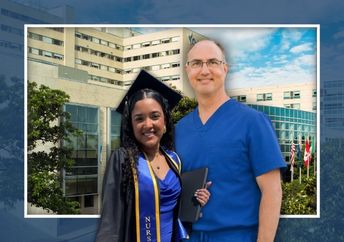
Nursing Careers at Ochsner Medical Center: Insights from Emely and Mitch on Learning and Leadership Discover how Ochsner Medical Center in New Orleans supports nursing students and professionals through hands-on clinical rotations, mentorship, and a culture of continuous learning. Emely G, a recent graduate, and Mitch G, a seasoned RN with over 30 years of experience, share their firsthand experiences. Learn about the importance of time management, communication, and mentorship in shaping future nurses, and why Ochsner is an ideal place to launch a nursing career.
-
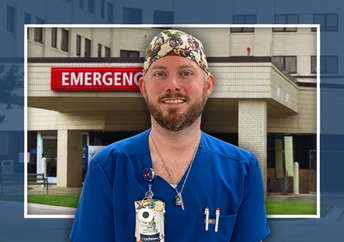
Where Purpose Meets Practice: Joel C.'s Purpose-Driven Journey in Emergency Medicine Joel C. once planned to become a plastic surgeon, but found his calling in emergency nursing. Discover how a supportive team, self-scheduling and career growth opportunities at Ochsner Medical Center – Baton Rouge have shaped his rewarding career.
-
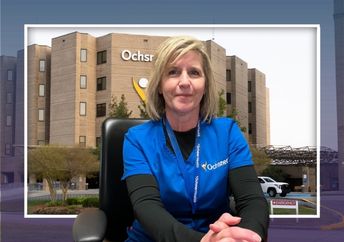
Laying the Foundation, Finding the Fun: Med Surg Nursing at Ochsner Health Discover the rewarding career path of med surg nursing at Ochsner Health. Learn from Veronica Theriot, Director of Nursing, about the unique opportunities, teamwork, and growth available in med surg and telemetry units. Ideal for new graduates and experienced nurses seeking a supportive, challenging environment where patient care makes a real difference.
-
Turning Injury Into Opportunity: Luke's Journey to Physical Therapy at Ochsner LSU Health Discover the inspiring story of Luke Storrs, a physical therapist at Ochsner LSU Health, who turned his personal experiences with ACL injuries into a career dedicated to helping others recover and regain independence. His journey from patient to clinician showcases the power of resilience, empathy, and purpose in physical therapy.
-
Meredith's Journey in Speech Language Pathology: From Classroom to Clinic at Ochsner LSU Health Discover Meredith McLain's inspiring journey from science education to becoming a dedicated Speech-Language Pathologist at Ochsner LSU Health Shreveport. Learn about her pivotal moment in choosing her career, her specialization in dysphagia therapy and head and neck cancer care, and the collaborative culture that defines her work environment. Explore her aspirations for professional growth and leadership within the Louisiana Speech-Language-Hearing Association.
-
Jose C’s Journey: From Nursing Assistant to Registered Nurse at Ochsner Medical Center Discover the inspiring journey of Jose C., a Registered Nurse at Ochsner Medical Center - Kenner, who started as a nursing assistant and rose through dedication, mentorship, and resilience. Learn how Ochsner’s supportive environment helped him overcome challenges, earn recognition, and pursue his nursing career through the Ochsner Scholars program. His story highlights the value of teamwork, compassion, and continuous growth in healthcare.
-
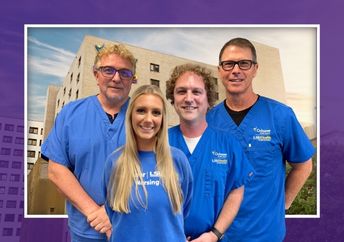
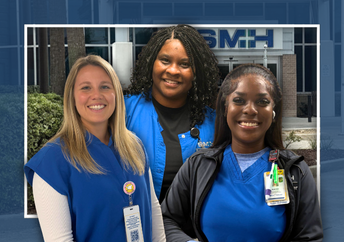
Life on Med Tele at Slidell Memorial: A Story of Team, Growth and Heart Nurse Manager Mary W., charge nurse Jazmine B. and new grad Caroline G. share what makes the med-tele team at Slidell Memorial Hospital feel like home. Discover how mentorship, teamwork and genuine support create an environment where nurses can build lasting careers.
-
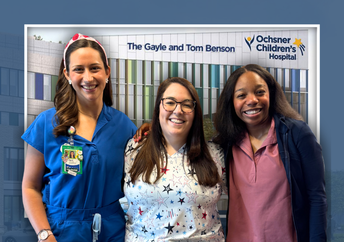
Inside the Pediatric Cardiovascular Intensive Care Unit at Ochsner Children’s Meet Chelsea, Dani and Bria, nurses on the pediatric cardiovascular intensive care team at Ochsner Children’s Hospital. Discover how teamwork, compassion and a supportive culture helped them deliver exceptional care during a historic snowstorm and beyond.
-
Med Surg Nursing at Ochsner: Career Growth, Mentorship and Support for RNs Discover why med-surg nursing at Ochsner Medical Center in Baton Rouge is a career-defining choice for Allison and Amber. Learn how mentorship, growth opportunities and a supportive team culture help nurses build rewarding and successful careers.
-
Ochsner Health Preboarding FAQ: Your Questions Answered Before Starting Your New Role Starting a new job at Ochsner Health comes with many questions. This comprehensive FAQ covers common preboarding inquiries, from the roles of recruiters and compliance specialists to completing health appointments, accessing Workday, and attending orientation. Get clarity on next steps, schedules, and what to expect before your first day.
-
From Recruiter to Radiology: Shelby G.'s Inspiring Career Pivot at Ochsner Kenner Shelby shares how the Ochsner Scholars program helped her transition from HR recruiter to radiology tech assistant at Ochsner Medical Center – Kenner. Learn how tuition support, mentorship and hands-on experience helped her launch a rewarding career in healthcare imaging.
-
From Campus to Careers: How Ochsner’s Student Talent Team Helps New Grads Thrive Ochsner Health’s Student Talent Recruiters help nursing students confidently transition from school to practice. Learn how personalized guidance, career support and practical advice help new graduates navigate the hiring process, find the right fit and launch successful nursing careers.
-
Meet Lisa G: Veteran Physical Therapist at Ochsner Therapy & Wellness in Diamondhead Discover the story of Lisa G, a dedicated physical therapist with 43 years of experience at Ochsner Therapy & Wellness in Diamondhead, Mississippi. Learn about her passion for patient care, teamwork, and the supportive culture that makes this clinic a great place to grow your career.
-
Healing Beyond the Surface: Inside Burn Unit Nursing at Ochsner LSU Health Discover the rewarding and challenging world of burn unit nursing at Ochsner LSU Health – Academic Medical Center. Learn about the specialized care, deep compassion, and strong sense of teamwork that defines this vital unit. Explore how nurses make a lasting impact on patients’ lives during their long recovery journeys.
-
Finding Purpose and Community: Eric's Path to Respiratory Therapy at Ochsner Baton Rouge After transitioning from military service to healthcare, Eric L., a respiratory therapist at Ochsner Baton Rouge, found purpose, growth and a supportive team. Learn how critical care experience, collaboration and work-life balance have shaped his career.
-
Pivoting with Purpose: Katie's Career Journey to Rediscovering Joy and Purpose Katie J. shares her journey of stepping back from a leadership role to find joy and fulfillment in her career. Discover how taking a step back led to a more meaningful and energizing role, supported by Ochsner Health's focus on employee well-being.
-
National Occupational Therapy Month: Career Opportunities at Ochsner Health Discover the impact of occupational therapy at Ochsner Health during National Occupational Therapy Month. Learn from Victoria T. and Elizabeth F., two dedicated OTs, about their journeys, the supportive environment and the opportunities for growth in pediatric and adult rehabilitation specialties.
-
Inspiring Journeys of CT Technologists Kim B. and Eileen R. at Ochsner Baptist Discover the inspiring stories of Kim B. and Eileen R., CT technologists at Ochsner Baptist, whose dedication to imaging reflects resilience, purpose and compassionate care. Learn how their unique paths shaped their careers and impacted patient lives.
-
Purpose, Teamwork and Impact: Josh P., Sports Medicine Assistant Lead at Ochsner Baton Rouge Josh P., Sports Medicine Assistant Lead at Ochsner Baton Rouge, shares how Ochsner’s residency program helped launch his career. Learn how collaboration, patient care and growth opportunities in the clinic and operating room make this role both dynamic and rewarding.
-
Finding Confidence and Purpose: Asriel’s Pharmacy Tech Journey Asriel F., a certified pharmacy technician at Ochsner Home Infusion Pharmacy, shares how Ochsner’s apprenticeship program helped him build confidence, develop new skills and discover a passion for home infusion. Learn how workforce development programs support meaningful healthcare careers.
-
Pharmacy Technician Careers at Ochsner Health Discover pharmacy technician careers at Ochsner Health. Learn about training programs, job responsibilities in retail and inpatient settings and the benefits of growing your healthcare career with Ochsner. Whether you're starting a new career or advancing an existing one, find out how Ochsner supports professional development and offers robust employee benefits.
-
A Team Rooted in Care: Meet Ally L., NICU Nurse Supervisor at Ochsner Baptist Discover how Ally L., a registered nurse supervisor in Ochsner Baptist's NICU, fosters a culture of trust and support. Learn how her journey to neonatal care shaped a rewarding career and why the NICU is a place where nurses can grow, lead and make a meaningful impact.
-
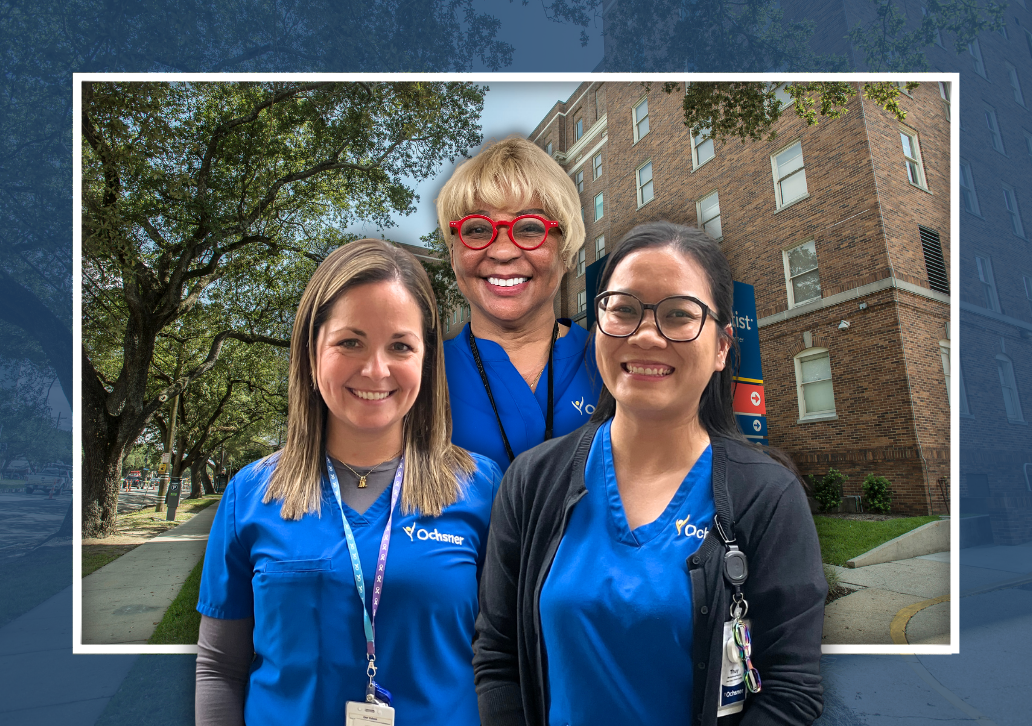
Building a Stronger Nursing Team: Insights from Ochsner Baptist's Med Surg Unit Discover how Ochsner Baptist’s med-surg unit fosters a supportive, collaborative culture through strong leadership and teamwork. Nurse Manager Rebecca C. and staff nurses Thuy H. and Helen W. share how trust, connection and support help nurses grow and thrive.
-
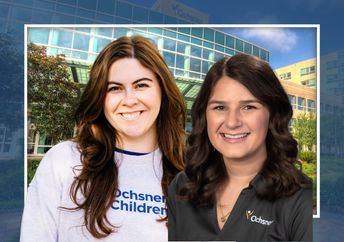
Voices of Care: Lauren D. & Kylie W. on Speech Therapy at Ochsner Celebrate National Speech-Language-Hearing Month with insights from Lauren D., Supervisor for Adult Speech Therapy, and Kylie W., Pediatric Speech-Language Pathologist at Ochsner Therapy & Wellness in New Orleans. Discover how SLPs help patients reconnect, communicate, and thrive across all ages. Learn about the collaborative, supportive environment that drives their purpose and powers teamwork.
-
Ochsner’s Periop 101: A Comprehensive Training Program for New OR Nurses Discover how Ochsner Health’s Periop 101 training program equips new operating room nurses with essential skills, confidence, and knowledge. Featuring insights from OR Nurse Manager Angel F. and participant Jordan M., RN, this eight-week classroom and six-month hands-on program guides nurses from basics to advanced surgical specialties. Learn why understanding the "why" behind each step improves patient care and safety.
-
Career Interview Tips from Ochsner Specialists: Prepare for Success Get expert interview tips from Ochsner career specialists to help you feel confident and prepared for your next big career opportunity. Learn what to expect in interviews, how to answer common questions and strategies for clinical students. Discover the importance of researching the organization, preparing materials and practicing for interviews. Whether you're a clinical student or a professional, these insights will help you succeed in your job search and land your dream role at Ochsner Health.
-
Leighann K, LPN at Ochsner Rush Health: A Journey from Business to Nursing and Finding Purpose in Patient Care Discover the inspiring career journey of Leighann K, an LPN at Ochsner Rush Health in Livingston. Originally pursuing business, she found her true calling in nursing after shadowing her mom and working in healthcare. With nearly 30 years of experience in pediatric and adult care, Leighann shares how Ochsner Rush Health supports nurses through flexibility, teamwork, and growth opportunities. Her story highlights the impact of nursing in building patient trust and the strong sense of community within the clinic team.
-
Surgical Technologists at Ochsner Health: Essential Role in Patient Care Discover the vital role of surgical technologists at Ochsner Health. Learn about their responsibilities, training requirements and career opportunities in this essential healthcare profession. Surgical techs support surgeons, maintain sterile fields and ensure patient safety before, during and after procedures. Explore how Ochsner Health offers growth and a positive work environment for aspiring surgical technologists.
-
Curiosity, Courage and Care: Inside Ochsner’s Next Chapter in Neuroscience Discover how Ochsner Health’s neurology team is advancing patient care through collaboration, innovation and a culture that empowers physicians to grow, lead and stay curious throughout their careers. Featuring insights from neurology leaders and a preview of the new Patrick Neuroscience Institute, this blog explores how Ochsner is shaping the future of neuroscience care across the Gulf South.
-
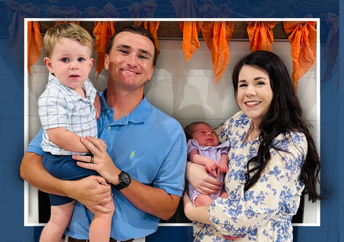
How Fertility Benefits Helped Lynzee Start Her Family at Ochsner Health Discover how Ochsner team member Lynzee G. used Progyny’s fertility benefits to start her family, with support from infertility coverage, paid parental leave, and emotional resources that helped make parenthood possible.
-
Empowering the Journey: How Fertility Benefits Supported April J.'s Path to Parenthood Discover how Ochsner's Progyny Fertility and Family Building Benefits supported April J., an Associate Program Manager, on her journey to parenthood.
-
What Does an Endoscopy Technician Do? Discover the vital role of endoscopy technicians at Ochsner Health. Learn about key responsibilities, skills needed, certification requirements and career growth opportunities in this essential healthcare position.
-
Radiation Therapy Careers at Slidell Regional Cancer Center: Meet Our Dedicated Team Discover the impactful careers of radiation therapists at Slidell Regional Cancer Center. Learn about advanced technology, team collaboration and patient-centered care that defines their work. Explore how Ochsner Health supports ongoing learning and innovation in cancer care.
-
-
-
-
-
-
-
-
-
-
-
-
-
-
-
-
-



Related Content Dynamic - (Section 22) - RC - Allied Health
Suggested Use: 3 related content links for Allied Health Channel
Notes: the rest of these section 22 are mapped with tags and are nameded for what the are tagged with.
Available Code Snippets: N/A
-
RC Test 1 Lorem ipsum dolor sit amet, consectetur adipiscing elit, sed do eiusmod tempor incididunt ut labore et dolore magna aliqua.
-
RC Test 1 Lorem ipsum dolor sit amet, consectetur adipiscing elit, sed do eiusmod tempor incididunt ut labore et dolore magna aliqua.
-
RC Test 3 Lorem ipsum dolor sit amet, consectetur adipiscing elit, sed do eiusmod tempor incididunt ut labore et dolore magna aliqua.
-
-
Regions At Ochsner, we provide comprehensive care across the Gulf South region. Find an Ochsner hospital or health center in your area and explore available career opportunities.
-
Lafayette Area Immerse yourself in vibrant Creole and Cajun traditions with year-round festivals, exceptional live entertainment and legendary cuisine. The Acadiana/Lafayette region offers a family-friendly atmosphere and the historic foundation of Ochsner Lafayette General Medical Center (OLGMC), a leader in healthcare since 1911.
-
Baton Rouge Area Experience the dynamic state capital with its revitalized downtown packed with live music, world-class dining, museums and art galleries. Ochsner Medical Center – Baton Rouge leads the community in health innovation, offering extended hours and virtual care programs to make healthcare accessible.
-
Bayou Area Home to strong cultural traditions and an unrivaled sense of community, the bayou region boasts a robust local economy and exceptional education systems. Our facilities, including nationally recognized hospitals like Ochsner St. Mary, deliver top-tier care close to home.
-
East Mississippi/West Alabama Rooted in over 100 years of healthcare excellence, Ochsner Rush Health in Meridian, Mississippi, combines innovation with small-town charm. Explore arts, entertainment and outdoor recreation while benefiting from a rich and growing healthcare network.
-
Coastal Mississippi Enjoy coastal living with access to local beaches, fresh seafood and family-friendly communities—plus a vibrant casino scene for those who enjoy entertainment and nightlife. From Gulfport to Biloxi, this region mingles seaside relaxation with vibrant appeal, supported by Ochsner’s advanced medical services.
-
New Orleans Area Join a globally celebrated city—home to our flagship hospital, Ochsner Medical Center - New Orleans. Recognized as the Best Hospital in Louisiana, this Magnet-recognized facility leads the region in diverse, cutting-edge care. The city offers world-class dining, live music and a history as rich as its flavors.
-
North Louisiana Affordable living, some of the best schools in the state and exceptional outdoor spaces make North Louisiana a destination of choice. With Ochsner LSU Health operating one of the state’s only Level 1 Trauma Centers, this region pairs vibrant communities with top healthcare.
-
Northshore Area Perfect for families, the Northshore region boasts excellent schools, tight-knit neighborhoods and scenic parks. With state-of-the-art medical facilities like Slidell Memorial Hospital and Northshore Medical Complex, this community offers a balance of healthcare innovation and charm.
-
Kenner Area Take your career to the next level in Kenner, Louisiana—just minutes from New Orleans. Here, you’ll enjoy the welcoming spirit of a family-friendly community, a rich cultural landscape and access to outdoor activities. Be part of a resilient community and make a lasting impact close to home.
-
Benefits Work is a big part of your life—but it’s not the only part. Ochsner provides benefits that address many parts of your life and help you be your best self.
-
Culture Collaboration and care are at the heart of our teams. We work together to ensure health and happiness are promoted within our walls and out into the communities we serve.
-
Physicians Our physicians are known for their passion and expertise, across the board. Here, there is ample opportunity for growth, development and mobility.
-
-
-
-
-
-
-
-
Southwest Build your career in a region defined by resilience, warmth and opportunity. From the vibrant culture of Lake Charles to communities across the Southeast, this area offers a unique quality of life deeply rooted in connection and tradition. Here, you will find welcoming neighborhoods, incredible natural beauty and a pace of life that allows you to truly thrive.
-
Southeastern United States Start a career defined by growth and purpose across our facilities in Georgia, South Carolina and Florida. This region offers a rich mix of vibrant culture, welcoming neighborhoods and beautiful natural landscapes. Whether you love the energy of a city or the calm of the coast, you will find a place where you can truly thrive.
-
West Bank Discover a unique blend of close-knit community and career opportunity on the West Bank. In areas like Gretna and Marrero, you will find welcoming neighborhoods with a rich heritage, all just a short drive from New Orleans. This is a place where strong local ties create a supportive environment for you and your family to flourish.
-
-
-
-
-
-
-
-
-
-
-
-
-
Pharmacy Careers at Ochsner: Explore Opportunities in a Leading Healthcare System Discover exciting pharmacy career opportunities at Ochsner, a premier healthcare provider. Whether you're a licensed pharmacist, pharmacy technician, or student seeking internships, Ochsner offers a supportive environment, professional growth, and advancement opportunities. Learn about our commitment to patient care, innovative practices, and the benefits of joining our team. Start your journey with Ochsner today and make a difference in healthcare.
-
Med Surg Nursing Career Path: Insights from Ochsner Director Kayla R. Kayla R., Director of Nursing at Ochsner Medical Center - Baton Rouge, shares her 14-year journey from nursing assistant to nursing leader. Learn how medical surgical nursing builds clinical skills, critical thinking and compassion while creating opportunities for long-term career growth.
-
Balancing Fatherhood and Medicine: A Personal Reflection Dr. Jayesh Madrecha, a family medicine physician at Ochsner Health, shares his journey through infertility and fatherhood, and the impact of Ochsner's paternity leave policy. He reflects on work-life balance, physician well-being, team support and how personal experiences can strengthen connections with patients.
-
Insights from the Administrative Fellowship Program at Ochsner Health Carly V. shares how Ochsner Health’s Administrative Fellowship Program helped her transition from HR to healthcare operations. Through hands-on experience, professional mentorship and meaningful projects, she built the skills and relationships needed to make an impact on patient care.
-
How Ochsner Supports Maternity Leave and Career Balance: A Personal Journey Dr. Alisha Lacour, CEO of Northshore and Mississippi Gulf Coast, reflects on her journey from hospitalist to health system leader. She shares how parental leave, workplace flexibility and a strong support system helped her balance career growth, leadership and family life.
-
Celebrating Women in Medicine: Insights from Dr. Nichole Guillory George In honor of Women Physicians Day, Dr. Nichole Guillory George, a Family Medicine physician, reflects on her path to medicine, the achievements she values most and her approach to work-life balance. She also shares insights on mentorship, support systems and advice for aspiring physicians.
-
Neurodiagnostic Technologist Career Journey: Tiffany ’s Career Story at Ochsner Health Tiffany H., a neurodiagnostic technologist at Ochsner Health Center for Children, shares how she transitioned from dietary services to a clinical career in neurology. She reflects on mentorship, professional growth and the support that helped her build a rewarding career in healthcare.
-
Rehab Tech to Occupational Therapist: Breland's Journey at Ochsner Therapy and Wellness Breland P. shares her journey from rehab tech to pediatric occupational therapist at Ochsner Therapy and Wellness for Children. Learn how mentorship, professional growth and a passion for helping children build skills and confidence shaped her rewarding career in occupational therapy.
-
-
-
Advanced Practice Providers Career Opportunities at Ochsner Health Explore rewarding career opportunities for Advanced Practice Providers at Ochsner Health. Join a leading healthcare system committed to excellence, innovation, and patient-centered care. Discover roles that allow you to grow professionally while making a real impact on patient outcomes and community health. Learn about benefits, career development, and why Ochsner is a top choice for APNs and PA professionals.
-
-
Therapy and Wellness: Your Guide to Comprehensive Physical Therapy Services Discover rewarding career paths in therapy and wellness with Ochsner. We are committed to providing exceptional patient care through a multidisciplinary approach. Join our team of licensed therapists, wellness coaches, and mental health professionals to make a meaningful impact on the lives of our patients. Learn about available positions, benefits, and how to apply for a career that aligns with your passion for healing and holistic care.
-
Hematology and Oncology Careers at Ochsner MD Anderson Cancer Center | Join a Leading Team Discover why Ochsner MD Anderson Cancer Center is an exceptional place for hematology and oncology physicians to practice. With a balance of academic rigor, clinical excellence, and a supportive, collaborative environment, physicians can grow and thrive throughout their careers. Advanced diagnostics, research opportunities, and a culture of trust and mentorship create an ideal setting for delivering compassionate, high-quality patient care.
-
From Med Surg to Critical Care and Labor & Delivery: Nurse Success Stories at Ochsner Baptist Rita S. and Allison W. share how med-surg nursing at Ochsner Baptist prepared them for careers in critical care and labor and delivery. Discover how mentorship, hands-on experience and the Nursing Specialty Track support growth and long-term career success.
-
Caring Through Every Breath: A Respiratory Therapist’s Journey at Ochsner Health Discover how Mackenzie H., a registered respiratory therapist at Ochsner University Hospital & Clinics, turned a personal experience into a meaningful career. Learn how Ochsner's culture of compassion, growth and support has helped her succeed as a caregiver and parent.
-
Discovering a Purpose in Imaging: Melissa C., CT Specialist Shares her Journey Melissa C., a CT Specialist at Ochsner Medical Center, shares how training, growth opportunities and a supportive team helped shape her career in imaging. Discover why CT imaging offers a rewarding path for those passionate about patient care and innovation.
-
Test Headline #2 Test Description #2
-
Building Relationships, Delivering Care Dr. Sun Hee Shin, a dedicated family medicine physician at Ochsner Health Center in Slidell, shares her passion for patient-centered care, inspired by a primary care physician who cared for her family for nearly two decades. She emphasizes the importance of building lasting relationships, holistic treatment, and collaborative teamwork at Ochsner, where physicians are supported with education, technology, and multidisciplinary resources to thrive.
-
Stronger Together: How Team Culture Elevates Respiratory Care in the NICU at Ochsner Baptist Discover how a strong, supportive team culture at Ochsner Baptist’s NICU empowers respiratory therapists to deliver exceptional care for premature and critically ill newborns. Learn from Brittany and Jessica about the camaraderie, mutual respect, and collaborative spirit that define their team and make a real difference for patients and families.
-
Inside the Neuroscience ICU: Where Teamwork Meets Transformative Care at Ochsner LSU Health Discover the groundbreaking Neuroscience ICU at Ochsner LSU Health in Shreveport, Louisiana. This dedicated unit brings together expert physicians and nurses to provide life-changing care for critically ill neurological patients. As a Level I Trauma Center, the facility handles complex cases, offering patients a path to recovery through specialized, focused care. Learn about the team’s dedication, the fast-paced environment, and the unique opportunities for nurses to grow their skills in rare and complex neurological conditions.
-
Imaging with Impact: Meet Jackie J., CT Technologist at Ochsner Medical Complex - The Grove Discover the inspiring journey of Jackie J., a CT technologist at Ochsner Health who participates in Ochsner’s multi-modality program. Learn how this program keeps her skills sharp, work dynamic and fosters professional growth.
-
Building Clinical Skills in Med Surg Orthopedic Nursing: A Residency Reflection by Darian Shelton Darian Shelton, a medical surgical RN and nursing resident at Ochsner LSU Health, shares her experiences working in orthopedic med surg nursing. Discover how this role helps nurses develop clinical skills, build patient connections, and advance their careers in a supportive, high-level trauma care environment. Learn about the unique opportunities for growth and professional fulfillment in med surg nursing.
-
Caring Beyond the Bedside: Reflections from a Long-Term Acute Care Nurse at Ochsner Health Discover the unique challenges and rewards of long-term acute care nursing through the experiences of Kristin Todd, a supervising RN at Ochsner West Campus Extended Care Hospital. Learn how LTAC nursing offers a dynamic spectrum of care, from critical condition to recovery, and how it fosters meaningful patient connections and professional growth.
-
Nursing Careers at Ochsner Medical Center: Insights from Emely and Mitch on Learning and Leadership Discover how Ochsner Medical Center in New Orleans supports nursing students and professionals through hands-on clinical rotations, mentorship, and a culture of continuous learning. Emely G, a recent graduate, and Mitch G, a seasoned RN with over 30 years of experience, share their firsthand experiences. Learn about the importance of time management, communication, and mentorship in shaping future nurses, and why Ochsner is an ideal place to launch a nursing career.
-
Where Purpose Meets Practice: Joel C.'s Purpose-Driven Journey in Emergency Medicine Joel C. once planned to become a plastic surgeon, but found his calling in emergency nursing. Discover how a supportive team, self-scheduling and career growth opportunities at Ochsner Medical Center – Baton Rouge have shaped his rewarding career.
-
Laying the Foundation, Finding the Fun: Med Surg Nursing at Ochsner Health Discover the rewarding career path of med surg nursing at Ochsner Health. Learn from Veronica Theriot, Director of Nursing, about the unique opportunities, teamwork, and growth available in med surg and telemetry units. Ideal for new graduates and experienced nurses seeking a supportive, challenging environment where patient care makes a real difference.
-
Turning Injury Into Opportunity: Luke's Journey to Physical Therapy at Ochsner LSU Health Discover the inspiring story of Luke Storrs, a physical therapist at Ochsner LSU Health, who turned his personal experiences with ACL injuries into a career dedicated to helping others recover and regain independence. His journey from patient to clinician showcases the power of resilience, empathy, and purpose in physical therapy.
-
Meredith's Journey in Speech Language Pathology: From Classroom to Clinic at Ochsner LSU Health Discover Meredith McLain's inspiring journey from science education to becoming a dedicated Speech-Language Pathologist at Ochsner LSU Health Shreveport. Learn about her pivotal moment in choosing her career, her specialization in dysphagia therapy and head and neck cancer care, and the collaborative culture that defines her work environment. Explore her aspirations for professional growth and leadership within the Louisiana Speech-Language-Hearing Association.
-
Jose C’s Journey: From Nursing Assistant to Registered Nurse at Ochsner Medical Center Discover the inspiring journey of Jose C., a Registered Nurse at Ochsner Medical Center - Kenner, who started as a nursing assistant and rose through dedication, mentorship, and resilience. Learn how Ochsner’s supportive environment helped him overcome challenges, earn recognition, and pursue his nursing career through the Ochsner Scholars program. His story highlights the value of teamwork, compassion, and continuous growth in healthcare.
-
Life on Med Tele at Slidell Memorial: A Story of Team, Growth and Heart Nurse Manager Mary W., charge nurse Jazmine B. and new grad Caroline G. share what makes the med-tele team at Slidell Memorial Hospital feel like home. Discover how mentorship, teamwork and genuine support create an environment where nurses can build lasting careers.
-
Inside the Pediatric Cardiovascular Intensive Care Unit at Ochsner Children’s Meet Chelsea, Dani and Bria, nurses on the pediatric cardiovascular intensive care team at Ochsner Children’s Hospital. Discover how teamwork, compassion and a supportive culture helped them deliver exceptional care during a historic snowstorm and beyond.
-
Med Surg Nursing at Ochsner: Career Growth, Mentorship and Support for RNs Discover why med-surg nursing at Ochsner Medical Center in Baton Rouge is a career-defining choice for Allison and Amber. Learn how mentorship, growth opportunities and a supportive team culture help nurses build rewarding and successful careers.
-
Ochsner Health Preboarding FAQ: Your Questions Answered Before Starting Your New Role Starting a new job at Ochsner Health comes with many questions. This comprehensive FAQ covers common preboarding inquiries, from the roles of recruiters and compliance specialists to completing health appointments, accessing Workday, and attending orientation. Get clarity on next steps, schedules, and what to expect before your first day.
-
From Recruiter to Radiology: Shelby G.'s Inspiring Career Pivot at Ochsner Kenner Shelby shares how the Ochsner Scholars program helped her transition from HR recruiter to radiology tech assistant at Ochsner Medical Center – Kenner. Learn how tuition support, mentorship and hands-on experience helped her launch a rewarding career in healthcare imaging.
-
From Campus to Careers: How Ochsner’s Student Talent Team Helps New Grads Thrive Ochsner Health’s Student Talent Recruiters help nursing students confidently transition from school to practice. Learn how personalized guidance, career support and practical advice help new graduates navigate the hiring process, find the right fit and launch successful nursing careers.
-
Meet Lisa G: Veteran Physical Therapist at Ochsner Therapy & Wellness in Diamondhead Discover the story of Lisa G, a dedicated physical therapist with 43 years of experience at Ochsner Therapy & Wellness in Diamondhead, Mississippi. Learn about her passion for patient care, teamwork, and the supportive culture that makes this clinic a great place to grow your career.
-
Healing Beyond the Surface: Inside Burn Unit Nursing at Ochsner LSU Health Discover the rewarding and challenging world of burn unit nursing at Ochsner LSU Health – Academic Medical Center. Learn about the specialized care, deep compassion, and strong sense of teamwork that defines this vital unit. Explore how nurses make a lasting impact on patients’ lives during their long recovery journeys.
-
Finding Purpose and Community: Eric's Path to Respiratory Therapy at Ochsner Baton Rouge After transitioning from military service to healthcare, Eric L., a respiratory therapist at Ochsner Baton Rouge, found purpose, growth and a supportive team. Learn how critical care experience, collaboration and work-life balance have shaped his career.
-
Pivoting with Purpose: Katie's Career Journey to Rediscovering Joy and Purpose Katie J. shares her journey of stepping back from a leadership role to find joy and fulfillment in her career. Discover how taking a step back led to a more meaningful and energizing role, supported by Ochsner Health's focus on employee well-being.
-
National Occupational Therapy Month: Career Opportunities at Ochsner Health Discover the impact of occupational therapy at Ochsner Health during National Occupational Therapy Month. Learn from Victoria T. and Elizabeth F., two dedicated OTs, about their journeys, the supportive environment and the opportunities for growth in pediatric and adult rehabilitation specialties.
-
Inspiring Journeys of CT Technologists Kim B. and Eileen R. at Ochsner Baptist Discover the inspiring stories of Kim B. and Eileen R., CT technologists at Ochsner Baptist, whose dedication to imaging reflects resilience, purpose and compassionate care. Learn how their unique paths shaped their careers and impacted patient lives.
-
Purpose, Teamwork and Impact: Josh P., Sports Medicine Assistant Lead at Ochsner Baton Rouge Josh P., Sports Medicine Assistant Lead at Ochsner Baton Rouge, shares how Ochsner’s residency program helped launch his career. Learn how collaboration, patient care and growth opportunities in the clinic and operating room make this role both dynamic and rewarding.
-
Finding Confidence and Purpose: Asriel’s Pharmacy Tech Journey Asriel F., a certified pharmacy technician at Ochsner Home Infusion Pharmacy, shares how Ochsner’s apprenticeship program helped him build confidence, develop new skills and discover a passion for home infusion. Learn how workforce development programs support meaningful healthcare careers.
-
Pharmacy Technician Careers at Ochsner Health Discover pharmacy technician careers at Ochsner Health. Learn about training programs, job responsibilities in retail and inpatient settings and the benefits of growing your healthcare career with Ochsner. Whether you're starting a new career or advancing an existing one, find out how Ochsner supports professional development and offers robust employee benefits.
-
A Team Rooted in Care: Meet Ally L., NICU Nurse Supervisor at Ochsner Baptist Discover how Ally L., a registered nurse supervisor in Ochsner Baptist's NICU, fosters a culture of trust and support. Learn how her journey to neonatal care shaped a rewarding career and why the NICU is a place where nurses can grow, lead and make a meaningful impact.
-
Building a Stronger Nursing Team: Insights from Ochsner Baptist's Med Surg Unit Discover how Ochsner Baptist’s med-surg unit fosters a supportive, collaborative culture through strong leadership and teamwork. Nurse Manager Rebecca C. and staff nurses Thuy H. and Helen W. share how trust, connection and support help nurses grow and thrive.
-
Voices of Care: Lauren D. & Kylie W. on Speech Therapy at Ochsner Celebrate National Speech-Language-Hearing Month with insights from Lauren D., Supervisor for Adult Speech Therapy, and Kylie W., Pediatric Speech-Language Pathologist at Ochsner Therapy & Wellness in New Orleans. Discover how SLPs help patients reconnect, communicate, and thrive across all ages. Learn about the collaborative, supportive environment that drives their purpose and powers teamwork.
-
Ochsner’s Periop 101: A Comprehensive Training Program for New OR Nurses Discover how Ochsner Health’s Periop 101 training program equips new operating room nurses with essential skills, confidence, and knowledge. Featuring insights from OR Nurse Manager Angel F. and participant Jordan M., RN, this eight-week classroom and six-month hands-on program guides nurses from basics to advanced surgical specialties. Learn why understanding the "why" behind each step improves patient care and safety.
-
Career Interview Tips from Ochsner Specialists: Prepare for Success Get expert interview tips from Ochsner career specialists to help you feel confident and prepared for your next big career opportunity. Learn what to expect in interviews, how to answer common questions and strategies for clinical students. Discover the importance of researching the organization, preparing materials and practicing for interviews. Whether you're a clinical student or a professional, these insights will help you succeed in your job search and land your dream role at Ochsner Health.
-
Leighann K, LPN at Ochsner Rush Health: A Journey from Business to Nursing and Finding Purpose in Patient Care Discover the inspiring career journey of Leighann K, an LPN at Ochsner Rush Health in Livingston. Originally pursuing business, she found her true calling in nursing after shadowing her mom and working in healthcare. With nearly 30 years of experience in pediatric and adult care, Leighann shares how Ochsner Rush Health supports nurses through flexibility, teamwork, and growth opportunities. Her story highlights the impact of nursing in building patient trust and the strong sense of community within the clinic team.
-
Surgical Technologists at Ochsner Health: Essential Role in Patient Care Discover the vital role of surgical technologists at Ochsner Health. Learn about their responsibilities, training requirements and career opportunities in this essential healthcare profession. Surgical techs support surgeons, maintain sterile fields and ensure patient safety before, during and after procedures. Explore how Ochsner Health offers growth and a positive work environment for aspiring surgical technologists.
-
Curiosity, Courage and Care: Inside Ochsner’s Next Chapter in Neuroscience Discover how Ochsner Health’s neurology team is advancing patient care through collaboration, innovation and a culture that empowers physicians to grow, lead and stay curious throughout their careers. Featuring insights from neurology leaders and a preview of the new Patrick Neuroscience Institute, this blog explores how Ochsner is shaping the future of neuroscience care across the Gulf South.
-
How Fertility Benefits Helped Lynzee Start Her Family at Ochsner Health Discover how Ochsner team member Lynzee G. used Progyny’s fertility benefits to start her family, with support from infertility coverage, paid parental leave, and emotional resources that helped make parenthood possible.
-
Empowering the Journey: How Fertility Benefits Supported April J.'s Path to Parenthood Discover how Ochsner's Progyny Fertility and Family Building Benefits supported April J., an Associate Program Manager, on her journey to parenthood.
-
What Does an Endoscopy Technician Do? Discover the vital role of endoscopy technicians at Ochsner Health. Learn about key responsibilities, skills needed, certification requirements and career growth opportunities in this essential healthcare position.
-
Radiation Therapy Careers at Slidell Regional Cancer Center: Meet Our Dedicated Team Discover the impactful careers of radiation therapists at Slidell Regional Cancer Center. Learn about advanced technology, team collaboration and patient-centered care that defines their work. Explore how Ochsner Health supports ongoing learning and innovation in cancer care.
-
-
-
-
-
-
-
-
-
-
-
-
-
-
-
-
-
Related Content Dynamic - (Section 22) - RC - Imaging
Suggested Use: 3 related content links for Imaging Channel
Available Code Snippets: N/A
-
RC Test 1 Lorem ipsum dolor sit amet, consectetur adipiscing elit, sed do eiusmod tempor incididunt ut labore et dolore magna aliqua.
-
RC Test 1 Lorem ipsum dolor sit amet, consectetur adipiscing elit, sed do eiusmod tempor incididunt ut labore et dolore magna aliqua.
-
RC Test 3 Lorem ipsum dolor sit amet, consectetur adipiscing elit, sed do eiusmod tempor incididunt ut labore et dolore magna aliqua.
-
-
Regions At Ochsner, we provide comprehensive care across the Gulf South region. Find an Ochsner hospital or health center in your area and explore available career opportunities.
-
Lafayette Area Immerse yourself in vibrant Creole and Cajun traditions with year-round festivals, exceptional live entertainment and legendary cuisine. The Acadiana/Lafayette region offers a family-friendly atmosphere and the historic foundation of Ochsner Lafayette General Medical Center (OLGMC), a leader in healthcare since 1911.
-
Baton Rouge Area Experience the dynamic state capital with its revitalized downtown packed with live music, world-class dining, museums and art galleries. Ochsner Medical Center – Baton Rouge leads the community in health innovation, offering extended hours and virtual care programs to make healthcare accessible.
-
Bayou Area Home to strong cultural traditions and an unrivaled sense of community, the bayou region boasts a robust local economy and exceptional education systems. Our facilities, including nationally recognized hospitals like Ochsner St. Mary, deliver top-tier care close to home.
-
East Mississippi/West Alabama Rooted in over 100 years of healthcare excellence, Ochsner Rush Health in Meridian, Mississippi, combines innovation with small-town charm. Explore arts, entertainment and outdoor recreation while benefiting from a rich and growing healthcare network.
-
Coastal Mississippi Enjoy coastal living with access to local beaches, fresh seafood and family-friendly communities—plus a vibrant casino scene for those who enjoy entertainment and nightlife. From Gulfport to Biloxi, this region mingles seaside relaxation with vibrant appeal, supported by Ochsner’s advanced medical services.
-
New Orleans Area Join a globally celebrated city—home to our flagship hospital, Ochsner Medical Center - New Orleans. Recognized as the Best Hospital in Louisiana, this Magnet-recognized facility leads the region in diverse, cutting-edge care. The city offers world-class dining, live music and a history as rich as its flavors.
-
North Louisiana Affordable living, some of the best schools in the state and exceptional outdoor spaces make North Louisiana a destination of choice. With Ochsner LSU Health operating one of the state’s only Level 1 Trauma Centers, this region pairs vibrant communities with top healthcare.
-
Northshore Area Perfect for families, the Northshore region boasts excellent schools, tight-knit neighborhoods and scenic parks. With state-of-the-art medical facilities like Slidell Memorial Hospital and Northshore Medical Complex, this community offers a balance of healthcare innovation and charm.
-
Kenner Area Take your career to the next level in Kenner, Louisiana—just minutes from New Orleans. Here, you’ll enjoy the welcoming spirit of a family-friendly community, a rich cultural landscape and access to outdoor activities. Be part of a resilient community and make a lasting impact close to home.
-
Benefits Work is a big part of your life—but it’s not the only part. Ochsner provides benefits that address many parts of your life and help you be your best self.
-
Culture Collaboration and care are at the heart of our teams. We work together to ensure health and happiness are promoted within our walls and out into the communities we serve.
-
Physicians Our physicians are known for their passion and expertise, across the board. Here, there is ample opportunity for growth, development and mobility.
-
-
-
-
-
-
-
-
Southwest Build your career in a region defined by resilience, warmth and opportunity. From the vibrant culture of Lake Charles to communities across the Southeast, this area offers a unique quality of life deeply rooted in connection and tradition. Here, you will find welcoming neighborhoods, incredible natural beauty and a pace of life that allows you to truly thrive.
-
Southeastern United States Start a career defined by growth and purpose across our facilities in Georgia, South Carolina and Florida. This region offers a rich mix of vibrant culture, welcoming neighborhoods and beautiful natural landscapes. Whether you love the energy of a city or the calm of the coast, you will find a place where you can truly thrive.
-
West Bank Discover a unique blend of close-knit community and career opportunity on the West Bank. In areas like Gretna and Marrero, you will find welcoming neighborhoods with a rich heritage, all just a short drive from New Orleans. This is a place where strong local ties create a supportive environment for you and your family to flourish.
-
-
-
-
-
-
-
-
-
-
-
-
-
Pharmacy Careers at Ochsner: Explore Opportunities in a Leading Healthcare System Discover exciting pharmacy career opportunities at Ochsner, a premier healthcare provider. Whether you're a licensed pharmacist, pharmacy technician, or student seeking internships, Ochsner offers a supportive environment, professional growth, and advancement opportunities. Learn about our commitment to patient care, innovative practices, and the benefits of joining our team. Start your journey with Ochsner today and make a difference in healthcare.
-
Med Surg Nursing Career Path: Insights from Ochsner Director Kayla R. Kayla R., Director of Nursing at Ochsner Medical Center - Baton Rouge, shares her 14-year journey from nursing assistant to nursing leader. Learn how medical surgical nursing builds clinical skills, critical thinking and compassion while creating opportunities for long-term career growth.
-
Balancing Fatherhood and Medicine: A Personal Reflection Dr. Jayesh Madrecha, a family medicine physician at Ochsner Health, shares his journey through infertility and fatherhood, and the impact of Ochsner's paternity leave policy. He reflects on work-life balance, physician well-being, team support and how personal experiences can strengthen connections with patients.
-
Insights from the Administrative Fellowship Program at Ochsner Health Carly V. shares how Ochsner Health’s Administrative Fellowship Program helped her transition from HR to healthcare operations. Through hands-on experience, professional mentorship and meaningful projects, she built the skills and relationships needed to make an impact on patient care.
-
How Ochsner Supports Maternity Leave and Career Balance: A Personal Journey Dr. Alisha Lacour, CEO of Northshore and Mississippi Gulf Coast, reflects on her journey from hospitalist to health system leader. She shares how parental leave, workplace flexibility and a strong support system helped her balance career growth, leadership and family life.
-
Celebrating Women in Medicine: Insights from Dr. Nichole Guillory George In honor of Women Physicians Day, Dr. Nichole Guillory George, a Family Medicine physician, reflects on her path to medicine, the achievements she values most and her approach to work-life balance. She also shares insights on mentorship, support systems and advice for aspiring physicians.
-
Neurodiagnostic Technologist Career Journey: Tiffany ’s Career Story at Ochsner Health Tiffany H., a neurodiagnostic technologist at Ochsner Health Center for Children, shares how she transitioned from dietary services to a clinical career in neurology. She reflects on mentorship, professional growth and the support that helped her build a rewarding career in healthcare.
-
Rehab Tech to Occupational Therapist: Breland's Journey at Ochsner Therapy and Wellness Breland P. shares her journey from rehab tech to pediatric occupational therapist at Ochsner Therapy and Wellness for Children. Learn how mentorship, professional growth and a passion for helping children build skills and confidence shaped her rewarding career in occupational therapy.
-
-
-
Advanced Practice Providers Career Opportunities at Ochsner Health Explore rewarding career opportunities for Advanced Practice Providers at Ochsner Health. Join a leading healthcare system committed to excellence, innovation, and patient-centered care. Discover roles that allow you to grow professionally while making a real impact on patient outcomes and community health. Learn about benefits, career development, and why Ochsner is a top choice for APNs and PA professionals.
-
-
Therapy and Wellness: Your Guide to Comprehensive Physical Therapy Services Discover rewarding career paths in therapy and wellness with Ochsner. We are committed to providing exceptional patient care through a multidisciplinary approach. Join our team of licensed therapists, wellness coaches, and mental health professionals to make a meaningful impact on the lives of our patients. Learn about available positions, benefits, and how to apply for a career that aligns with your passion for healing and holistic care.
-
Hematology and Oncology Careers at Ochsner MD Anderson Cancer Center | Join a Leading Team Discover why Ochsner MD Anderson Cancer Center is an exceptional place for hematology and oncology physicians to practice. With a balance of academic rigor, clinical excellence, and a supportive, collaborative environment, physicians can grow and thrive throughout their careers. Advanced diagnostics, research opportunities, and a culture of trust and mentorship create an ideal setting for delivering compassionate, high-quality patient care.
-
From Med Surg to Critical Care and Labor & Delivery: Nurse Success Stories at Ochsner Baptist Rita S. and Allison W. share how med-surg nursing at Ochsner Baptist prepared them for careers in critical care and labor and delivery. Discover how mentorship, hands-on experience and the Nursing Specialty Track support growth and long-term career success.
-
Caring Through Every Breath: A Respiratory Therapist’s Journey at Ochsner Health Discover how Mackenzie H., a registered respiratory therapist at Ochsner University Hospital & Clinics, turned a personal experience into a meaningful career. Learn how Ochsner's culture of compassion, growth and support has helped her succeed as a caregiver and parent.
-
Discovering a Purpose in Imaging: Melissa C., CT Specialist Shares her Journey Melissa C., a CT Specialist at Ochsner Medical Center, shares how training, growth opportunities and a supportive team helped shape her career in imaging. Discover why CT imaging offers a rewarding path for those passionate about patient care and innovation.
-
Test Headline #2 Test Description #2
-
Building Relationships, Delivering Care Dr. Sun Hee Shin, a dedicated family medicine physician at Ochsner Health Center in Slidell, shares her passion for patient-centered care, inspired by a primary care physician who cared for her family for nearly two decades. She emphasizes the importance of building lasting relationships, holistic treatment, and collaborative teamwork at Ochsner, where physicians are supported with education, technology, and multidisciplinary resources to thrive.
-
Stronger Together: How Team Culture Elevates Respiratory Care in the NICU at Ochsner Baptist Discover how a strong, supportive team culture at Ochsner Baptist’s NICU empowers respiratory therapists to deliver exceptional care for premature and critically ill newborns. Learn from Brittany and Jessica about the camaraderie, mutual respect, and collaborative spirit that define their team and make a real difference for patients and families.
-
Inside the Neuroscience ICU: Where Teamwork Meets Transformative Care at Ochsner LSU Health Discover the groundbreaking Neuroscience ICU at Ochsner LSU Health in Shreveport, Louisiana. This dedicated unit brings together expert physicians and nurses to provide life-changing care for critically ill neurological patients. As a Level I Trauma Center, the facility handles complex cases, offering patients a path to recovery through specialized, focused care. Learn about the team’s dedication, the fast-paced environment, and the unique opportunities for nurses to grow their skills in rare and complex neurological conditions.
-
Imaging with Impact: Meet Jackie J., CT Technologist at Ochsner Medical Complex - The Grove Discover the inspiring journey of Jackie J., a CT technologist at Ochsner Health who participates in Ochsner’s multi-modality program. Learn how this program keeps her skills sharp, work dynamic and fosters professional growth.
-
Building Clinical Skills in Med Surg Orthopedic Nursing: A Residency Reflection by Darian Shelton Darian Shelton, a medical surgical RN and nursing resident at Ochsner LSU Health, shares her experiences working in orthopedic med surg nursing. Discover how this role helps nurses develop clinical skills, build patient connections, and advance their careers in a supportive, high-level trauma care environment. Learn about the unique opportunities for growth and professional fulfillment in med surg nursing.
-
Caring Beyond the Bedside: Reflections from a Long-Term Acute Care Nurse at Ochsner Health Discover the unique challenges and rewards of long-term acute care nursing through the experiences of Kristin Todd, a supervising RN at Ochsner West Campus Extended Care Hospital. Learn how LTAC nursing offers a dynamic spectrum of care, from critical condition to recovery, and how it fosters meaningful patient connections and professional growth.
-
Nursing Careers at Ochsner Medical Center: Insights from Emely and Mitch on Learning and Leadership Discover how Ochsner Medical Center in New Orleans supports nursing students and professionals through hands-on clinical rotations, mentorship, and a culture of continuous learning. Emely G, a recent graduate, and Mitch G, a seasoned RN with over 30 years of experience, share their firsthand experiences. Learn about the importance of time management, communication, and mentorship in shaping future nurses, and why Ochsner is an ideal place to launch a nursing career.
-
Where Purpose Meets Practice: Joel C.'s Purpose-Driven Journey in Emergency Medicine Joel C. once planned to become a plastic surgeon, but found his calling in emergency nursing. Discover how a supportive team, self-scheduling and career growth opportunities at Ochsner Medical Center – Baton Rouge have shaped his rewarding career.
-
Laying the Foundation, Finding the Fun: Med Surg Nursing at Ochsner Health Discover the rewarding career path of med surg nursing at Ochsner Health. Learn from Veronica Theriot, Director of Nursing, about the unique opportunities, teamwork, and growth available in med surg and telemetry units. Ideal for new graduates and experienced nurses seeking a supportive, challenging environment where patient care makes a real difference.
-
Turning Injury Into Opportunity: Luke's Journey to Physical Therapy at Ochsner LSU Health Discover the inspiring story of Luke Storrs, a physical therapist at Ochsner LSU Health, who turned his personal experiences with ACL injuries into a career dedicated to helping others recover and regain independence. His journey from patient to clinician showcases the power of resilience, empathy, and purpose in physical therapy.
-
Meredith's Journey in Speech Language Pathology: From Classroom to Clinic at Ochsner LSU Health Discover Meredith McLain's inspiring journey from science education to becoming a dedicated Speech-Language Pathologist at Ochsner LSU Health Shreveport. Learn about her pivotal moment in choosing her career, her specialization in dysphagia therapy and head and neck cancer care, and the collaborative culture that defines her work environment. Explore her aspirations for professional growth and leadership within the Louisiana Speech-Language-Hearing Association.
-
Jose C’s Journey: From Nursing Assistant to Registered Nurse at Ochsner Medical Center Discover the inspiring journey of Jose C., a Registered Nurse at Ochsner Medical Center - Kenner, who started as a nursing assistant and rose through dedication, mentorship, and resilience. Learn how Ochsner’s supportive environment helped him overcome challenges, earn recognition, and pursue his nursing career through the Ochsner Scholars program. His story highlights the value of teamwork, compassion, and continuous growth in healthcare.
-
Life on Med Tele at Slidell Memorial: A Story of Team, Growth and Heart Nurse Manager Mary W., charge nurse Jazmine B. and new grad Caroline G. share what makes the med-tele team at Slidell Memorial Hospital feel like home. Discover how mentorship, teamwork and genuine support create an environment where nurses can build lasting careers.
-
Inside the Pediatric Cardiovascular Intensive Care Unit at Ochsner Children’s Meet Chelsea, Dani and Bria, nurses on the pediatric cardiovascular intensive care team at Ochsner Children’s Hospital. Discover how teamwork, compassion and a supportive culture helped them deliver exceptional care during a historic snowstorm and beyond.
-
Med Surg Nursing at Ochsner: Career Growth, Mentorship and Support for RNs Discover why med-surg nursing at Ochsner Medical Center in Baton Rouge is a career-defining choice for Allison and Amber. Learn how mentorship, growth opportunities and a supportive team culture help nurses build rewarding and successful careers.
-
Ochsner Health Preboarding FAQ: Your Questions Answered Before Starting Your New Role Starting a new job at Ochsner Health comes with many questions. This comprehensive FAQ covers common preboarding inquiries, from the roles of recruiters and compliance specialists to completing health appointments, accessing Workday, and attending orientation. Get clarity on next steps, schedules, and what to expect before your first day.
-
From Recruiter to Radiology: Shelby G.'s Inspiring Career Pivot at Ochsner Kenner Shelby shares how the Ochsner Scholars program helped her transition from HR recruiter to radiology tech assistant at Ochsner Medical Center – Kenner. Learn how tuition support, mentorship and hands-on experience helped her launch a rewarding career in healthcare imaging.
-
From Campus to Careers: How Ochsner’s Student Talent Team Helps New Grads Thrive Ochsner Health’s Student Talent Recruiters help nursing students confidently transition from school to practice. Learn how personalized guidance, career support and practical advice help new graduates navigate the hiring process, find the right fit and launch successful nursing careers.
-
Meet Lisa G: Veteran Physical Therapist at Ochsner Therapy & Wellness in Diamondhead Discover the story of Lisa G, a dedicated physical therapist with 43 years of experience at Ochsner Therapy & Wellness in Diamondhead, Mississippi. Learn about her passion for patient care, teamwork, and the supportive culture that makes this clinic a great place to grow your career.
-
Healing Beyond the Surface: Inside Burn Unit Nursing at Ochsner LSU Health Discover the rewarding and challenging world of burn unit nursing at Ochsner LSU Health – Academic Medical Center. Learn about the specialized care, deep compassion, and strong sense of teamwork that defines this vital unit. Explore how nurses make a lasting impact on patients’ lives during their long recovery journeys.
-
Finding Purpose and Community: Eric's Path to Respiratory Therapy at Ochsner Baton Rouge After transitioning from military service to healthcare, Eric L., a respiratory therapist at Ochsner Baton Rouge, found purpose, growth and a supportive team. Learn how critical care experience, collaboration and work-life balance have shaped his career.
-
Pivoting with Purpose: Katie's Career Journey to Rediscovering Joy and Purpose Katie J. shares her journey of stepping back from a leadership role to find joy and fulfillment in her career. Discover how taking a step back led to a more meaningful and energizing role, supported by Ochsner Health's focus on employee well-being.
-
National Occupational Therapy Month: Career Opportunities at Ochsner Health Discover the impact of occupational therapy at Ochsner Health during National Occupational Therapy Month. Learn from Victoria T. and Elizabeth F., two dedicated OTs, about their journeys, the supportive environment and the opportunities for growth in pediatric and adult rehabilitation specialties.
-
Inspiring Journeys of CT Technologists Kim B. and Eileen R. at Ochsner Baptist Discover the inspiring stories of Kim B. and Eileen R., CT technologists at Ochsner Baptist, whose dedication to imaging reflects resilience, purpose and compassionate care. Learn how their unique paths shaped their careers and impacted patient lives.
-
Purpose, Teamwork and Impact: Josh P., Sports Medicine Assistant Lead at Ochsner Baton Rouge Josh P., Sports Medicine Assistant Lead at Ochsner Baton Rouge, shares how Ochsner’s residency program helped launch his career. Learn how collaboration, patient care and growth opportunities in the clinic and operating room make this role both dynamic and rewarding.
-
Finding Confidence and Purpose: Asriel’s Pharmacy Tech Journey Asriel F., a certified pharmacy technician at Ochsner Home Infusion Pharmacy, shares how Ochsner’s apprenticeship program helped him build confidence, develop new skills and discover a passion for home infusion. Learn how workforce development programs support meaningful healthcare careers.
-
Pharmacy Technician Careers at Ochsner Health Discover pharmacy technician careers at Ochsner Health. Learn about training programs, job responsibilities in retail and inpatient settings and the benefits of growing your healthcare career with Ochsner. Whether you're starting a new career or advancing an existing one, find out how Ochsner supports professional development and offers robust employee benefits.
-
A Team Rooted in Care: Meet Ally L., NICU Nurse Supervisor at Ochsner Baptist Discover how Ally L., a registered nurse supervisor in Ochsner Baptist's NICU, fosters a culture of trust and support. Learn how her journey to neonatal care shaped a rewarding career and why the NICU is a place where nurses can grow, lead and make a meaningful impact.
-
Building a Stronger Nursing Team: Insights from Ochsner Baptist's Med Surg Unit Discover how Ochsner Baptist’s med-surg unit fosters a supportive, collaborative culture through strong leadership and teamwork. Nurse Manager Rebecca C. and staff nurses Thuy H. and Helen W. share how trust, connection and support help nurses grow and thrive.
-
Voices of Care: Lauren D. & Kylie W. on Speech Therapy at Ochsner Celebrate National Speech-Language-Hearing Month with insights from Lauren D., Supervisor for Adult Speech Therapy, and Kylie W., Pediatric Speech-Language Pathologist at Ochsner Therapy & Wellness in New Orleans. Discover how SLPs help patients reconnect, communicate, and thrive across all ages. Learn about the collaborative, supportive environment that drives their purpose and powers teamwork.
-
Ochsner’s Periop 101: A Comprehensive Training Program for New OR Nurses Discover how Ochsner Health’s Periop 101 training program equips new operating room nurses with essential skills, confidence, and knowledge. Featuring insights from OR Nurse Manager Angel F. and participant Jordan M., RN, this eight-week classroom and six-month hands-on program guides nurses from basics to advanced surgical specialties. Learn why understanding the "why" behind each step improves patient care and safety.
-
Career Interview Tips from Ochsner Specialists: Prepare for Success Get expert interview tips from Ochsner career specialists to help you feel confident and prepared for your next big career opportunity. Learn what to expect in interviews, how to answer common questions and strategies for clinical students. Discover the importance of researching the organization, preparing materials and practicing for interviews. Whether you're a clinical student or a professional, these insights will help you succeed in your job search and land your dream role at Ochsner Health.
-
Leighann K, LPN at Ochsner Rush Health: A Journey from Business to Nursing and Finding Purpose in Patient Care Discover the inspiring career journey of Leighann K, an LPN at Ochsner Rush Health in Livingston. Originally pursuing business, she found her true calling in nursing after shadowing her mom and working in healthcare. With nearly 30 years of experience in pediatric and adult care, Leighann shares how Ochsner Rush Health supports nurses through flexibility, teamwork, and growth opportunities. Her story highlights the impact of nursing in building patient trust and the strong sense of community within the clinic team.
-
Surgical Technologists at Ochsner Health: Essential Role in Patient Care Discover the vital role of surgical technologists at Ochsner Health. Learn about their responsibilities, training requirements and career opportunities in this essential healthcare profession. Surgical techs support surgeons, maintain sterile fields and ensure patient safety before, during and after procedures. Explore how Ochsner Health offers growth and a positive work environment for aspiring surgical technologists.
-
Curiosity, Courage and Care: Inside Ochsner’s Next Chapter in Neuroscience Discover how Ochsner Health’s neurology team is advancing patient care through collaboration, innovation and a culture that empowers physicians to grow, lead and stay curious throughout their careers. Featuring insights from neurology leaders and a preview of the new Patrick Neuroscience Institute, this blog explores how Ochsner is shaping the future of neuroscience care across the Gulf South.
-
How Fertility Benefits Helped Lynzee Start Her Family at Ochsner Health Discover how Ochsner team member Lynzee G. used Progyny’s fertility benefits to start her family, with support from infertility coverage, paid parental leave, and emotional resources that helped make parenthood possible.
-
Empowering the Journey: How Fertility Benefits Supported April J.'s Path to Parenthood Discover how Ochsner's Progyny Fertility and Family Building Benefits supported April J., an Associate Program Manager, on her journey to parenthood.
-
What Does an Endoscopy Technician Do? Discover the vital role of endoscopy technicians at Ochsner Health. Learn about key responsibilities, skills needed, certification requirements and career growth opportunities in this essential healthcare position.
-
Radiation Therapy Careers at Slidell Regional Cancer Center: Meet Our Dedicated Team Discover the impactful careers of radiation therapists at Slidell Regional Cancer Center. Learn about advanced technology, team collaboration and patient-centered care that defines their work. Explore how Ochsner Health supports ongoing learning and innovation in cancer care.
-
-
-
-
-
-
-
-
-
-
-
-
-
-
-
-
-
Related Content Dynamic - (Section 22) - RC - Ochsner Therapy & Wellness
Suggested Use: 3 related content links for Ochsner Therapy & Wellness Channel
Available Code Snippets: N/A
-
RC Test 1 Lorem ipsum dolor sit amet, consectetur adipiscing elit, sed do eiusmod tempor incididunt ut labore et dolore magna aliqua.
-
RC Test 1 Lorem ipsum dolor sit amet, consectetur adipiscing elit, sed do eiusmod tempor incididunt ut labore et dolore magna aliqua.
-
RC Test 3 Lorem ipsum dolor sit amet, consectetur adipiscing elit, sed do eiusmod tempor incididunt ut labore et dolore magna aliqua.
-
-
Regions At Ochsner, we provide comprehensive care across the Gulf South region. Find an Ochsner hospital or health center in your area and explore available career opportunities.
-
Lafayette Area Immerse yourself in vibrant Creole and Cajun traditions with year-round festivals, exceptional live entertainment and legendary cuisine. The Acadiana/Lafayette region offers a family-friendly atmosphere and the historic foundation of Ochsner Lafayette General Medical Center (OLGMC), a leader in healthcare since 1911.
-
Baton Rouge Area Experience the dynamic state capital with its revitalized downtown packed with live music, world-class dining, museums and art galleries. Ochsner Medical Center – Baton Rouge leads the community in health innovation, offering extended hours and virtual care programs to make healthcare accessible.
-
Bayou Area Home to strong cultural traditions and an unrivaled sense of community, the bayou region boasts a robust local economy and exceptional education systems. Our facilities, including nationally recognized hospitals like Ochsner St. Mary, deliver top-tier care close to home.
-
East Mississippi/West Alabama Rooted in over 100 years of healthcare excellence, Ochsner Rush Health in Meridian, Mississippi, combines innovation with small-town charm. Explore arts, entertainment and outdoor recreation while benefiting from a rich and growing healthcare network.
-
Coastal Mississippi Enjoy coastal living with access to local beaches, fresh seafood and family-friendly communities—plus a vibrant casino scene for those who enjoy entertainment and nightlife. From Gulfport to Biloxi, this region mingles seaside relaxation with vibrant appeal, supported by Ochsner’s advanced medical services.
-
New Orleans Area Join a globally celebrated city—home to our flagship hospital, Ochsner Medical Center - New Orleans. Recognized as the Best Hospital in Louisiana, this Magnet-recognized facility leads the region in diverse, cutting-edge care. The city offers world-class dining, live music and a history as rich as its flavors.
-
North Louisiana Affordable living, some of the best schools in the state and exceptional outdoor spaces make North Louisiana a destination of choice. With Ochsner LSU Health operating one of the state’s only Level 1 Trauma Centers, this region pairs vibrant communities with top healthcare.
-
Northshore Area Perfect for families, the Northshore region boasts excellent schools, tight-knit neighborhoods and scenic parks. With state-of-the-art medical facilities like Slidell Memorial Hospital and Northshore Medical Complex, this community offers a balance of healthcare innovation and charm.
-
Kenner Area Take your career to the next level in Kenner, Louisiana—just minutes from New Orleans. Here, you’ll enjoy the welcoming spirit of a family-friendly community, a rich cultural landscape and access to outdoor activities. Be part of a resilient community and make a lasting impact close to home.
-
Benefits Work is a big part of your life—but it’s not the only part. Ochsner provides benefits that address many parts of your life and help you be your best self.
-
Culture Collaboration and care are at the heart of our teams. We work together to ensure health and happiness are promoted within our walls and out into the communities we serve.
-
Physicians Our physicians are known for their passion and expertise, across the board. Here, there is ample opportunity for growth, development and mobility.
-
-
-
-
-
-
-
-
Southwest Build your career in a region defined by resilience, warmth and opportunity. From the vibrant culture of Lake Charles to communities across the Southeast, this area offers a unique quality of life deeply rooted in connection and tradition. Here, you will find welcoming neighborhoods, incredible natural beauty and a pace of life that allows you to truly thrive.
-
Southeastern United States Start a career defined by growth and purpose across our facilities in Georgia, South Carolina and Florida. This region offers a rich mix of vibrant culture, welcoming neighborhoods and beautiful natural landscapes. Whether you love the energy of a city or the calm of the coast, you will find a place where you can truly thrive.
-
West Bank Discover a unique blend of close-knit community and career opportunity on the West Bank. In areas like Gretna and Marrero, you will find welcoming neighborhoods with a rich heritage, all just a short drive from New Orleans. This is a place where strong local ties create a supportive environment for you and your family to flourish.
-
-
-
-
-
-
-
-
-
-
-
-
-
Pharmacy Careers at Ochsner: Explore Opportunities in a Leading Healthcare System Discover exciting pharmacy career opportunities at Ochsner, a premier healthcare provider. Whether you're a licensed pharmacist, pharmacy technician, or student seeking internships, Ochsner offers a supportive environment, professional growth, and advancement opportunities. Learn about our commitment to patient care, innovative practices, and the benefits of joining our team. Start your journey with Ochsner today and make a difference in healthcare.
-
Med Surg Nursing Career Path: Insights from Ochsner Director Kayla R. Kayla R., Director of Nursing at Ochsner Medical Center - Baton Rouge, shares her 14-year journey from nursing assistant to nursing leader. Learn how medical surgical nursing builds clinical skills, critical thinking and compassion while creating opportunities for long-term career growth.
-
Balancing Fatherhood and Medicine: A Personal Reflection Dr. Jayesh Madrecha, a family medicine physician at Ochsner Health, shares his journey through infertility and fatherhood, and the impact of Ochsner's paternity leave policy. He reflects on work-life balance, physician well-being, team support and how personal experiences can strengthen connections with patients.
-
Insights from the Administrative Fellowship Program at Ochsner Health Carly V. shares how Ochsner Health’s Administrative Fellowship Program helped her transition from HR to healthcare operations. Through hands-on experience, professional mentorship and meaningful projects, she built the skills and relationships needed to make an impact on patient care.
-
How Ochsner Supports Maternity Leave and Career Balance: A Personal Journey Dr. Alisha Lacour, CEO of Northshore and Mississippi Gulf Coast, reflects on her journey from hospitalist to health system leader. She shares how parental leave, workplace flexibility and a strong support system helped her balance career growth, leadership and family life.
-
Celebrating Women in Medicine: Insights from Dr. Nichole Guillory George In honor of Women Physicians Day, Dr. Nichole Guillory George, a Family Medicine physician, reflects on her path to medicine, the achievements she values most and her approach to work-life balance. She also shares insights on mentorship, support systems and advice for aspiring physicians.
-
Neurodiagnostic Technologist Career Journey: Tiffany ’s Career Story at Ochsner Health Tiffany H., a neurodiagnostic technologist at Ochsner Health Center for Children, shares how she transitioned from dietary services to a clinical career in neurology. She reflects on mentorship, professional growth and the support that helped her build a rewarding career in healthcare.
-
Rehab Tech to Occupational Therapist: Breland's Journey at Ochsner Therapy and Wellness Breland P. shares her journey from rehab tech to pediatric occupational therapist at Ochsner Therapy and Wellness for Children. Learn how mentorship, professional growth and a passion for helping children build skills and confidence shaped her rewarding career in occupational therapy.
-
-
-
Advanced Practice Providers Career Opportunities at Ochsner Health Explore rewarding career opportunities for Advanced Practice Providers at Ochsner Health. Join a leading healthcare system committed to excellence, innovation, and patient-centered care. Discover roles that allow you to grow professionally while making a real impact on patient outcomes and community health. Learn about benefits, career development, and why Ochsner is a top choice for APNs and PA professionals.
-
-
Therapy and Wellness: Your Guide to Comprehensive Physical Therapy Services Discover rewarding career paths in therapy and wellness with Ochsner. We are committed to providing exceptional patient care through a multidisciplinary approach. Join our team of licensed therapists, wellness coaches, and mental health professionals to make a meaningful impact on the lives of our patients. Learn about available positions, benefits, and how to apply for a career that aligns with your passion for healing and holistic care.
-
Hematology and Oncology Careers at Ochsner MD Anderson Cancer Center | Join a Leading Team Discover why Ochsner MD Anderson Cancer Center is an exceptional place for hematology and oncology physicians to practice. With a balance of academic rigor, clinical excellence, and a supportive, collaborative environment, physicians can grow and thrive throughout their careers. Advanced diagnostics, research opportunities, and a culture of trust and mentorship create an ideal setting for delivering compassionate, high-quality patient care.
-
From Med Surg to Critical Care and Labor & Delivery: Nurse Success Stories at Ochsner Baptist Rita S. and Allison W. share how med-surg nursing at Ochsner Baptist prepared them for careers in critical care and labor and delivery. Discover how mentorship, hands-on experience and the Nursing Specialty Track support growth and long-term career success.
-
Caring Through Every Breath: A Respiratory Therapist’s Journey at Ochsner Health Discover how Mackenzie H., a registered respiratory therapist at Ochsner University Hospital & Clinics, turned a personal experience into a meaningful career. Learn how Ochsner's culture of compassion, growth and support has helped her succeed as a caregiver and parent.
-
Discovering a Purpose in Imaging: Melissa C., CT Specialist Shares her Journey Melissa C., a CT Specialist at Ochsner Medical Center, shares how training, growth opportunities and a supportive team helped shape her career in imaging. Discover why CT imaging offers a rewarding path for those passionate about patient care and innovation.
-
Test Headline #2 Test Description #2
-
Building Relationships, Delivering Care Dr. Sun Hee Shin, a dedicated family medicine physician at Ochsner Health Center in Slidell, shares her passion for patient-centered care, inspired by a primary care physician who cared for her family for nearly two decades. She emphasizes the importance of building lasting relationships, holistic treatment, and collaborative teamwork at Ochsner, where physicians are supported with education, technology, and multidisciplinary resources to thrive.
-
Stronger Together: How Team Culture Elevates Respiratory Care in the NICU at Ochsner Baptist Discover how a strong, supportive team culture at Ochsner Baptist’s NICU empowers respiratory therapists to deliver exceptional care for premature and critically ill newborns. Learn from Brittany and Jessica about the camaraderie, mutual respect, and collaborative spirit that define their team and make a real difference for patients and families.
-
Inside the Neuroscience ICU: Where Teamwork Meets Transformative Care at Ochsner LSU Health Discover the groundbreaking Neuroscience ICU at Ochsner LSU Health in Shreveport, Louisiana. This dedicated unit brings together expert physicians and nurses to provide life-changing care for critically ill neurological patients. As a Level I Trauma Center, the facility handles complex cases, offering patients a path to recovery through specialized, focused care. Learn about the team’s dedication, the fast-paced environment, and the unique opportunities for nurses to grow their skills in rare and complex neurological conditions.
-
Imaging with Impact: Meet Jackie J., CT Technologist at Ochsner Medical Complex - The Grove Discover the inspiring journey of Jackie J., a CT technologist at Ochsner Health who participates in Ochsner’s multi-modality program. Learn how this program keeps her skills sharp, work dynamic and fosters professional growth.
-
Building Clinical Skills in Med Surg Orthopedic Nursing: A Residency Reflection by Darian Shelton Darian Shelton, a medical surgical RN and nursing resident at Ochsner LSU Health, shares her experiences working in orthopedic med surg nursing. Discover how this role helps nurses develop clinical skills, build patient connections, and advance their careers in a supportive, high-level trauma care environment. Learn about the unique opportunities for growth and professional fulfillment in med surg nursing.
-
Caring Beyond the Bedside: Reflections from a Long-Term Acute Care Nurse at Ochsner Health Discover the unique challenges and rewards of long-term acute care nursing through the experiences of Kristin Todd, a supervising RN at Ochsner West Campus Extended Care Hospital. Learn how LTAC nursing offers a dynamic spectrum of care, from critical condition to recovery, and how it fosters meaningful patient connections and professional growth.
-
Nursing Careers at Ochsner Medical Center: Insights from Emely and Mitch on Learning and Leadership Discover how Ochsner Medical Center in New Orleans supports nursing students and professionals through hands-on clinical rotations, mentorship, and a culture of continuous learning. Emely G, a recent graduate, and Mitch G, a seasoned RN with over 30 years of experience, share their firsthand experiences. Learn about the importance of time management, communication, and mentorship in shaping future nurses, and why Ochsner is an ideal place to launch a nursing career.
-
Where Purpose Meets Practice: Joel C.'s Purpose-Driven Journey in Emergency Medicine Joel C. once planned to become a plastic surgeon, but found his calling in emergency nursing. Discover how a supportive team, self-scheduling and career growth opportunities at Ochsner Medical Center – Baton Rouge have shaped his rewarding career.
-
Laying the Foundation, Finding the Fun: Med Surg Nursing at Ochsner Health Discover the rewarding career path of med surg nursing at Ochsner Health. Learn from Veronica Theriot, Director of Nursing, about the unique opportunities, teamwork, and growth available in med surg and telemetry units. Ideal for new graduates and experienced nurses seeking a supportive, challenging environment where patient care makes a real difference.
-
Turning Injury Into Opportunity: Luke's Journey to Physical Therapy at Ochsner LSU Health Discover the inspiring story of Luke Storrs, a physical therapist at Ochsner LSU Health, who turned his personal experiences with ACL injuries into a career dedicated to helping others recover and regain independence. His journey from patient to clinician showcases the power of resilience, empathy, and purpose in physical therapy.
-
Meredith's Journey in Speech Language Pathology: From Classroom to Clinic at Ochsner LSU Health Discover Meredith McLain's inspiring journey from science education to becoming a dedicated Speech-Language Pathologist at Ochsner LSU Health Shreveport. Learn about her pivotal moment in choosing her career, her specialization in dysphagia therapy and head and neck cancer care, and the collaborative culture that defines her work environment. Explore her aspirations for professional growth and leadership within the Louisiana Speech-Language-Hearing Association.
-
Jose C’s Journey: From Nursing Assistant to Registered Nurse at Ochsner Medical Center Discover the inspiring journey of Jose C., a Registered Nurse at Ochsner Medical Center - Kenner, who started as a nursing assistant and rose through dedication, mentorship, and resilience. Learn how Ochsner’s supportive environment helped him overcome challenges, earn recognition, and pursue his nursing career through the Ochsner Scholars program. His story highlights the value of teamwork, compassion, and continuous growth in healthcare.
-
Life on Med Tele at Slidell Memorial: A Story of Team, Growth and Heart Nurse Manager Mary W., charge nurse Jazmine B. and new grad Caroline G. share what makes the med-tele team at Slidell Memorial Hospital feel like home. Discover how mentorship, teamwork and genuine support create an environment where nurses can build lasting careers.
-
Inside the Pediatric Cardiovascular Intensive Care Unit at Ochsner Children’s Meet Chelsea, Dani and Bria, nurses on the pediatric cardiovascular intensive care team at Ochsner Children’s Hospital. Discover how teamwork, compassion and a supportive culture helped them deliver exceptional care during a historic snowstorm and beyond.
-
Med Surg Nursing at Ochsner: Career Growth, Mentorship and Support for RNs Discover why med-surg nursing at Ochsner Medical Center in Baton Rouge is a career-defining choice for Allison and Amber. Learn how mentorship, growth opportunities and a supportive team culture help nurses build rewarding and successful careers.
-
Ochsner Health Preboarding FAQ: Your Questions Answered Before Starting Your New Role Starting a new job at Ochsner Health comes with many questions. This comprehensive FAQ covers common preboarding inquiries, from the roles of recruiters and compliance specialists to completing health appointments, accessing Workday, and attending orientation. Get clarity on next steps, schedules, and what to expect before your first day.
-
From Recruiter to Radiology: Shelby G.'s Inspiring Career Pivot at Ochsner Kenner Shelby shares how the Ochsner Scholars program helped her transition from HR recruiter to radiology tech assistant at Ochsner Medical Center – Kenner. Learn how tuition support, mentorship and hands-on experience helped her launch a rewarding career in healthcare imaging.
-
From Campus to Careers: How Ochsner’s Student Talent Team Helps New Grads Thrive Ochsner Health’s Student Talent Recruiters help nursing students confidently transition from school to practice. Learn how personalized guidance, career support and practical advice help new graduates navigate the hiring process, find the right fit and launch successful nursing careers.
-
Meet Lisa G: Veteran Physical Therapist at Ochsner Therapy & Wellness in Diamondhead Discover the story of Lisa G, a dedicated physical therapist with 43 years of experience at Ochsner Therapy & Wellness in Diamondhead, Mississippi. Learn about her passion for patient care, teamwork, and the supportive culture that makes this clinic a great place to grow your career.
-
Healing Beyond the Surface: Inside Burn Unit Nursing at Ochsner LSU Health Discover the rewarding and challenging world of burn unit nursing at Ochsner LSU Health – Academic Medical Center. Learn about the specialized care, deep compassion, and strong sense of teamwork that defines this vital unit. Explore how nurses make a lasting impact on patients’ lives during their long recovery journeys.
-
Finding Purpose and Community: Eric's Path to Respiratory Therapy at Ochsner Baton Rouge After transitioning from military service to healthcare, Eric L., a respiratory therapist at Ochsner Baton Rouge, found purpose, growth and a supportive team. Learn how critical care experience, collaboration and work-life balance have shaped his career.
-
Pivoting with Purpose: Katie's Career Journey to Rediscovering Joy and Purpose Katie J. shares her journey of stepping back from a leadership role to find joy and fulfillment in her career. Discover how taking a step back led to a more meaningful and energizing role, supported by Ochsner Health's focus on employee well-being.
-
National Occupational Therapy Month: Career Opportunities at Ochsner Health Discover the impact of occupational therapy at Ochsner Health during National Occupational Therapy Month. Learn from Victoria T. and Elizabeth F., two dedicated OTs, about their journeys, the supportive environment and the opportunities for growth in pediatric and adult rehabilitation specialties.
-
Inspiring Journeys of CT Technologists Kim B. and Eileen R. at Ochsner Baptist Discover the inspiring stories of Kim B. and Eileen R., CT technologists at Ochsner Baptist, whose dedication to imaging reflects resilience, purpose and compassionate care. Learn how their unique paths shaped their careers and impacted patient lives.
-
Purpose, Teamwork and Impact: Josh P., Sports Medicine Assistant Lead at Ochsner Baton Rouge Josh P., Sports Medicine Assistant Lead at Ochsner Baton Rouge, shares how Ochsner’s residency program helped launch his career. Learn how collaboration, patient care and growth opportunities in the clinic and operating room make this role both dynamic and rewarding.
-
Finding Confidence and Purpose: Asriel’s Pharmacy Tech Journey Asriel F., a certified pharmacy technician at Ochsner Home Infusion Pharmacy, shares how Ochsner’s apprenticeship program helped him build confidence, develop new skills and discover a passion for home infusion. Learn how workforce development programs support meaningful healthcare careers.
-
Pharmacy Technician Careers at Ochsner Health Discover pharmacy technician careers at Ochsner Health. Learn about training programs, job responsibilities in retail and inpatient settings and the benefits of growing your healthcare career with Ochsner. Whether you're starting a new career or advancing an existing one, find out how Ochsner supports professional development and offers robust employee benefits.
-
A Team Rooted in Care: Meet Ally L., NICU Nurse Supervisor at Ochsner Baptist Discover how Ally L., a registered nurse supervisor in Ochsner Baptist's NICU, fosters a culture of trust and support. Learn how her journey to neonatal care shaped a rewarding career and why the NICU is a place where nurses can grow, lead and make a meaningful impact.
-
Building a Stronger Nursing Team: Insights from Ochsner Baptist's Med Surg Unit Discover how Ochsner Baptist’s med-surg unit fosters a supportive, collaborative culture through strong leadership and teamwork. Nurse Manager Rebecca C. and staff nurses Thuy H. and Helen W. share how trust, connection and support help nurses grow and thrive.
-
Voices of Care: Lauren D. & Kylie W. on Speech Therapy at Ochsner Celebrate National Speech-Language-Hearing Month with insights from Lauren D., Supervisor for Adult Speech Therapy, and Kylie W., Pediatric Speech-Language Pathologist at Ochsner Therapy & Wellness in New Orleans. Discover how SLPs help patients reconnect, communicate, and thrive across all ages. Learn about the collaborative, supportive environment that drives their purpose and powers teamwork.
-
Ochsner’s Periop 101: A Comprehensive Training Program for New OR Nurses Discover how Ochsner Health’s Periop 101 training program equips new operating room nurses with essential skills, confidence, and knowledge. Featuring insights from OR Nurse Manager Angel F. and participant Jordan M., RN, this eight-week classroom and six-month hands-on program guides nurses from basics to advanced surgical specialties. Learn why understanding the "why" behind each step improves patient care and safety.
-
Career Interview Tips from Ochsner Specialists: Prepare for Success Get expert interview tips from Ochsner career specialists to help you feel confident and prepared for your next big career opportunity. Learn what to expect in interviews, how to answer common questions and strategies for clinical students. Discover the importance of researching the organization, preparing materials and practicing for interviews. Whether you're a clinical student or a professional, these insights will help you succeed in your job search and land your dream role at Ochsner Health.
-
Leighann K, LPN at Ochsner Rush Health: A Journey from Business to Nursing and Finding Purpose in Patient Care Discover the inspiring career journey of Leighann K, an LPN at Ochsner Rush Health in Livingston. Originally pursuing business, she found her true calling in nursing after shadowing her mom and working in healthcare. With nearly 30 years of experience in pediatric and adult care, Leighann shares how Ochsner Rush Health supports nurses through flexibility, teamwork, and growth opportunities. Her story highlights the impact of nursing in building patient trust and the strong sense of community within the clinic team.
-
Surgical Technologists at Ochsner Health: Essential Role in Patient Care Discover the vital role of surgical technologists at Ochsner Health. Learn about their responsibilities, training requirements and career opportunities in this essential healthcare profession. Surgical techs support surgeons, maintain sterile fields and ensure patient safety before, during and after procedures. Explore how Ochsner Health offers growth and a positive work environment for aspiring surgical technologists.
-
Curiosity, Courage and Care: Inside Ochsner’s Next Chapter in Neuroscience Discover how Ochsner Health’s neurology team is advancing patient care through collaboration, innovation and a culture that empowers physicians to grow, lead and stay curious throughout their careers. Featuring insights from neurology leaders and a preview of the new Patrick Neuroscience Institute, this blog explores how Ochsner is shaping the future of neuroscience care across the Gulf South.
-
How Fertility Benefits Helped Lynzee Start Her Family at Ochsner Health Discover how Ochsner team member Lynzee G. used Progyny’s fertility benefits to start her family, with support from infertility coverage, paid parental leave, and emotional resources that helped make parenthood possible.
-
Empowering the Journey: How Fertility Benefits Supported April J.'s Path to Parenthood Discover how Ochsner's Progyny Fertility and Family Building Benefits supported April J., an Associate Program Manager, on her journey to parenthood.
-
What Does an Endoscopy Technician Do? Discover the vital role of endoscopy technicians at Ochsner Health. Learn about key responsibilities, skills needed, certification requirements and career growth opportunities in this essential healthcare position.
-
Radiation Therapy Careers at Slidell Regional Cancer Center: Meet Our Dedicated Team Discover the impactful careers of radiation therapists at Slidell Regional Cancer Center. Learn about advanced technology, team collaboration and patient-centered care that defines their work. Explore how Ochsner Health supports ongoing learning and innovation in cancer care.
-
-
-
-
-
-
-
-
-
-
-
-
-
-
-
-
-
Related Content Dynamic - (Section 22) - RC - Students & New Grad
Suggested Use: 3 related content links for Ochsner Students & New Grad Channel
Available Code Snippets: N/A
-
RC Test 1 Lorem ipsum dolor sit amet, consectetur adipiscing elit, sed do eiusmod tempor incididunt ut labore et dolore magna aliqua.
-
RC Test 1 Lorem ipsum dolor sit amet, consectetur adipiscing elit, sed do eiusmod tempor incididunt ut labore et dolore magna aliqua.
-
RC Test 3 Lorem ipsum dolor sit amet, consectetur adipiscing elit, sed do eiusmod tempor incididunt ut labore et dolore magna aliqua.
-
-
Regions At Ochsner, we provide comprehensive care across the Gulf South region. Find an Ochsner hospital or health center in your area and explore available career opportunities.
-
Lafayette Area Immerse yourself in vibrant Creole and Cajun traditions with year-round festivals, exceptional live entertainment and legendary cuisine. The Acadiana/Lafayette region offers a family-friendly atmosphere and the historic foundation of Ochsner Lafayette General Medical Center (OLGMC), a leader in healthcare since 1911.
-
Baton Rouge Area Experience the dynamic state capital with its revitalized downtown packed with live music, world-class dining, museums and art galleries. Ochsner Medical Center – Baton Rouge leads the community in health innovation, offering extended hours and virtual care programs to make healthcare accessible.
-
Bayou Area Home to strong cultural traditions and an unrivaled sense of community, the bayou region boasts a robust local economy and exceptional education systems. Our facilities, including nationally recognized hospitals like Ochsner St. Mary, deliver top-tier care close to home.
-
East Mississippi/West Alabama Rooted in over 100 years of healthcare excellence, Ochsner Rush Health in Meridian, Mississippi, combines innovation with small-town charm. Explore arts, entertainment and outdoor recreation while benefiting from a rich and growing healthcare network.
-
Coastal Mississippi Enjoy coastal living with access to local beaches, fresh seafood and family-friendly communities—plus a vibrant casino scene for those who enjoy entertainment and nightlife. From Gulfport to Biloxi, this region mingles seaside relaxation with vibrant appeal, supported by Ochsner’s advanced medical services.
-
New Orleans Area Join a globally celebrated city—home to our flagship hospital, Ochsner Medical Center - New Orleans. Recognized as the Best Hospital in Louisiana, this Magnet-recognized facility leads the region in diverse, cutting-edge care. The city offers world-class dining, live music and a history as rich as its flavors.
-
North Louisiana Affordable living, some of the best schools in the state and exceptional outdoor spaces make North Louisiana a destination of choice. With Ochsner LSU Health operating one of the state’s only Level 1 Trauma Centers, this region pairs vibrant communities with top healthcare.
-
Northshore Area Perfect for families, the Northshore region boasts excellent schools, tight-knit neighborhoods and scenic parks. With state-of-the-art medical facilities like Slidell Memorial Hospital and Northshore Medical Complex, this community offers a balance of healthcare innovation and charm.
-
Kenner Area Take your career to the next level in Kenner, Louisiana—just minutes from New Orleans. Here, you’ll enjoy the welcoming spirit of a family-friendly community, a rich cultural landscape and access to outdoor activities. Be part of a resilient community and make a lasting impact close to home.
-
Benefits Work is a big part of your life—but it’s not the only part. Ochsner provides benefits that address many parts of your life and help you be your best self.
-
Culture Collaboration and care are at the heart of our teams. We work together to ensure health and happiness are promoted within our walls and out into the communities we serve.
-
Physicians Our physicians are known for their passion and expertise, across the board. Here, there is ample opportunity for growth, development and mobility.
-
-
-
-
-
-
-
-
Southwest Build your career in a region defined by resilience, warmth and opportunity. From the vibrant culture of Lake Charles to communities across the Southeast, this area offers a unique quality of life deeply rooted in connection and tradition. Here, you will find welcoming neighborhoods, incredible natural beauty and a pace of life that allows you to truly thrive.
-
Southeastern United States Start a career defined by growth and purpose across our facilities in Georgia, South Carolina and Florida. This region offers a rich mix of vibrant culture, welcoming neighborhoods and beautiful natural landscapes. Whether you love the energy of a city or the calm of the coast, you will find a place where you can truly thrive.
-
West Bank Discover a unique blend of close-knit community and career opportunity on the West Bank. In areas like Gretna and Marrero, you will find welcoming neighborhoods with a rich heritage, all just a short drive from New Orleans. This is a place where strong local ties create a supportive environment for you and your family to flourish.
-
-
-
-
-
-
-
-
-
-
-
-
-
Pharmacy Careers at Ochsner: Explore Opportunities in a Leading Healthcare System Discover exciting pharmacy career opportunities at Ochsner, a premier healthcare provider. Whether you're a licensed pharmacist, pharmacy technician, or student seeking internships, Ochsner offers a supportive environment, professional growth, and advancement opportunities. Learn about our commitment to patient care, innovative practices, and the benefits of joining our team. Start your journey with Ochsner today and make a difference in healthcare.
-
Med Surg Nursing Career Path: Insights from Ochsner Director Kayla R. Kayla R., Director of Nursing at Ochsner Medical Center - Baton Rouge, shares her 14-year journey from nursing assistant to nursing leader. Learn how medical surgical nursing builds clinical skills, critical thinking and compassion while creating opportunities for long-term career growth.
-
Balancing Fatherhood and Medicine: A Personal Reflection Dr. Jayesh Madrecha, a family medicine physician at Ochsner Health, shares his journey through infertility and fatherhood, and the impact of Ochsner's paternity leave policy. He reflects on work-life balance, physician well-being, team support and how personal experiences can strengthen connections with patients.
-
Insights from the Administrative Fellowship Program at Ochsner Health Carly V. shares how Ochsner Health’s Administrative Fellowship Program helped her transition from HR to healthcare operations. Through hands-on experience, professional mentorship and meaningful projects, she built the skills and relationships needed to make an impact on patient care.
-
How Ochsner Supports Maternity Leave and Career Balance: A Personal Journey Dr. Alisha Lacour, CEO of Northshore and Mississippi Gulf Coast, reflects on her journey from hospitalist to health system leader. She shares how parental leave, workplace flexibility and a strong support system helped her balance career growth, leadership and family life.
-
Celebrating Women in Medicine: Insights from Dr. Nichole Guillory George In honor of Women Physicians Day, Dr. Nichole Guillory George, a Family Medicine physician, reflects on her path to medicine, the achievements she values most and her approach to work-life balance. She also shares insights on mentorship, support systems and advice for aspiring physicians.
-
Neurodiagnostic Technologist Career Journey: Tiffany ’s Career Story at Ochsner Health Tiffany H., a neurodiagnostic technologist at Ochsner Health Center for Children, shares how she transitioned from dietary services to a clinical career in neurology. She reflects on mentorship, professional growth and the support that helped her build a rewarding career in healthcare.
-
Rehab Tech to Occupational Therapist: Breland's Journey at Ochsner Therapy and Wellness Breland P. shares her journey from rehab tech to pediatric occupational therapist at Ochsner Therapy and Wellness for Children. Learn how mentorship, professional growth and a passion for helping children build skills and confidence shaped her rewarding career in occupational therapy.
-
-
-
Advanced Practice Providers Career Opportunities at Ochsner Health Explore rewarding career opportunities for Advanced Practice Providers at Ochsner Health. Join a leading healthcare system committed to excellence, innovation, and patient-centered care. Discover roles that allow you to grow professionally while making a real impact on patient outcomes and community health. Learn about benefits, career development, and why Ochsner is a top choice for APNs and PA professionals.
-
-
Therapy and Wellness: Your Guide to Comprehensive Physical Therapy Services Discover rewarding career paths in therapy and wellness with Ochsner. We are committed to providing exceptional patient care through a multidisciplinary approach. Join our team of licensed therapists, wellness coaches, and mental health professionals to make a meaningful impact on the lives of our patients. Learn about available positions, benefits, and how to apply for a career that aligns with your passion for healing and holistic care.
-
Hematology and Oncology Careers at Ochsner MD Anderson Cancer Center | Join a Leading Team Discover why Ochsner MD Anderson Cancer Center is an exceptional place for hematology and oncology physicians to practice. With a balance of academic rigor, clinical excellence, and a supportive, collaborative environment, physicians can grow and thrive throughout their careers. Advanced diagnostics, research opportunities, and a culture of trust and mentorship create an ideal setting for delivering compassionate, high-quality patient care.
-
From Med Surg to Critical Care and Labor & Delivery: Nurse Success Stories at Ochsner Baptist Rita S. and Allison W. share how med-surg nursing at Ochsner Baptist prepared them for careers in critical care and labor and delivery. Discover how mentorship, hands-on experience and the Nursing Specialty Track support growth and long-term career success.
-
Caring Through Every Breath: A Respiratory Therapist’s Journey at Ochsner Health Discover how Mackenzie H., a registered respiratory therapist at Ochsner University Hospital & Clinics, turned a personal experience into a meaningful career. Learn how Ochsner's culture of compassion, growth and support has helped her succeed as a caregiver and parent.
-
Discovering a Purpose in Imaging: Melissa C., CT Specialist Shares her Journey Melissa C., a CT Specialist at Ochsner Medical Center, shares how training, growth opportunities and a supportive team helped shape her career in imaging. Discover why CT imaging offers a rewarding path for those passionate about patient care and innovation.
-
Test Headline #2 Test Description #2
-
Building Relationships, Delivering Care Dr. Sun Hee Shin, a dedicated family medicine physician at Ochsner Health Center in Slidell, shares her passion for patient-centered care, inspired by a primary care physician who cared for her family for nearly two decades. She emphasizes the importance of building lasting relationships, holistic treatment, and collaborative teamwork at Ochsner, where physicians are supported with education, technology, and multidisciplinary resources to thrive.
-
Stronger Together: How Team Culture Elevates Respiratory Care in the NICU at Ochsner Baptist Discover how a strong, supportive team culture at Ochsner Baptist’s NICU empowers respiratory therapists to deliver exceptional care for premature and critically ill newborns. Learn from Brittany and Jessica about the camaraderie, mutual respect, and collaborative spirit that define their team and make a real difference for patients and families.
-
Inside the Neuroscience ICU: Where Teamwork Meets Transformative Care at Ochsner LSU Health Discover the groundbreaking Neuroscience ICU at Ochsner LSU Health in Shreveport, Louisiana. This dedicated unit brings together expert physicians and nurses to provide life-changing care for critically ill neurological patients. As a Level I Trauma Center, the facility handles complex cases, offering patients a path to recovery through specialized, focused care. Learn about the team’s dedication, the fast-paced environment, and the unique opportunities for nurses to grow their skills in rare and complex neurological conditions.
-
Imaging with Impact: Meet Jackie J., CT Technologist at Ochsner Medical Complex - The Grove Discover the inspiring journey of Jackie J., a CT technologist at Ochsner Health who participates in Ochsner’s multi-modality program. Learn how this program keeps her skills sharp, work dynamic and fosters professional growth.
-
Building Clinical Skills in Med Surg Orthopedic Nursing: A Residency Reflection by Darian Shelton Darian Shelton, a medical surgical RN and nursing resident at Ochsner LSU Health, shares her experiences working in orthopedic med surg nursing. Discover how this role helps nurses develop clinical skills, build patient connections, and advance their careers in a supportive, high-level trauma care environment. Learn about the unique opportunities for growth and professional fulfillment in med surg nursing.
-
Caring Beyond the Bedside: Reflections from a Long-Term Acute Care Nurse at Ochsner Health Discover the unique challenges and rewards of long-term acute care nursing through the experiences of Kristin Todd, a supervising RN at Ochsner West Campus Extended Care Hospital. Learn how LTAC nursing offers a dynamic spectrum of care, from critical condition to recovery, and how it fosters meaningful patient connections and professional growth.
-
Nursing Careers at Ochsner Medical Center: Insights from Emely and Mitch on Learning and Leadership Discover how Ochsner Medical Center in New Orleans supports nursing students and professionals through hands-on clinical rotations, mentorship, and a culture of continuous learning. Emely G, a recent graduate, and Mitch G, a seasoned RN with over 30 years of experience, share their firsthand experiences. Learn about the importance of time management, communication, and mentorship in shaping future nurses, and why Ochsner is an ideal place to launch a nursing career.
-
Where Purpose Meets Practice: Joel C.'s Purpose-Driven Journey in Emergency Medicine Joel C. once planned to become a plastic surgeon, but found his calling in emergency nursing. Discover how a supportive team, self-scheduling and career growth opportunities at Ochsner Medical Center – Baton Rouge have shaped his rewarding career.
-
Laying the Foundation, Finding the Fun: Med Surg Nursing at Ochsner Health Discover the rewarding career path of med surg nursing at Ochsner Health. Learn from Veronica Theriot, Director of Nursing, about the unique opportunities, teamwork, and growth available in med surg and telemetry units. Ideal for new graduates and experienced nurses seeking a supportive, challenging environment where patient care makes a real difference.
-
Turning Injury Into Opportunity: Luke's Journey to Physical Therapy at Ochsner LSU Health Discover the inspiring story of Luke Storrs, a physical therapist at Ochsner LSU Health, who turned his personal experiences with ACL injuries into a career dedicated to helping others recover and regain independence. His journey from patient to clinician showcases the power of resilience, empathy, and purpose in physical therapy.
-
Meredith's Journey in Speech Language Pathology: From Classroom to Clinic at Ochsner LSU Health Discover Meredith McLain's inspiring journey from science education to becoming a dedicated Speech-Language Pathologist at Ochsner LSU Health Shreveport. Learn about her pivotal moment in choosing her career, her specialization in dysphagia therapy and head and neck cancer care, and the collaborative culture that defines her work environment. Explore her aspirations for professional growth and leadership within the Louisiana Speech-Language-Hearing Association.
-
Jose C’s Journey: From Nursing Assistant to Registered Nurse at Ochsner Medical Center Discover the inspiring journey of Jose C., a Registered Nurse at Ochsner Medical Center - Kenner, who started as a nursing assistant and rose through dedication, mentorship, and resilience. Learn how Ochsner’s supportive environment helped him overcome challenges, earn recognition, and pursue his nursing career through the Ochsner Scholars program. His story highlights the value of teamwork, compassion, and continuous growth in healthcare.
-
Life on Med Tele at Slidell Memorial: A Story of Team, Growth and Heart Nurse Manager Mary W., charge nurse Jazmine B. and new grad Caroline G. share what makes the med-tele team at Slidell Memorial Hospital feel like home. Discover how mentorship, teamwork and genuine support create an environment where nurses can build lasting careers.
-
Inside the Pediatric Cardiovascular Intensive Care Unit at Ochsner Children’s Meet Chelsea, Dani and Bria, nurses on the pediatric cardiovascular intensive care team at Ochsner Children’s Hospital. Discover how teamwork, compassion and a supportive culture helped them deliver exceptional care during a historic snowstorm and beyond.
-
Med Surg Nursing at Ochsner: Career Growth, Mentorship and Support for RNs Discover why med-surg nursing at Ochsner Medical Center in Baton Rouge is a career-defining choice for Allison and Amber. Learn how mentorship, growth opportunities and a supportive team culture help nurses build rewarding and successful careers.
-
Ochsner Health Preboarding FAQ: Your Questions Answered Before Starting Your New Role Starting a new job at Ochsner Health comes with many questions. This comprehensive FAQ covers common preboarding inquiries, from the roles of recruiters and compliance specialists to completing health appointments, accessing Workday, and attending orientation. Get clarity on next steps, schedules, and what to expect before your first day.
-
From Recruiter to Radiology: Shelby G.'s Inspiring Career Pivot at Ochsner Kenner Shelby shares how the Ochsner Scholars program helped her transition from HR recruiter to radiology tech assistant at Ochsner Medical Center – Kenner. Learn how tuition support, mentorship and hands-on experience helped her launch a rewarding career in healthcare imaging.
-
From Campus to Careers: How Ochsner’s Student Talent Team Helps New Grads Thrive Ochsner Health’s Student Talent Recruiters help nursing students confidently transition from school to practice. Learn how personalized guidance, career support and practical advice help new graduates navigate the hiring process, find the right fit and launch successful nursing careers.
-
Meet Lisa G: Veteran Physical Therapist at Ochsner Therapy & Wellness in Diamondhead Discover the story of Lisa G, a dedicated physical therapist with 43 years of experience at Ochsner Therapy & Wellness in Diamondhead, Mississippi. Learn about her passion for patient care, teamwork, and the supportive culture that makes this clinic a great place to grow your career.
-
Healing Beyond the Surface: Inside Burn Unit Nursing at Ochsner LSU Health Discover the rewarding and challenging world of burn unit nursing at Ochsner LSU Health – Academic Medical Center. Learn about the specialized care, deep compassion, and strong sense of teamwork that defines this vital unit. Explore how nurses make a lasting impact on patients’ lives during their long recovery journeys.
-
Finding Purpose and Community: Eric's Path to Respiratory Therapy at Ochsner Baton Rouge After transitioning from military service to healthcare, Eric L., a respiratory therapist at Ochsner Baton Rouge, found purpose, growth and a supportive team. Learn how critical care experience, collaboration and work-life balance have shaped his career.
-
Pivoting with Purpose: Katie's Career Journey to Rediscovering Joy and Purpose Katie J. shares her journey of stepping back from a leadership role to find joy and fulfillment in her career. Discover how taking a step back led to a more meaningful and energizing role, supported by Ochsner Health's focus on employee well-being.
-
National Occupational Therapy Month: Career Opportunities at Ochsner Health Discover the impact of occupational therapy at Ochsner Health during National Occupational Therapy Month. Learn from Victoria T. and Elizabeth F., two dedicated OTs, about their journeys, the supportive environment and the opportunities for growth in pediatric and adult rehabilitation specialties.
-
Inspiring Journeys of CT Technologists Kim B. and Eileen R. at Ochsner Baptist Discover the inspiring stories of Kim B. and Eileen R., CT technologists at Ochsner Baptist, whose dedication to imaging reflects resilience, purpose and compassionate care. Learn how their unique paths shaped their careers and impacted patient lives.
-
Purpose, Teamwork and Impact: Josh P., Sports Medicine Assistant Lead at Ochsner Baton Rouge Josh P., Sports Medicine Assistant Lead at Ochsner Baton Rouge, shares how Ochsner’s residency program helped launch his career. Learn how collaboration, patient care and growth opportunities in the clinic and operating room make this role both dynamic and rewarding.
-
Finding Confidence and Purpose: Asriel’s Pharmacy Tech Journey Asriel F., a certified pharmacy technician at Ochsner Home Infusion Pharmacy, shares how Ochsner’s apprenticeship program helped him build confidence, develop new skills and discover a passion for home infusion. Learn how workforce development programs support meaningful healthcare careers.
-
Pharmacy Technician Careers at Ochsner Health Discover pharmacy technician careers at Ochsner Health. Learn about training programs, job responsibilities in retail and inpatient settings and the benefits of growing your healthcare career with Ochsner. Whether you're starting a new career or advancing an existing one, find out how Ochsner supports professional development and offers robust employee benefits.
-
A Team Rooted in Care: Meet Ally L., NICU Nurse Supervisor at Ochsner Baptist Discover how Ally L., a registered nurse supervisor in Ochsner Baptist's NICU, fosters a culture of trust and support. Learn how her journey to neonatal care shaped a rewarding career and why the NICU is a place where nurses can grow, lead and make a meaningful impact.
-
Building a Stronger Nursing Team: Insights from Ochsner Baptist's Med Surg Unit Discover how Ochsner Baptist’s med-surg unit fosters a supportive, collaborative culture through strong leadership and teamwork. Nurse Manager Rebecca C. and staff nurses Thuy H. and Helen W. share how trust, connection and support help nurses grow and thrive.
-
Voices of Care: Lauren D. & Kylie W. on Speech Therapy at Ochsner Celebrate National Speech-Language-Hearing Month with insights from Lauren D., Supervisor for Adult Speech Therapy, and Kylie W., Pediatric Speech-Language Pathologist at Ochsner Therapy & Wellness in New Orleans. Discover how SLPs help patients reconnect, communicate, and thrive across all ages. Learn about the collaborative, supportive environment that drives their purpose and powers teamwork.
-
Ochsner’s Periop 101: A Comprehensive Training Program for New OR Nurses Discover how Ochsner Health’s Periop 101 training program equips new operating room nurses with essential skills, confidence, and knowledge. Featuring insights from OR Nurse Manager Angel F. and participant Jordan M., RN, this eight-week classroom and six-month hands-on program guides nurses from basics to advanced surgical specialties. Learn why understanding the "why" behind each step improves patient care and safety.
-
Career Interview Tips from Ochsner Specialists: Prepare for Success Get expert interview tips from Ochsner career specialists to help you feel confident and prepared for your next big career opportunity. Learn what to expect in interviews, how to answer common questions and strategies for clinical students. Discover the importance of researching the organization, preparing materials and practicing for interviews. Whether you're a clinical student or a professional, these insights will help you succeed in your job search and land your dream role at Ochsner Health.
-
Leighann K, LPN at Ochsner Rush Health: A Journey from Business to Nursing and Finding Purpose in Patient Care Discover the inspiring career journey of Leighann K, an LPN at Ochsner Rush Health in Livingston. Originally pursuing business, she found her true calling in nursing after shadowing her mom and working in healthcare. With nearly 30 years of experience in pediatric and adult care, Leighann shares how Ochsner Rush Health supports nurses through flexibility, teamwork, and growth opportunities. Her story highlights the impact of nursing in building patient trust and the strong sense of community within the clinic team.
-
Surgical Technologists at Ochsner Health: Essential Role in Patient Care Discover the vital role of surgical technologists at Ochsner Health. Learn about their responsibilities, training requirements and career opportunities in this essential healthcare profession. Surgical techs support surgeons, maintain sterile fields and ensure patient safety before, during and after procedures. Explore how Ochsner Health offers growth and a positive work environment for aspiring surgical technologists.
-
Curiosity, Courage and Care: Inside Ochsner’s Next Chapter in Neuroscience Discover how Ochsner Health’s neurology team is advancing patient care through collaboration, innovation and a culture that empowers physicians to grow, lead and stay curious throughout their careers. Featuring insights from neurology leaders and a preview of the new Patrick Neuroscience Institute, this blog explores how Ochsner is shaping the future of neuroscience care across the Gulf South.
-
How Fertility Benefits Helped Lynzee Start Her Family at Ochsner Health Discover how Ochsner team member Lynzee G. used Progyny’s fertility benefits to start her family, with support from infertility coverage, paid parental leave, and emotional resources that helped make parenthood possible.
-
Empowering the Journey: How Fertility Benefits Supported April J.'s Path to Parenthood Discover how Ochsner's Progyny Fertility and Family Building Benefits supported April J., an Associate Program Manager, on her journey to parenthood.
-
What Does an Endoscopy Technician Do? Discover the vital role of endoscopy technicians at Ochsner Health. Learn about key responsibilities, skills needed, certification requirements and career growth opportunities in this essential healthcare position.
-
Radiation Therapy Careers at Slidell Regional Cancer Center: Meet Our Dedicated Team Discover the impactful careers of radiation therapists at Slidell Regional Cancer Center. Learn about advanced technology, team collaboration and patient-centered care that defines their work. Explore how Ochsner Health supports ongoing learning and innovation in cancer care.
-
-
-
-
-
-
-
-
-
-
-
-
-
-
-
-
-
Related Content Dynamic - (Section 22) - RC - Nursing
Suggested Use: 3 related content links for Nursing Channel
Available Code Snippets: N/A
-
RC Test 1 Lorem ipsum dolor sit amet, consectetur adipiscing elit, sed do eiusmod tempor incididunt ut labore et dolore magna aliqua.
-
RC Test 1 Lorem ipsum dolor sit amet, consectetur adipiscing elit, sed do eiusmod tempor incididunt ut labore et dolore magna aliqua.
-
RC Test 3 Lorem ipsum dolor sit amet, consectetur adipiscing elit, sed do eiusmod tempor incididunt ut labore et dolore magna aliqua.
-
-
Regions At Ochsner, we provide comprehensive care across the Gulf South region. Find an Ochsner hospital or health center in your area and explore available career opportunities.
-
Lafayette Area Immerse yourself in vibrant Creole and Cajun traditions with year-round festivals, exceptional live entertainment and legendary cuisine. The Acadiana/Lafayette region offers a family-friendly atmosphere and the historic foundation of Ochsner Lafayette General Medical Center (OLGMC), a leader in healthcare since 1911.
-
Baton Rouge Area Experience the dynamic state capital with its revitalized downtown packed with live music, world-class dining, museums and art galleries. Ochsner Medical Center – Baton Rouge leads the community in health innovation, offering extended hours and virtual care programs to make healthcare accessible.
-
Bayou Area Home to strong cultural traditions and an unrivaled sense of community, the bayou region boasts a robust local economy and exceptional education systems. Our facilities, including nationally recognized hospitals like Ochsner St. Mary, deliver top-tier care close to home.
-
East Mississippi/West Alabama Rooted in over 100 years of healthcare excellence, Ochsner Rush Health in Meridian, Mississippi, combines innovation with small-town charm. Explore arts, entertainment and outdoor recreation while benefiting from a rich and growing healthcare network.
-
Coastal Mississippi Enjoy coastal living with access to local beaches, fresh seafood and family-friendly communities—plus a vibrant casino scene for those who enjoy entertainment and nightlife. From Gulfport to Biloxi, this region mingles seaside relaxation with vibrant appeal, supported by Ochsner’s advanced medical services.
-
New Orleans Area Join a globally celebrated city—home to our flagship hospital, Ochsner Medical Center - New Orleans. Recognized as the Best Hospital in Louisiana, this Magnet-recognized facility leads the region in diverse, cutting-edge care. The city offers world-class dining, live music and a history as rich as its flavors.
-
North Louisiana Affordable living, some of the best schools in the state and exceptional outdoor spaces make North Louisiana a destination of choice. With Ochsner LSU Health operating one of the state’s only Level 1 Trauma Centers, this region pairs vibrant communities with top healthcare.
-
Northshore Area Perfect for families, the Northshore region boasts excellent schools, tight-knit neighborhoods and scenic parks. With state-of-the-art medical facilities like Slidell Memorial Hospital and Northshore Medical Complex, this community offers a balance of healthcare innovation and charm.
-
Kenner Area Take your career to the next level in Kenner, Louisiana—just minutes from New Orleans. Here, you’ll enjoy the welcoming spirit of a family-friendly community, a rich cultural landscape and access to outdoor activities. Be part of a resilient community and make a lasting impact close to home.
-
Benefits Work is a big part of your life—but it’s not the only part. Ochsner provides benefits that address many parts of your life and help you be your best self.
-
Culture Collaboration and care are at the heart of our teams. We work together to ensure health and happiness are promoted within our walls and out into the communities we serve.
-
Physicians Our physicians are known for their passion and expertise, across the board. Here, there is ample opportunity for growth, development and mobility.
-
-
-
-
-
-
-
-
Southwest Build your career in a region defined by resilience, warmth and opportunity. From the vibrant culture of Lake Charles to communities across the Southeast, this area offers a unique quality of life deeply rooted in connection and tradition. Here, you will find welcoming neighborhoods, incredible natural beauty and a pace of life that allows you to truly thrive.
-
Southeastern United States Start a career defined by growth and purpose across our facilities in Georgia, South Carolina and Florida. This region offers a rich mix of vibrant culture, welcoming neighborhoods and beautiful natural landscapes. Whether you love the energy of a city or the calm of the coast, you will find a place where you can truly thrive.
-
West Bank Discover a unique blend of close-knit community and career opportunity on the West Bank. In areas like Gretna and Marrero, you will find welcoming neighborhoods with a rich heritage, all just a short drive from New Orleans. This is a place where strong local ties create a supportive environment for you and your family to flourish.
-
-
-
-
-
-
-
-
-
-
-
-
-
Pharmacy Careers at Ochsner: Explore Opportunities in a Leading Healthcare System Discover exciting pharmacy career opportunities at Ochsner, a premier healthcare provider. Whether you're a licensed pharmacist, pharmacy technician, or student seeking internships, Ochsner offers a supportive environment, professional growth, and advancement opportunities. Learn about our commitment to patient care, innovative practices, and the benefits of joining our team. Start your journey with Ochsner today and make a difference in healthcare.
-
Med Surg Nursing Career Path: Insights from Ochsner Director Kayla R. Kayla R., Director of Nursing at Ochsner Medical Center - Baton Rouge, shares her 14-year journey from nursing assistant to nursing leader. Learn how medical surgical nursing builds clinical skills, critical thinking and compassion while creating opportunities for long-term career growth.
-
Balancing Fatherhood and Medicine: A Personal Reflection Dr. Jayesh Madrecha, a family medicine physician at Ochsner Health, shares his journey through infertility and fatherhood, and the impact of Ochsner's paternity leave policy. He reflects on work-life balance, physician well-being, team support and how personal experiences can strengthen connections with patients.
-
Insights from the Administrative Fellowship Program at Ochsner Health Carly V. shares how Ochsner Health’s Administrative Fellowship Program helped her transition from HR to healthcare operations. Through hands-on experience, professional mentorship and meaningful projects, she built the skills and relationships needed to make an impact on patient care.
-
How Ochsner Supports Maternity Leave and Career Balance: A Personal Journey Dr. Alisha Lacour, CEO of Northshore and Mississippi Gulf Coast, reflects on her journey from hospitalist to health system leader. She shares how parental leave, workplace flexibility and a strong support system helped her balance career growth, leadership and family life.
-
Celebrating Women in Medicine: Insights from Dr. Nichole Guillory George In honor of Women Physicians Day, Dr. Nichole Guillory George, a Family Medicine physician, reflects on her path to medicine, the achievements she values most and her approach to work-life balance. She also shares insights on mentorship, support systems and advice for aspiring physicians.
-
Neurodiagnostic Technologist Career Journey: Tiffany ’s Career Story at Ochsner Health Tiffany H., a neurodiagnostic technologist at Ochsner Health Center for Children, shares how she transitioned from dietary services to a clinical career in neurology. She reflects on mentorship, professional growth and the support that helped her build a rewarding career in healthcare.
-
Rehab Tech to Occupational Therapist: Breland's Journey at Ochsner Therapy and Wellness Breland P. shares her journey from rehab tech to pediatric occupational therapist at Ochsner Therapy and Wellness for Children. Learn how mentorship, professional growth and a passion for helping children build skills and confidence shaped her rewarding career in occupational therapy.
-
-
-
Advanced Practice Providers Career Opportunities at Ochsner Health Explore rewarding career opportunities for Advanced Practice Providers at Ochsner Health. Join a leading healthcare system committed to excellence, innovation, and patient-centered care. Discover roles that allow you to grow professionally while making a real impact on patient outcomes and community health. Learn about benefits, career development, and why Ochsner is a top choice for APNs and PA professionals.
-
-
Therapy and Wellness: Your Guide to Comprehensive Physical Therapy Services Discover rewarding career paths in therapy and wellness with Ochsner. We are committed to providing exceptional patient care through a multidisciplinary approach. Join our team of licensed therapists, wellness coaches, and mental health professionals to make a meaningful impact on the lives of our patients. Learn about available positions, benefits, and how to apply for a career that aligns with your passion for healing and holistic care.
-
Hematology and Oncology Careers at Ochsner MD Anderson Cancer Center | Join a Leading Team Discover why Ochsner MD Anderson Cancer Center is an exceptional place for hematology and oncology physicians to practice. With a balance of academic rigor, clinical excellence, and a supportive, collaborative environment, physicians can grow and thrive throughout their careers. Advanced diagnostics, research opportunities, and a culture of trust and mentorship create an ideal setting for delivering compassionate, high-quality patient care.
-
From Med Surg to Critical Care and Labor & Delivery: Nurse Success Stories at Ochsner Baptist Rita S. and Allison W. share how med-surg nursing at Ochsner Baptist prepared them for careers in critical care and labor and delivery. Discover how mentorship, hands-on experience and the Nursing Specialty Track support growth and long-term career success.
-
Caring Through Every Breath: A Respiratory Therapist’s Journey at Ochsner Health Discover how Mackenzie H., a registered respiratory therapist at Ochsner University Hospital & Clinics, turned a personal experience into a meaningful career. Learn how Ochsner's culture of compassion, growth and support has helped her succeed as a caregiver and parent.
-
Discovering a Purpose in Imaging: Melissa C., CT Specialist Shares her Journey Melissa C., a CT Specialist at Ochsner Medical Center, shares how training, growth opportunities and a supportive team helped shape her career in imaging. Discover why CT imaging offers a rewarding path for those passionate about patient care and innovation.
-
Test Headline #2 Test Description #2
-
Building Relationships, Delivering Care Dr. Sun Hee Shin, a dedicated family medicine physician at Ochsner Health Center in Slidell, shares her passion for patient-centered care, inspired by a primary care physician who cared for her family for nearly two decades. She emphasizes the importance of building lasting relationships, holistic treatment, and collaborative teamwork at Ochsner, where physicians are supported with education, technology, and multidisciplinary resources to thrive.
-
Stronger Together: How Team Culture Elevates Respiratory Care in the NICU at Ochsner Baptist Discover how a strong, supportive team culture at Ochsner Baptist’s NICU empowers respiratory therapists to deliver exceptional care for premature and critically ill newborns. Learn from Brittany and Jessica about the camaraderie, mutual respect, and collaborative spirit that define their team and make a real difference for patients and families.
-
Inside the Neuroscience ICU: Where Teamwork Meets Transformative Care at Ochsner LSU Health Discover the groundbreaking Neuroscience ICU at Ochsner LSU Health in Shreveport, Louisiana. This dedicated unit brings together expert physicians and nurses to provide life-changing care for critically ill neurological patients. As a Level I Trauma Center, the facility handles complex cases, offering patients a path to recovery through specialized, focused care. Learn about the team’s dedication, the fast-paced environment, and the unique opportunities for nurses to grow their skills in rare and complex neurological conditions.
-
Imaging with Impact: Meet Jackie J., CT Technologist at Ochsner Medical Complex - The Grove Discover the inspiring journey of Jackie J., a CT technologist at Ochsner Health who participates in Ochsner’s multi-modality program. Learn how this program keeps her skills sharp, work dynamic and fosters professional growth.
-
Building Clinical Skills in Med Surg Orthopedic Nursing: A Residency Reflection by Darian Shelton Darian Shelton, a medical surgical RN and nursing resident at Ochsner LSU Health, shares her experiences working in orthopedic med surg nursing. Discover how this role helps nurses develop clinical skills, build patient connections, and advance their careers in a supportive, high-level trauma care environment. Learn about the unique opportunities for growth and professional fulfillment in med surg nursing.
-
Caring Beyond the Bedside: Reflections from a Long-Term Acute Care Nurse at Ochsner Health Discover the unique challenges and rewards of long-term acute care nursing through the experiences of Kristin Todd, a supervising RN at Ochsner West Campus Extended Care Hospital. Learn how LTAC nursing offers a dynamic spectrum of care, from critical condition to recovery, and how it fosters meaningful patient connections and professional growth.
-
Nursing Careers at Ochsner Medical Center: Insights from Emely and Mitch on Learning and Leadership Discover how Ochsner Medical Center in New Orleans supports nursing students and professionals through hands-on clinical rotations, mentorship, and a culture of continuous learning. Emely G, a recent graduate, and Mitch G, a seasoned RN with over 30 years of experience, share their firsthand experiences. Learn about the importance of time management, communication, and mentorship in shaping future nurses, and why Ochsner is an ideal place to launch a nursing career.
-
Where Purpose Meets Practice: Joel C.'s Purpose-Driven Journey in Emergency Medicine Joel C. once planned to become a plastic surgeon, but found his calling in emergency nursing. Discover how a supportive team, self-scheduling and career growth opportunities at Ochsner Medical Center – Baton Rouge have shaped his rewarding career.
-
Laying the Foundation, Finding the Fun: Med Surg Nursing at Ochsner Health Discover the rewarding career path of med surg nursing at Ochsner Health. Learn from Veronica Theriot, Director of Nursing, about the unique opportunities, teamwork, and growth available in med surg and telemetry units. Ideal for new graduates and experienced nurses seeking a supportive, challenging environment where patient care makes a real difference.
-
Turning Injury Into Opportunity: Luke's Journey to Physical Therapy at Ochsner LSU Health Discover the inspiring story of Luke Storrs, a physical therapist at Ochsner LSU Health, who turned his personal experiences with ACL injuries into a career dedicated to helping others recover and regain independence. His journey from patient to clinician showcases the power of resilience, empathy, and purpose in physical therapy.
-
Meredith's Journey in Speech Language Pathology: From Classroom to Clinic at Ochsner LSU Health Discover Meredith McLain's inspiring journey from science education to becoming a dedicated Speech-Language Pathologist at Ochsner LSU Health Shreveport. Learn about her pivotal moment in choosing her career, her specialization in dysphagia therapy and head and neck cancer care, and the collaborative culture that defines her work environment. Explore her aspirations for professional growth and leadership within the Louisiana Speech-Language-Hearing Association.
-
Jose C’s Journey: From Nursing Assistant to Registered Nurse at Ochsner Medical Center Discover the inspiring journey of Jose C., a Registered Nurse at Ochsner Medical Center - Kenner, who started as a nursing assistant and rose through dedication, mentorship, and resilience. Learn how Ochsner’s supportive environment helped him overcome challenges, earn recognition, and pursue his nursing career through the Ochsner Scholars program. His story highlights the value of teamwork, compassion, and continuous growth in healthcare.
-
Life on Med Tele at Slidell Memorial: A Story of Team, Growth and Heart Nurse Manager Mary W., charge nurse Jazmine B. and new grad Caroline G. share what makes the med-tele team at Slidell Memorial Hospital feel like home. Discover how mentorship, teamwork and genuine support create an environment where nurses can build lasting careers.
-
Inside the Pediatric Cardiovascular Intensive Care Unit at Ochsner Children’s Meet Chelsea, Dani and Bria, nurses on the pediatric cardiovascular intensive care team at Ochsner Children’s Hospital. Discover how teamwork, compassion and a supportive culture helped them deliver exceptional care during a historic snowstorm and beyond.
-
Med Surg Nursing at Ochsner: Career Growth, Mentorship and Support for RNs Discover why med-surg nursing at Ochsner Medical Center in Baton Rouge is a career-defining choice for Allison and Amber. Learn how mentorship, growth opportunities and a supportive team culture help nurses build rewarding and successful careers.
-
Ochsner Health Preboarding FAQ: Your Questions Answered Before Starting Your New Role Starting a new job at Ochsner Health comes with many questions. This comprehensive FAQ covers common preboarding inquiries, from the roles of recruiters and compliance specialists to completing health appointments, accessing Workday, and attending orientation. Get clarity on next steps, schedules, and what to expect before your first day.
-
From Recruiter to Radiology: Shelby G.'s Inspiring Career Pivot at Ochsner Kenner Shelby shares how the Ochsner Scholars program helped her transition from HR recruiter to radiology tech assistant at Ochsner Medical Center – Kenner. Learn how tuition support, mentorship and hands-on experience helped her launch a rewarding career in healthcare imaging.
-
From Campus to Careers: How Ochsner’s Student Talent Team Helps New Grads Thrive Ochsner Health’s Student Talent Recruiters help nursing students confidently transition from school to practice. Learn how personalized guidance, career support and practical advice help new graduates navigate the hiring process, find the right fit and launch successful nursing careers.
-
Meet Lisa G: Veteran Physical Therapist at Ochsner Therapy & Wellness in Diamondhead Discover the story of Lisa G, a dedicated physical therapist with 43 years of experience at Ochsner Therapy & Wellness in Diamondhead, Mississippi. Learn about her passion for patient care, teamwork, and the supportive culture that makes this clinic a great place to grow your career.
-
Healing Beyond the Surface: Inside Burn Unit Nursing at Ochsner LSU Health Discover the rewarding and challenging world of burn unit nursing at Ochsner LSU Health – Academic Medical Center. Learn about the specialized care, deep compassion, and strong sense of teamwork that defines this vital unit. Explore how nurses make a lasting impact on patients’ lives during their long recovery journeys.
-
Finding Purpose and Community: Eric's Path to Respiratory Therapy at Ochsner Baton Rouge After transitioning from military service to healthcare, Eric L., a respiratory therapist at Ochsner Baton Rouge, found purpose, growth and a supportive team. Learn how critical care experience, collaboration and work-life balance have shaped his career.
-
Pivoting with Purpose: Katie's Career Journey to Rediscovering Joy and Purpose Katie J. shares her journey of stepping back from a leadership role to find joy and fulfillment in her career. Discover how taking a step back led to a more meaningful and energizing role, supported by Ochsner Health's focus on employee well-being.
-
National Occupational Therapy Month: Career Opportunities at Ochsner Health Discover the impact of occupational therapy at Ochsner Health during National Occupational Therapy Month. Learn from Victoria T. and Elizabeth F., two dedicated OTs, about their journeys, the supportive environment and the opportunities for growth in pediatric and adult rehabilitation specialties.
-
Inspiring Journeys of CT Technologists Kim B. and Eileen R. at Ochsner Baptist Discover the inspiring stories of Kim B. and Eileen R., CT technologists at Ochsner Baptist, whose dedication to imaging reflects resilience, purpose and compassionate care. Learn how their unique paths shaped their careers and impacted patient lives.
-
Purpose, Teamwork and Impact: Josh P., Sports Medicine Assistant Lead at Ochsner Baton Rouge Josh P., Sports Medicine Assistant Lead at Ochsner Baton Rouge, shares how Ochsner’s residency program helped launch his career. Learn how collaboration, patient care and growth opportunities in the clinic and operating room make this role both dynamic and rewarding.
-
Finding Confidence and Purpose: Asriel’s Pharmacy Tech Journey Asriel F., a certified pharmacy technician at Ochsner Home Infusion Pharmacy, shares how Ochsner’s apprenticeship program helped him build confidence, develop new skills and discover a passion for home infusion. Learn how workforce development programs support meaningful healthcare careers.
-
Pharmacy Technician Careers at Ochsner Health Discover pharmacy technician careers at Ochsner Health. Learn about training programs, job responsibilities in retail and inpatient settings and the benefits of growing your healthcare career with Ochsner. Whether you're starting a new career or advancing an existing one, find out how Ochsner supports professional development and offers robust employee benefits.
-
A Team Rooted in Care: Meet Ally L., NICU Nurse Supervisor at Ochsner Baptist Discover how Ally L., a registered nurse supervisor in Ochsner Baptist's NICU, fosters a culture of trust and support. Learn how her journey to neonatal care shaped a rewarding career and why the NICU is a place where nurses can grow, lead and make a meaningful impact.
-
Building a Stronger Nursing Team: Insights from Ochsner Baptist's Med Surg Unit Discover how Ochsner Baptist’s med-surg unit fosters a supportive, collaborative culture through strong leadership and teamwork. Nurse Manager Rebecca C. and staff nurses Thuy H. and Helen W. share how trust, connection and support help nurses grow and thrive.
-
Voices of Care: Lauren D. & Kylie W. on Speech Therapy at Ochsner Celebrate National Speech-Language-Hearing Month with insights from Lauren D., Supervisor for Adult Speech Therapy, and Kylie W., Pediatric Speech-Language Pathologist at Ochsner Therapy & Wellness in New Orleans. Discover how SLPs help patients reconnect, communicate, and thrive across all ages. Learn about the collaborative, supportive environment that drives their purpose and powers teamwork.
-
Ochsner’s Periop 101: A Comprehensive Training Program for New OR Nurses Discover how Ochsner Health’s Periop 101 training program equips new operating room nurses with essential skills, confidence, and knowledge. Featuring insights from OR Nurse Manager Angel F. and participant Jordan M., RN, this eight-week classroom and six-month hands-on program guides nurses from basics to advanced surgical specialties. Learn why understanding the "why" behind each step improves patient care and safety.
-
Career Interview Tips from Ochsner Specialists: Prepare for Success Get expert interview tips from Ochsner career specialists to help you feel confident and prepared for your next big career opportunity. Learn what to expect in interviews, how to answer common questions and strategies for clinical students. Discover the importance of researching the organization, preparing materials and practicing for interviews. Whether you're a clinical student or a professional, these insights will help you succeed in your job search and land your dream role at Ochsner Health.
-
Leighann K, LPN at Ochsner Rush Health: A Journey from Business to Nursing and Finding Purpose in Patient Care Discover the inspiring career journey of Leighann K, an LPN at Ochsner Rush Health in Livingston. Originally pursuing business, she found her true calling in nursing after shadowing her mom and working in healthcare. With nearly 30 years of experience in pediatric and adult care, Leighann shares how Ochsner Rush Health supports nurses through flexibility, teamwork, and growth opportunities. Her story highlights the impact of nursing in building patient trust and the strong sense of community within the clinic team.
-
Surgical Technologists at Ochsner Health: Essential Role in Patient Care Discover the vital role of surgical technologists at Ochsner Health. Learn about their responsibilities, training requirements and career opportunities in this essential healthcare profession. Surgical techs support surgeons, maintain sterile fields and ensure patient safety before, during and after procedures. Explore how Ochsner Health offers growth and a positive work environment for aspiring surgical technologists.
-
Curiosity, Courage and Care: Inside Ochsner’s Next Chapter in Neuroscience Discover how Ochsner Health’s neurology team is advancing patient care through collaboration, innovation and a culture that empowers physicians to grow, lead and stay curious throughout their careers. Featuring insights from neurology leaders and a preview of the new Patrick Neuroscience Institute, this blog explores how Ochsner is shaping the future of neuroscience care across the Gulf South.
-
How Fertility Benefits Helped Lynzee Start Her Family at Ochsner Health Discover how Ochsner team member Lynzee G. used Progyny’s fertility benefits to start her family, with support from infertility coverage, paid parental leave, and emotional resources that helped make parenthood possible.
-
Empowering the Journey: How Fertility Benefits Supported April J.'s Path to Parenthood Discover how Ochsner's Progyny Fertility and Family Building Benefits supported April J., an Associate Program Manager, on her journey to parenthood.
-
What Does an Endoscopy Technician Do? Discover the vital role of endoscopy technicians at Ochsner Health. Learn about key responsibilities, skills needed, certification requirements and career growth opportunities in this essential healthcare position.
-
Radiation Therapy Careers at Slidell Regional Cancer Center: Meet Our Dedicated Team Discover the impactful careers of radiation therapists at Slidell Regional Cancer Center. Learn about advanced technology, team collaboration and patient-centered care that defines their work. Explore how Ochsner Health supports ongoing learning and innovation in cancer care.
-
-
-
-
-
-
-
-
-
-
-
-
-
-
-
-
-
Related Content Dynamic - (Section 22) - RC - Physician Home
Suggested Use: 3 related content for Physician Home Channel
Available Code Snippets: N/A
-
RC Test 1 Lorem ipsum dolor sit amet, consectetur adipiscing elit, sed do eiusmod tempor incididunt ut labore et dolore magna aliqua.
-
RC Test 1 Lorem ipsum dolor sit amet, consectetur adipiscing elit, sed do eiusmod tempor incididunt ut labore et dolore magna aliqua.
-
RC Test 3 Lorem ipsum dolor sit amet, consectetur adipiscing elit, sed do eiusmod tempor incididunt ut labore et dolore magna aliqua.
-
-
Regions At Ochsner, we provide comprehensive care across the Gulf South region. Find an Ochsner hospital or health center in your area and explore available career opportunities.
-
Lafayette Area Immerse yourself in vibrant Creole and Cajun traditions with year-round festivals, exceptional live entertainment and legendary cuisine. The Acadiana/Lafayette region offers a family-friendly atmosphere and the historic foundation of Ochsner Lafayette General Medical Center (OLGMC), a leader in healthcare since 1911.
-
Baton Rouge Area Experience the dynamic state capital with its revitalized downtown packed with live music, world-class dining, museums and art galleries. Ochsner Medical Center – Baton Rouge leads the community in health innovation, offering extended hours and virtual care programs to make healthcare accessible.
-
Bayou Area Home to strong cultural traditions and an unrivaled sense of community, the bayou region boasts a robust local economy and exceptional education systems. Our facilities, including nationally recognized hospitals like Ochsner St. Mary, deliver top-tier care close to home.
-
East Mississippi/West Alabama Rooted in over 100 years of healthcare excellence, Ochsner Rush Health in Meridian, Mississippi, combines innovation with small-town charm. Explore arts, entertainment and outdoor recreation while benefiting from a rich and growing healthcare network.
-
Coastal Mississippi Enjoy coastal living with access to local beaches, fresh seafood and family-friendly communities—plus a vibrant casino scene for those who enjoy entertainment and nightlife. From Gulfport to Biloxi, this region mingles seaside relaxation with vibrant appeal, supported by Ochsner’s advanced medical services.
-
New Orleans Area Join a globally celebrated city—home to our flagship hospital, Ochsner Medical Center - New Orleans. Recognized as the Best Hospital in Louisiana, this Magnet-recognized facility leads the region in diverse, cutting-edge care. The city offers world-class dining, live music and a history as rich as its flavors.
-
North Louisiana Affordable living, some of the best schools in the state and exceptional outdoor spaces make North Louisiana a destination of choice. With Ochsner LSU Health operating one of the state’s only Level 1 Trauma Centers, this region pairs vibrant communities with top healthcare.
-
Northshore Area Perfect for families, the Northshore region boasts excellent schools, tight-knit neighborhoods and scenic parks. With state-of-the-art medical facilities like Slidell Memorial Hospital and Northshore Medical Complex, this community offers a balance of healthcare innovation and charm.
-
Kenner Area Take your career to the next level in Kenner, Louisiana—just minutes from New Orleans. Here, you’ll enjoy the welcoming spirit of a family-friendly community, a rich cultural landscape and access to outdoor activities. Be part of a resilient community and make a lasting impact close to home.
-
Benefits Work is a big part of your life—but it’s not the only part. Ochsner provides benefits that address many parts of your life and help you be your best self.
-
Culture Collaboration and care are at the heart of our teams. We work together to ensure health and happiness are promoted within our walls and out into the communities we serve.
-
Physicians Our physicians are known for their passion and expertise, across the board. Here, there is ample opportunity for growth, development and mobility.
-
-
-
-
-
-
-
-
Southwest Build your career in a region defined by resilience, warmth and opportunity. From the vibrant culture of Lake Charles to communities across the Southeast, this area offers a unique quality of life deeply rooted in connection and tradition. Here, you will find welcoming neighborhoods, incredible natural beauty and a pace of life that allows you to truly thrive.
-
Southeastern United States Start a career defined by growth and purpose across our facilities in Georgia, South Carolina and Florida. This region offers a rich mix of vibrant culture, welcoming neighborhoods and beautiful natural landscapes. Whether you love the energy of a city or the calm of the coast, you will find a place where you can truly thrive.
-
West Bank Discover a unique blend of close-knit community and career opportunity on the West Bank. In areas like Gretna and Marrero, you will find welcoming neighborhoods with a rich heritage, all just a short drive from New Orleans. This is a place where strong local ties create a supportive environment for you and your family to flourish.
-
-
-
-
-
-
-
-
-
-
-
-
-
Pharmacy Careers at Ochsner: Explore Opportunities in a Leading Healthcare System Discover exciting pharmacy career opportunities at Ochsner, a premier healthcare provider. Whether you're a licensed pharmacist, pharmacy technician, or student seeking internships, Ochsner offers a supportive environment, professional growth, and advancement opportunities. Learn about our commitment to patient care, innovative practices, and the benefits of joining our team. Start your journey with Ochsner today and make a difference in healthcare.
-
Med Surg Nursing Career Path: Insights from Ochsner Director Kayla R. Kayla R., Director of Nursing at Ochsner Medical Center - Baton Rouge, shares her 14-year journey from nursing assistant to nursing leader. Learn how medical surgical nursing builds clinical skills, critical thinking and compassion while creating opportunities for long-term career growth.
-
Balancing Fatherhood and Medicine: A Personal Reflection Dr. Jayesh Madrecha, a family medicine physician at Ochsner Health, shares his journey through infertility and fatherhood, and the impact of Ochsner's paternity leave policy. He reflects on work-life balance, physician well-being, team support and how personal experiences can strengthen connections with patients.
-
Insights from the Administrative Fellowship Program at Ochsner Health Carly V. shares how Ochsner Health’s Administrative Fellowship Program helped her transition from HR to healthcare operations. Through hands-on experience, professional mentorship and meaningful projects, she built the skills and relationships needed to make an impact on patient care.
-
How Ochsner Supports Maternity Leave and Career Balance: A Personal Journey Dr. Alisha Lacour, CEO of Northshore and Mississippi Gulf Coast, reflects on her journey from hospitalist to health system leader. She shares how parental leave, workplace flexibility and a strong support system helped her balance career growth, leadership and family life.
-
Celebrating Women in Medicine: Insights from Dr. Nichole Guillory George In honor of Women Physicians Day, Dr. Nichole Guillory George, a Family Medicine physician, reflects on her path to medicine, the achievements she values most and her approach to work-life balance. She also shares insights on mentorship, support systems and advice for aspiring physicians.
-
Neurodiagnostic Technologist Career Journey: Tiffany ’s Career Story at Ochsner Health Tiffany H., a neurodiagnostic technologist at Ochsner Health Center for Children, shares how she transitioned from dietary services to a clinical career in neurology. She reflects on mentorship, professional growth and the support that helped her build a rewarding career in healthcare.
-
Rehab Tech to Occupational Therapist: Breland's Journey at Ochsner Therapy and Wellness Breland P. shares her journey from rehab tech to pediatric occupational therapist at Ochsner Therapy and Wellness for Children. Learn how mentorship, professional growth and a passion for helping children build skills and confidence shaped her rewarding career in occupational therapy.
-
-
-
Advanced Practice Providers Career Opportunities at Ochsner Health Explore rewarding career opportunities for Advanced Practice Providers at Ochsner Health. Join a leading healthcare system committed to excellence, innovation, and patient-centered care. Discover roles that allow you to grow professionally while making a real impact on patient outcomes and community health. Learn about benefits, career development, and why Ochsner is a top choice for APNs and PA professionals.
-
-
Therapy and Wellness: Your Guide to Comprehensive Physical Therapy Services Discover rewarding career paths in therapy and wellness with Ochsner. We are committed to providing exceptional patient care through a multidisciplinary approach. Join our team of licensed therapists, wellness coaches, and mental health professionals to make a meaningful impact on the lives of our patients. Learn about available positions, benefits, and how to apply for a career that aligns with your passion for healing and holistic care.
-
Hematology and Oncology Careers at Ochsner MD Anderson Cancer Center | Join a Leading Team Discover why Ochsner MD Anderson Cancer Center is an exceptional place for hematology and oncology physicians to practice. With a balance of academic rigor, clinical excellence, and a supportive, collaborative environment, physicians can grow and thrive throughout their careers. Advanced diagnostics, research opportunities, and a culture of trust and mentorship create an ideal setting for delivering compassionate, high-quality patient care.
-
From Med Surg to Critical Care and Labor & Delivery: Nurse Success Stories at Ochsner Baptist Rita S. and Allison W. share how med-surg nursing at Ochsner Baptist prepared them for careers in critical care and labor and delivery. Discover how mentorship, hands-on experience and the Nursing Specialty Track support growth and long-term career success.
-
Caring Through Every Breath: A Respiratory Therapist’s Journey at Ochsner Health Discover how Mackenzie H., a registered respiratory therapist at Ochsner University Hospital & Clinics, turned a personal experience into a meaningful career. Learn how Ochsner's culture of compassion, growth and support has helped her succeed as a caregiver and parent.
-
Discovering a Purpose in Imaging: Melissa C., CT Specialist Shares her Journey Melissa C., a CT Specialist at Ochsner Medical Center, shares how training, growth opportunities and a supportive team helped shape her career in imaging. Discover why CT imaging offers a rewarding path for those passionate about patient care and innovation.
-
Test Headline #2 Test Description #2
-
Building Relationships, Delivering Care Dr. Sun Hee Shin, a dedicated family medicine physician at Ochsner Health Center in Slidell, shares her passion for patient-centered care, inspired by a primary care physician who cared for her family for nearly two decades. She emphasizes the importance of building lasting relationships, holistic treatment, and collaborative teamwork at Ochsner, where physicians are supported with education, technology, and multidisciplinary resources to thrive.
-
Stronger Together: How Team Culture Elevates Respiratory Care in the NICU at Ochsner Baptist Discover how a strong, supportive team culture at Ochsner Baptist’s NICU empowers respiratory therapists to deliver exceptional care for premature and critically ill newborns. Learn from Brittany and Jessica about the camaraderie, mutual respect, and collaborative spirit that define their team and make a real difference for patients and families.
-
Inside the Neuroscience ICU: Where Teamwork Meets Transformative Care at Ochsner LSU Health Discover the groundbreaking Neuroscience ICU at Ochsner LSU Health in Shreveport, Louisiana. This dedicated unit brings together expert physicians and nurses to provide life-changing care for critically ill neurological patients. As a Level I Trauma Center, the facility handles complex cases, offering patients a path to recovery through specialized, focused care. Learn about the team’s dedication, the fast-paced environment, and the unique opportunities for nurses to grow their skills in rare and complex neurological conditions.
-
Imaging with Impact: Meet Jackie J., CT Technologist at Ochsner Medical Complex - The Grove Discover the inspiring journey of Jackie J., a CT technologist at Ochsner Health who participates in Ochsner’s multi-modality program. Learn how this program keeps her skills sharp, work dynamic and fosters professional growth.
-
Building Clinical Skills in Med Surg Orthopedic Nursing: A Residency Reflection by Darian Shelton Darian Shelton, a medical surgical RN and nursing resident at Ochsner LSU Health, shares her experiences working in orthopedic med surg nursing. Discover how this role helps nurses develop clinical skills, build patient connections, and advance their careers in a supportive, high-level trauma care environment. Learn about the unique opportunities for growth and professional fulfillment in med surg nursing.
-
Caring Beyond the Bedside: Reflections from a Long-Term Acute Care Nurse at Ochsner Health Discover the unique challenges and rewards of long-term acute care nursing through the experiences of Kristin Todd, a supervising RN at Ochsner West Campus Extended Care Hospital. Learn how LTAC nursing offers a dynamic spectrum of care, from critical condition to recovery, and how it fosters meaningful patient connections and professional growth.
-
Nursing Careers at Ochsner Medical Center: Insights from Emely and Mitch on Learning and Leadership Discover how Ochsner Medical Center in New Orleans supports nursing students and professionals through hands-on clinical rotations, mentorship, and a culture of continuous learning. Emely G, a recent graduate, and Mitch G, a seasoned RN with over 30 years of experience, share their firsthand experiences. Learn about the importance of time management, communication, and mentorship in shaping future nurses, and why Ochsner is an ideal place to launch a nursing career.
-
Where Purpose Meets Practice: Joel C.'s Purpose-Driven Journey in Emergency Medicine Joel C. once planned to become a plastic surgeon, but found his calling in emergency nursing. Discover how a supportive team, self-scheduling and career growth opportunities at Ochsner Medical Center – Baton Rouge have shaped his rewarding career.
-
Laying the Foundation, Finding the Fun: Med Surg Nursing at Ochsner Health Discover the rewarding career path of med surg nursing at Ochsner Health. Learn from Veronica Theriot, Director of Nursing, about the unique opportunities, teamwork, and growth available in med surg and telemetry units. Ideal for new graduates and experienced nurses seeking a supportive, challenging environment where patient care makes a real difference.
-
Turning Injury Into Opportunity: Luke's Journey to Physical Therapy at Ochsner LSU Health Discover the inspiring story of Luke Storrs, a physical therapist at Ochsner LSU Health, who turned his personal experiences with ACL injuries into a career dedicated to helping others recover and regain independence. His journey from patient to clinician showcases the power of resilience, empathy, and purpose in physical therapy.
-
Meredith's Journey in Speech Language Pathology: From Classroom to Clinic at Ochsner LSU Health Discover Meredith McLain's inspiring journey from science education to becoming a dedicated Speech-Language Pathologist at Ochsner LSU Health Shreveport. Learn about her pivotal moment in choosing her career, her specialization in dysphagia therapy and head and neck cancer care, and the collaborative culture that defines her work environment. Explore her aspirations for professional growth and leadership within the Louisiana Speech-Language-Hearing Association.
-
Jose C’s Journey: From Nursing Assistant to Registered Nurse at Ochsner Medical Center Discover the inspiring journey of Jose C., a Registered Nurse at Ochsner Medical Center - Kenner, who started as a nursing assistant and rose through dedication, mentorship, and resilience. Learn how Ochsner’s supportive environment helped him overcome challenges, earn recognition, and pursue his nursing career through the Ochsner Scholars program. His story highlights the value of teamwork, compassion, and continuous growth in healthcare.
-
Life on Med Tele at Slidell Memorial: A Story of Team, Growth and Heart Nurse Manager Mary W., charge nurse Jazmine B. and new grad Caroline G. share what makes the med-tele team at Slidell Memorial Hospital feel like home. Discover how mentorship, teamwork and genuine support create an environment where nurses can build lasting careers.
-
Inside the Pediatric Cardiovascular Intensive Care Unit at Ochsner Children’s Meet Chelsea, Dani and Bria, nurses on the pediatric cardiovascular intensive care team at Ochsner Children’s Hospital. Discover how teamwork, compassion and a supportive culture helped them deliver exceptional care during a historic snowstorm and beyond.
-
Med Surg Nursing at Ochsner: Career Growth, Mentorship and Support for RNs Discover why med-surg nursing at Ochsner Medical Center in Baton Rouge is a career-defining choice for Allison and Amber. Learn how mentorship, growth opportunities and a supportive team culture help nurses build rewarding and successful careers.
-
Ochsner Health Preboarding FAQ: Your Questions Answered Before Starting Your New Role Starting a new job at Ochsner Health comes with many questions. This comprehensive FAQ covers common preboarding inquiries, from the roles of recruiters and compliance specialists to completing health appointments, accessing Workday, and attending orientation. Get clarity on next steps, schedules, and what to expect before your first day.
-
From Recruiter to Radiology: Shelby G.'s Inspiring Career Pivot at Ochsner Kenner Shelby shares how the Ochsner Scholars program helped her transition from HR recruiter to radiology tech assistant at Ochsner Medical Center – Kenner. Learn how tuition support, mentorship and hands-on experience helped her launch a rewarding career in healthcare imaging.
-
From Campus to Careers: How Ochsner’s Student Talent Team Helps New Grads Thrive Ochsner Health’s Student Talent Recruiters help nursing students confidently transition from school to practice. Learn how personalized guidance, career support and practical advice help new graduates navigate the hiring process, find the right fit and launch successful nursing careers.
-
Meet Lisa G: Veteran Physical Therapist at Ochsner Therapy & Wellness in Diamondhead Discover the story of Lisa G, a dedicated physical therapist with 43 years of experience at Ochsner Therapy & Wellness in Diamondhead, Mississippi. Learn about her passion for patient care, teamwork, and the supportive culture that makes this clinic a great place to grow your career.
-
Healing Beyond the Surface: Inside Burn Unit Nursing at Ochsner LSU Health Discover the rewarding and challenging world of burn unit nursing at Ochsner LSU Health – Academic Medical Center. Learn about the specialized care, deep compassion, and strong sense of teamwork that defines this vital unit. Explore how nurses make a lasting impact on patients’ lives during their long recovery journeys.
-
Finding Purpose and Community: Eric's Path to Respiratory Therapy at Ochsner Baton Rouge After transitioning from military service to healthcare, Eric L., a respiratory therapist at Ochsner Baton Rouge, found purpose, growth and a supportive team. Learn how critical care experience, collaboration and work-life balance have shaped his career.
-
Pivoting with Purpose: Katie's Career Journey to Rediscovering Joy and Purpose Katie J. shares her journey of stepping back from a leadership role to find joy and fulfillment in her career. Discover how taking a step back led to a more meaningful and energizing role, supported by Ochsner Health's focus on employee well-being.
-
National Occupational Therapy Month: Career Opportunities at Ochsner Health Discover the impact of occupational therapy at Ochsner Health during National Occupational Therapy Month. Learn from Victoria T. and Elizabeth F., two dedicated OTs, about their journeys, the supportive environment and the opportunities for growth in pediatric and adult rehabilitation specialties.
-
Inspiring Journeys of CT Technologists Kim B. and Eileen R. at Ochsner Baptist Discover the inspiring stories of Kim B. and Eileen R., CT technologists at Ochsner Baptist, whose dedication to imaging reflects resilience, purpose and compassionate care. Learn how their unique paths shaped their careers and impacted patient lives.
-
Purpose, Teamwork and Impact: Josh P., Sports Medicine Assistant Lead at Ochsner Baton Rouge Josh P., Sports Medicine Assistant Lead at Ochsner Baton Rouge, shares how Ochsner’s residency program helped launch his career. Learn how collaboration, patient care and growth opportunities in the clinic and operating room make this role both dynamic and rewarding.
-
Finding Confidence and Purpose: Asriel’s Pharmacy Tech Journey Asriel F., a certified pharmacy technician at Ochsner Home Infusion Pharmacy, shares how Ochsner’s apprenticeship program helped him build confidence, develop new skills and discover a passion for home infusion. Learn how workforce development programs support meaningful healthcare careers.
-
Pharmacy Technician Careers at Ochsner Health Discover pharmacy technician careers at Ochsner Health. Learn about training programs, job responsibilities in retail and inpatient settings and the benefits of growing your healthcare career with Ochsner. Whether you're starting a new career or advancing an existing one, find out how Ochsner supports professional development and offers robust employee benefits.
-
A Team Rooted in Care: Meet Ally L., NICU Nurse Supervisor at Ochsner Baptist Discover how Ally L., a registered nurse supervisor in Ochsner Baptist's NICU, fosters a culture of trust and support. Learn how her journey to neonatal care shaped a rewarding career and why the NICU is a place where nurses can grow, lead and make a meaningful impact.
-
Building a Stronger Nursing Team: Insights from Ochsner Baptist's Med Surg Unit Discover how Ochsner Baptist’s med-surg unit fosters a supportive, collaborative culture through strong leadership and teamwork. Nurse Manager Rebecca C. and staff nurses Thuy H. and Helen W. share how trust, connection and support help nurses grow and thrive.
-
Voices of Care: Lauren D. & Kylie W. on Speech Therapy at Ochsner Celebrate National Speech-Language-Hearing Month with insights from Lauren D., Supervisor for Adult Speech Therapy, and Kylie W., Pediatric Speech-Language Pathologist at Ochsner Therapy & Wellness in New Orleans. Discover how SLPs help patients reconnect, communicate, and thrive across all ages. Learn about the collaborative, supportive environment that drives their purpose and powers teamwork.
-
Ochsner’s Periop 101: A Comprehensive Training Program for New OR Nurses Discover how Ochsner Health’s Periop 101 training program equips new operating room nurses with essential skills, confidence, and knowledge. Featuring insights from OR Nurse Manager Angel F. and participant Jordan M., RN, this eight-week classroom and six-month hands-on program guides nurses from basics to advanced surgical specialties. Learn why understanding the "why" behind each step improves patient care and safety.
-
Career Interview Tips from Ochsner Specialists: Prepare for Success Get expert interview tips from Ochsner career specialists to help you feel confident and prepared for your next big career opportunity. Learn what to expect in interviews, how to answer common questions and strategies for clinical students. Discover the importance of researching the organization, preparing materials and practicing for interviews. Whether you're a clinical student or a professional, these insights will help you succeed in your job search and land your dream role at Ochsner Health.
-
Leighann K, LPN at Ochsner Rush Health: A Journey from Business to Nursing and Finding Purpose in Patient Care Discover the inspiring career journey of Leighann K, an LPN at Ochsner Rush Health in Livingston. Originally pursuing business, she found her true calling in nursing after shadowing her mom and working in healthcare. With nearly 30 years of experience in pediatric and adult care, Leighann shares how Ochsner Rush Health supports nurses through flexibility, teamwork, and growth opportunities. Her story highlights the impact of nursing in building patient trust and the strong sense of community within the clinic team.
-
Surgical Technologists at Ochsner Health: Essential Role in Patient Care Discover the vital role of surgical technologists at Ochsner Health. Learn about their responsibilities, training requirements and career opportunities in this essential healthcare profession. Surgical techs support surgeons, maintain sterile fields and ensure patient safety before, during and after procedures. Explore how Ochsner Health offers growth and a positive work environment for aspiring surgical technologists.
-
Curiosity, Courage and Care: Inside Ochsner’s Next Chapter in Neuroscience Discover how Ochsner Health’s neurology team is advancing patient care through collaboration, innovation and a culture that empowers physicians to grow, lead and stay curious throughout their careers. Featuring insights from neurology leaders and a preview of the new Patrick Neuroscience Institute, this blog explores how Ochsner is shaping the future of neuroscience care across the Gulf South.
-
How Fertility Benefits Helped Lynzee Start Her Family at Ochsner Health Discover how Ochsner team member Lynzee G. used Progyny’s fertility benefits to start her family, with support from infertility coverage, paid parental leave, and emotional resources that helped make parenthood possible.
-
Empowering the Journey: How Fertility Benefits Supported April J.'s Path to Parenthood Discover how Ochsner's Progyny Fertility and Family Building Benefits supported April J., an Associate Program Manager, on her journey to parenthood.
-
What Does an Endoscopy Technician Do? Discover the vital role of endoscopy technicians at Ochsner Health. Learn about key responsibilities, skills needed, certification requirements and career growth opportunities in this essential healthcare position.
-
Radiation Therapy Careers at Slidell Regional Cancer Center: Meet Our Dedicated Team Discover the impactful careers of radiation therapists at Slidell Regional Cancer Center. Learn about advanced technology, team collaboration and patient-centered care that defines their work. Explore how Ochsner Health supports ongoing learning and innovation in cancer care.
-
-
-
-
-
-
-
-
-
-
-
-
-
-
-
-
-
Instagram - (Section 23)
Suggested Use: Instagram
Notes: N/A